Warehouse Hub
What is the Warehouse Hub?
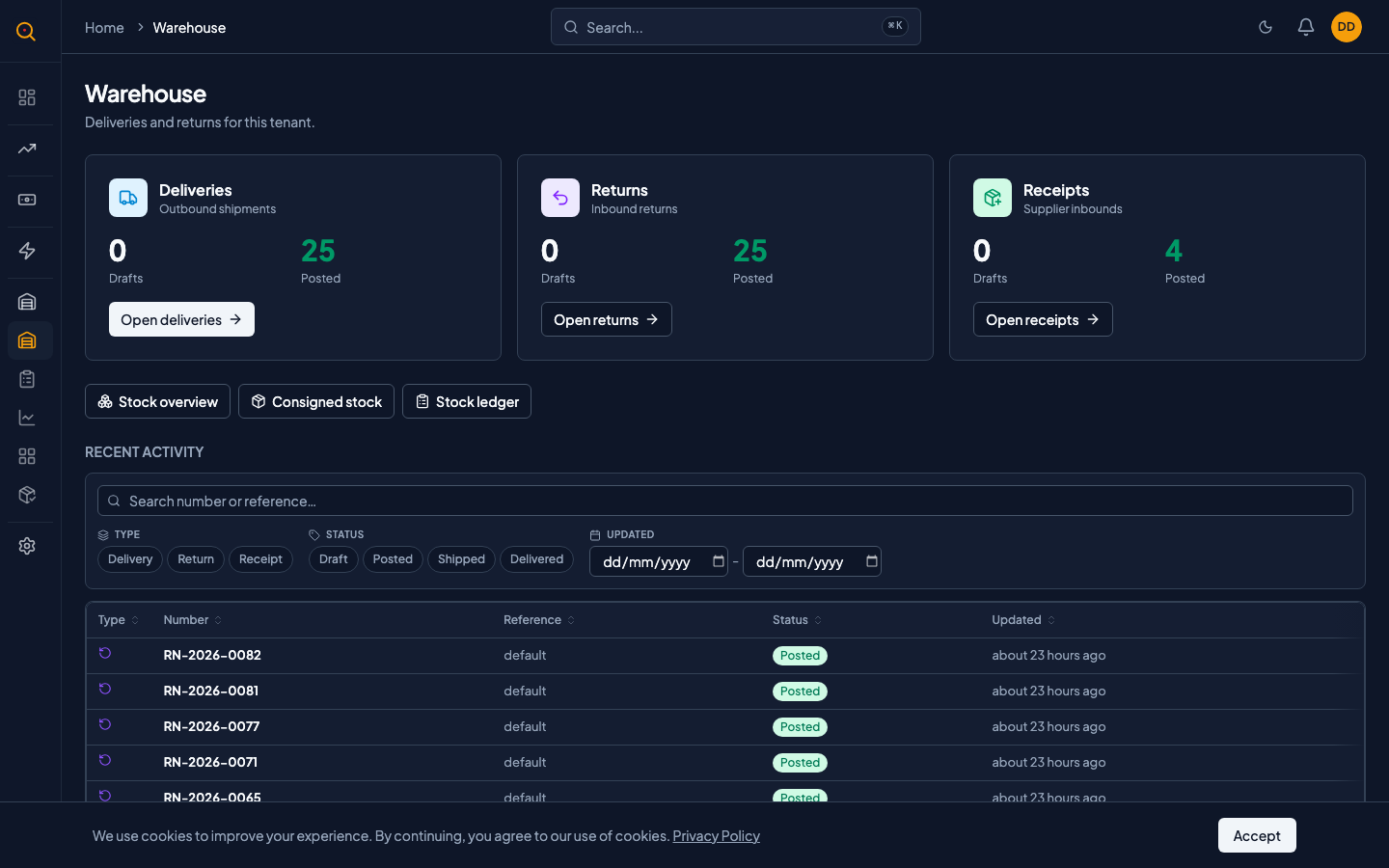
The Warehouse Hub is your fulfillment team's single-screen command center showing everything in motion. It displays draft counts for deliveries, returns, and receipts so your crew knows exactly what needs action.
The Warehouse Hub consolidates deliveries waiting to go out, returns coming back, and stock receipts from suppliers into one place. Use the counter cards to see draft counts at a glance, the activity feed to track recent documents, and the quick links to access your inventory tools. It replaces navigating through three or four different sections with a single morning briefing for your warehouse crew.
What you can do
- View draft and posted counts for deliveries, returns, and receipts at a glance.
- Scan a unified activity feed that merges deliveries, returns, and receipts into one timeline.
- Click any activity feed row to jump directly to that document's detail page.
- Filter the activity feed by document type, status, or date range to find what you need.
- Access your stock overview, consigned stock, and movement ledger from the side panel.
- Identify document status instantly with color-coded chips for completed, draft, and cancelled.
How to...
Warehouse staff and managers can manage daily fulfillment operations from the hub. These walkthroughs cover navigating the hub, using the activity feed, and starting your daily workflow. Each takes under 2 minutes.
Navigate the Warehouse Hub
- Navigate to Warehouse Hub from the sidebar. This is the default landing page for warehouse users.
- At the top, you'll see three counter cards: Deliveries, Returns, and Receipts. Each shows a count of draft documents (needing action) and posted documents (completed).
- Click the button on any counter card (for example, View Deliveries) to jump to the full list for that document type.
- Below the counters, use the three side links: Stock, Consigned Stock, and Movements, to access your inventory views.
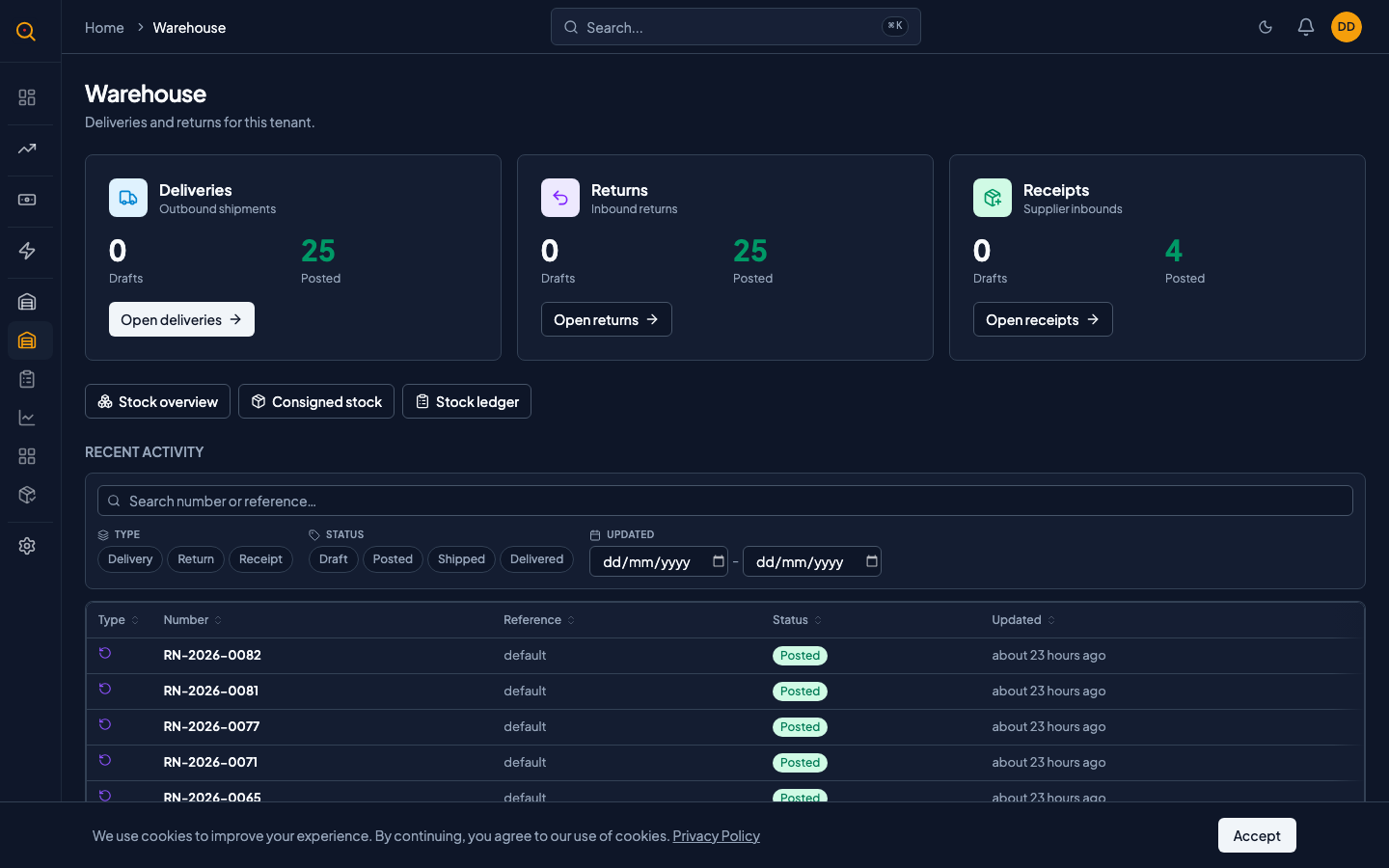
- The main area shows the Recent Activity feed, which merges all fulfillment documents into one timeline.
Use the activity feed to find documents
- Scroll through the Recent Activity feed to see all your recent fulfillment documents.
- Each row shows the document type (delivery, return, or receipt), its number, a subtitle with helpful context (like the client name or supplier), its status chip, and when it was last updated.
- Click any row to open that document's detail page in a new tab or the same window.
- Use the filter bar above the feed to narrow results by type (for example, show only returns), by status (show only drafts), or by date range.
- If you have more than 25 items, use the pagination controls at the bottom of the feed to move between pages.
Start your day with the hub
- Log in and land on the Warehouse Hub.
- Check the three counter cards. The number in "draft" tells you how much paperwork needs your attention today.
- Filter the activity feed to show only draft documents so you can work through pending items.
- Click each draft to review, edit, or post it. The hub itself is read-only. All the actual posting and editing happens on the individual document pages.
- Refresh the page or let the data auto-refresh to see your counters update as you work through the queue.
Common scenarios
A warehouse manager's morning routine
- Log in and land on the Warehouse Hub.
- Check the three counter cards to see draft counts for deliveries, returns, and receipts.
- Click into the oldest delivery, review the items, and post it.
- Return to the hub. The counter has updated. Repeat for each document.
- Repeat until all counters show zero drafts and your floor is caught up.
Quickly finding a specific delivery from last week
- Set the type filter to Delivery on the activity feed.
- Set the date range to cover the week the delivery was created.
- Scan the filtered results by client name and delivery address in the subtitle.
- Click the matching row to open the delivery note's detail page.
- Confirm what was sent, when, and to which address.