Suppliers
What are Suppliers?
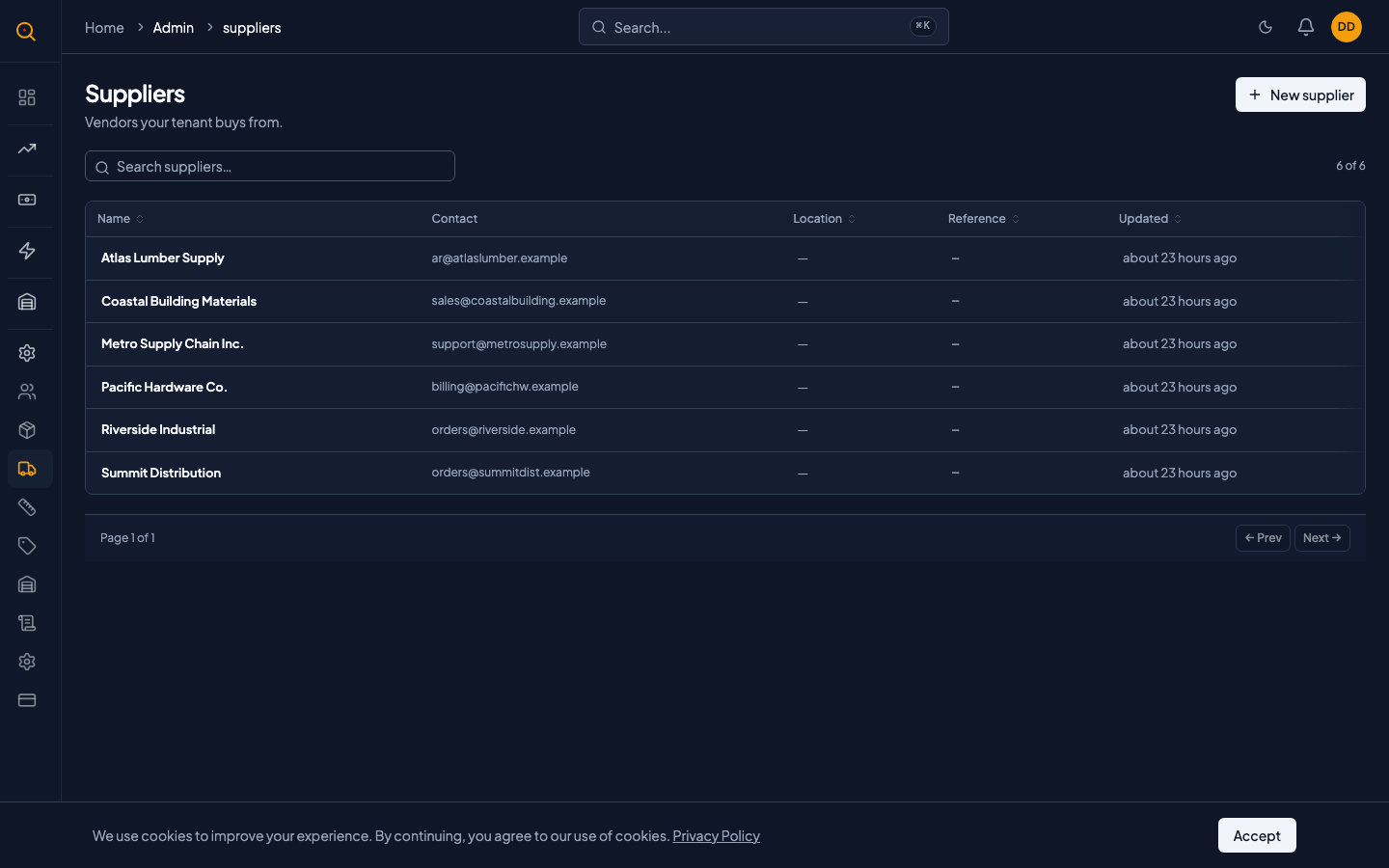
Suppliers are the companies and vendors you buy from, tracked in a central searchable directory. Link suppliers to stock receipts to build a traceable history of who supplied what.
Every time you receive new stock, link it to a supplier so you know where your inventory came from. The Suppliers section gives you one place to store contact details, tax numbers, and internal account references for every vendor. Keep your vendor directory searchable and your receipt history traceable.
What you can do
- Add suppliers with company name, address, phone, email, and tax identification number.
- Assign an internal reference code to each supplier for cross-referencing with your accounting system.
- Search your supplier directory instantly by name, reference number, or email.
- Add free-form notes to any supplier for payment terms, contacts, or delivery schedules.
- Link suppliers to stock receipts to build a traceable history of your supply chain.
- Remove suppliers you no longer work with while protecting linked receipt history.
How to...
Admins and managers can add, edit, and remove suppliers from the vendor directory. These walkthroughs cover creating new suppliers, updating contact details, and handling supplier removal. Each takes under a minute.
🔑 Admins and managers⏱ Under 1 minute per task
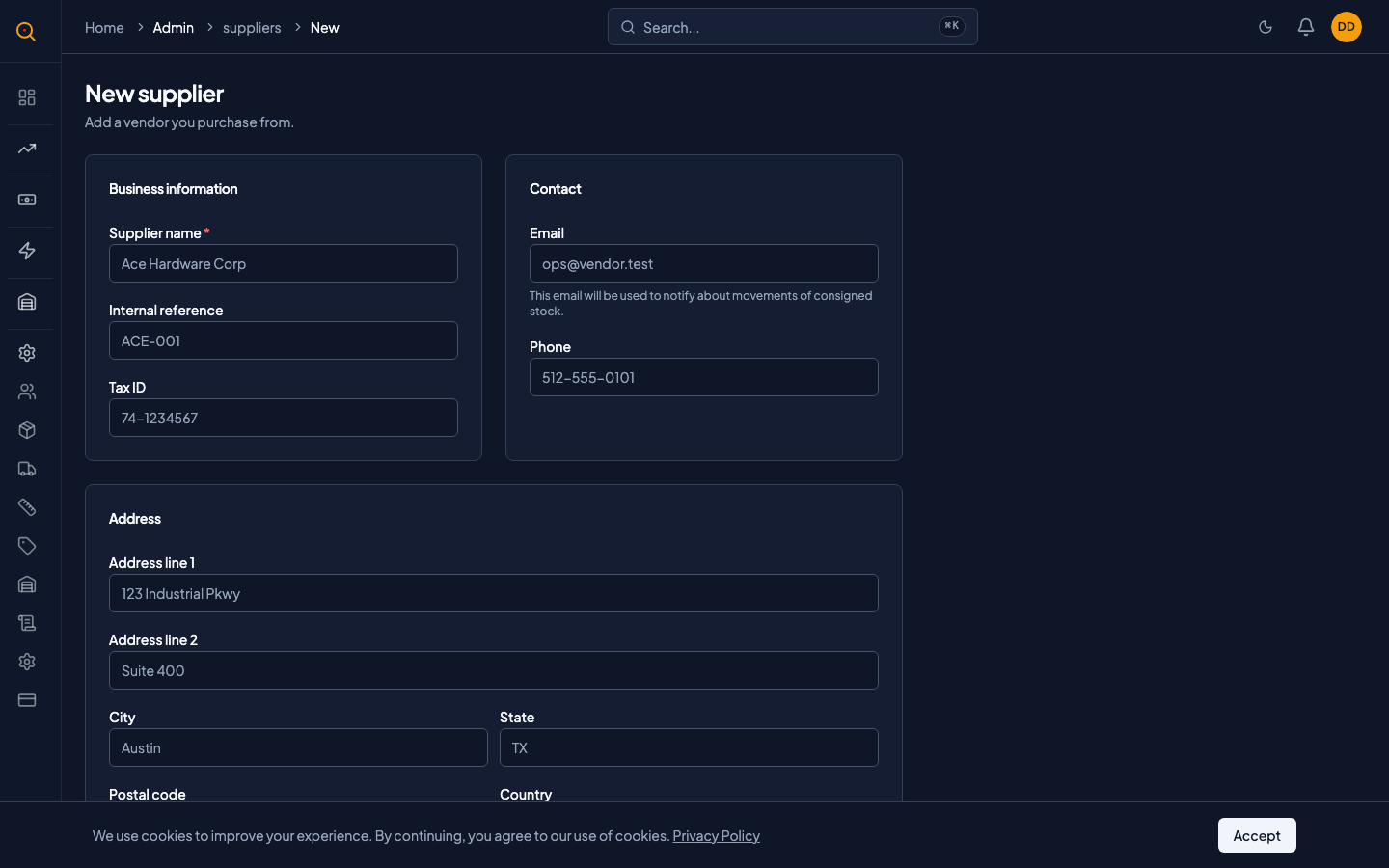
Add a new supplier
- Navigate to Suppliers from the sidebar to open your vendor directory.
- Click the New Supplier button in the top-right corner.
- Enter the supplier's company name. This is the only required field.
- Optionally fill in the reference code (your internal account number for this vendor), tax number, email, phone, and address fields.
- Add any notes in the notes field: payment terms, delivery schedules, or preferred contacts.
- Click Save. The supplier now appears in your directory and is available to link to stock receipts.
Edit a supplier's information
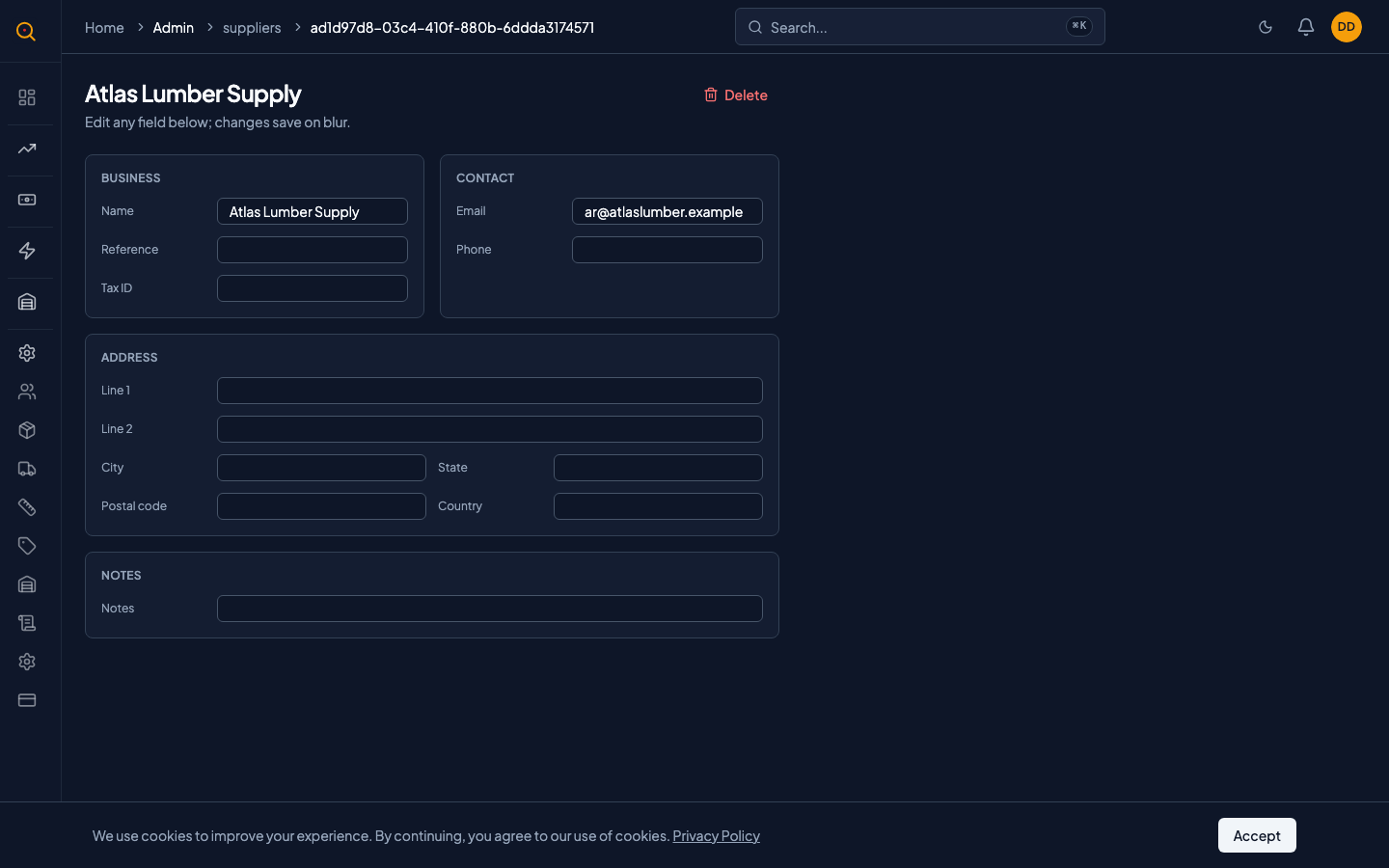
- From the supplier list, click on the supplier you want to update.
- Click Edit to switch to edit mode.
- Change any fields that need updating: contact details, reference codes, or notes.
- Click Save. The updated information appears immediately across all screens and documents.
Remove a supplier
- Open the supplier you want to remove from the list.
- If the supplier has no stock receipts linked to it, you can delete it directly using the delete action.
- If the supplier has existing stock receipts, you'll see a message telling you the supplier can't be deleted because it's referenced by your inventory history. In this case, leave the supplier in place. It won't affect your day-to-day work, and your receipt history stays accurate.
- Alternatively, if your team no longer works with this supplier, you can clear out the details and add a note like "inactive." The name stays, but everyone knows it's no longer current.
Common scenarios
Setting up a new vendor relationship
- Open the Suppliers page and click New Supplier.
- Enter the company name, reference code, and contact details.
- Add the supplier's address, phone, and email.
- Write relevant notes about payment terms or preferred contacts.
- Save. The supplier is now available on all stock receipt dropdowns.
Auditing which suppliers your inventory came from
- Navigate to the product's inventory page.
- Locate the stock receipts that brought the product in.
- Click the supplier name on the receipt to view contact details.
- Reach out to the supplier about the quality concern.
- Confirm supplier linkage on the receipt for accurate traceability.