Return Notes
What are Return Notes?
Record and post client returns to put returned items back into inventory automatically. Each return note links to the original delivery for accurate stock tracking.
A return note is the document you use when a client sends products back. It records what came back and puts those items into your inventory by reversing the delivery. Your inventory counts stay accurate without manual math or spreadsheets.
What you can do
- Create a return note linked to the original delivery with automatic product and quote lookup.
- Return part of a delivery by recording exactly which quantities came back.
- Send returned items to any warehouse location including quarantine areas for damaged goods.
- Track the reason for every return with a note for context when reviewing history later.
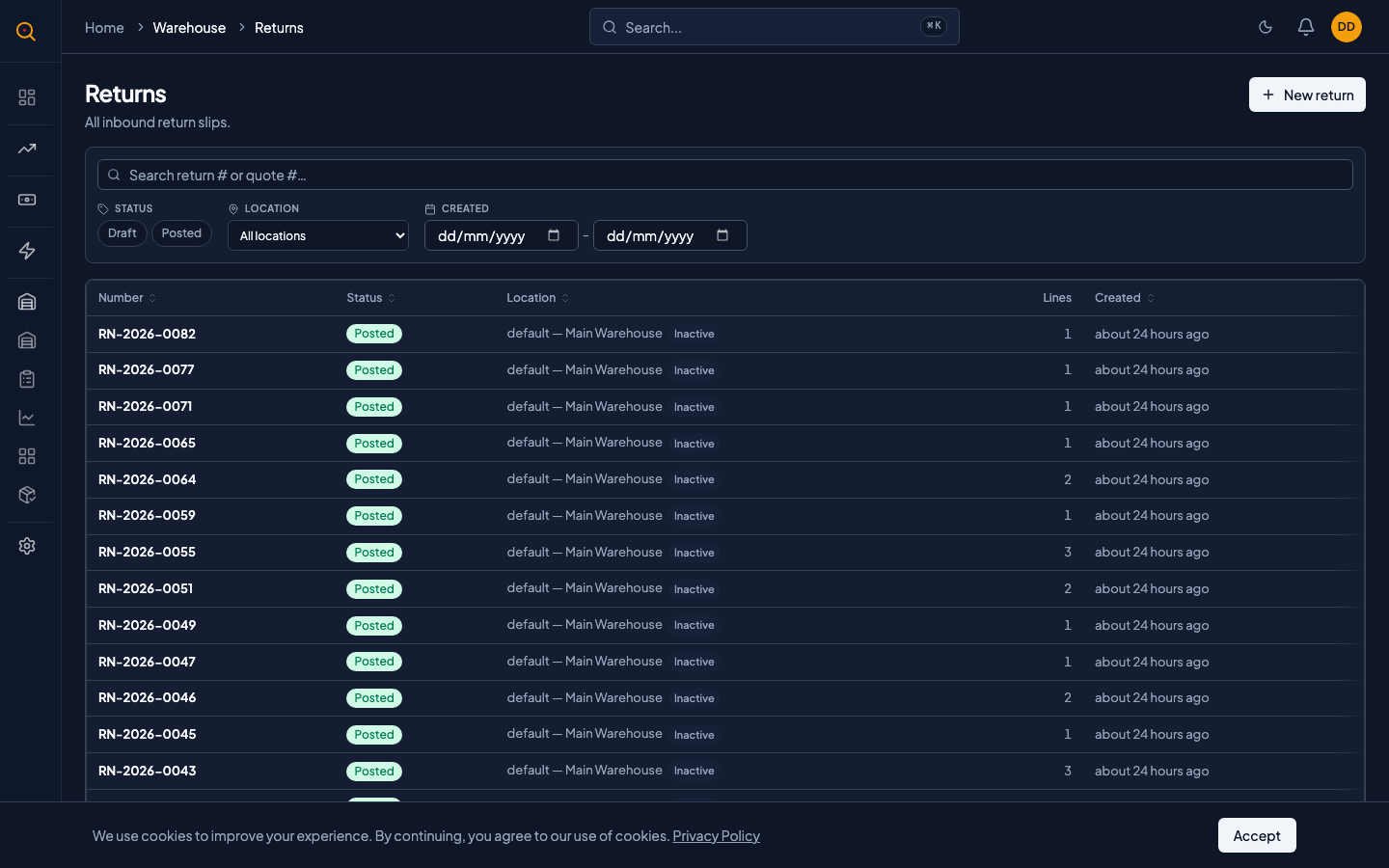
- See all return notes on one page filtered by status, location, or delivery.
- Protect inventory accuracy with automatic stock updates and over-return prevention against the original delivery.
How to...
Warehouse staff can create, post, edit, and delete return notes. Each task takes under 2 minutes.
🔑 Warehouse staff⏱ Under 2 minutes per task
Create a return note
- Navigate to Returns from the sidebar (under Fulfillment) to see your list of return notes.
- Click the New Return button at the top of the page.
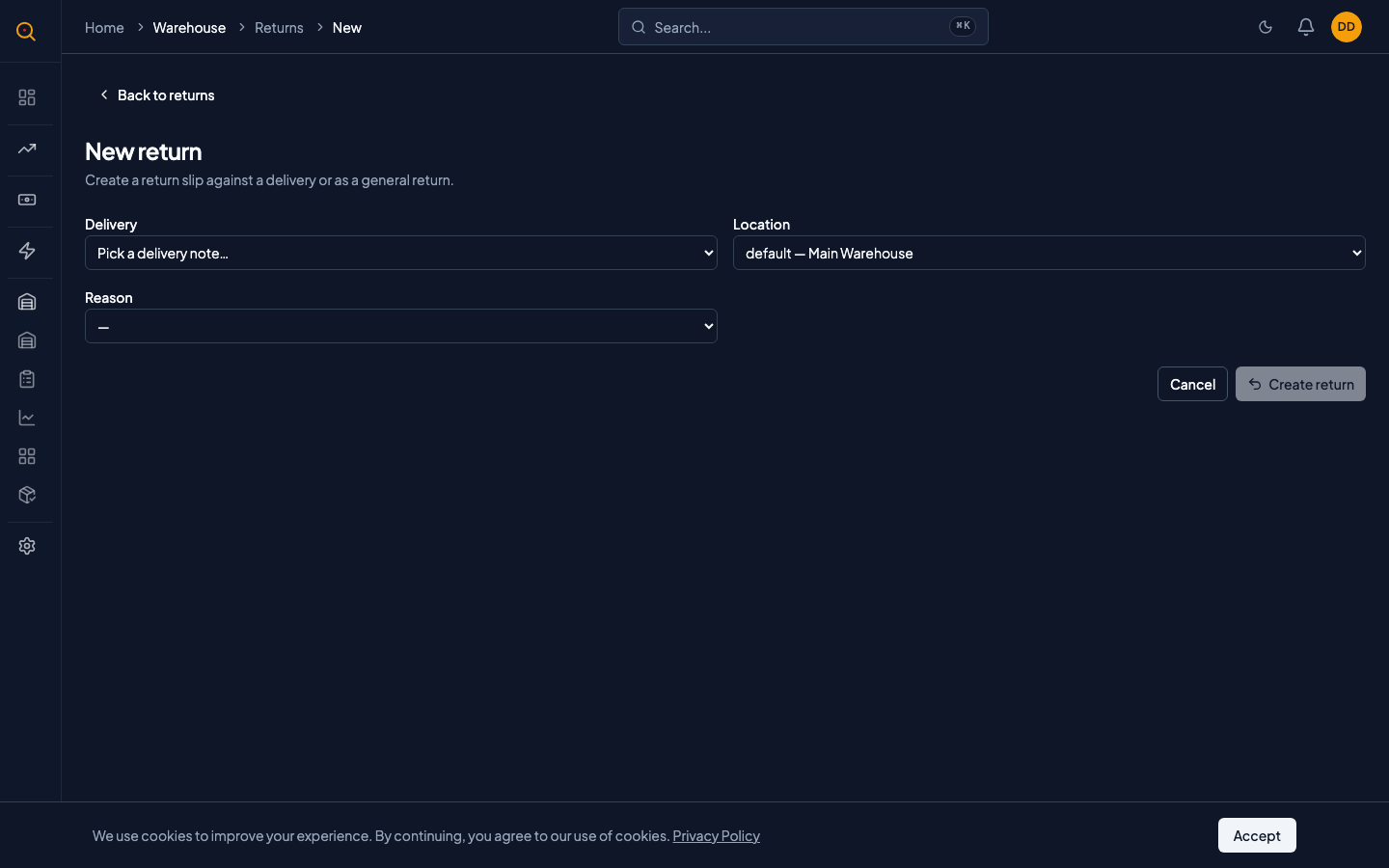
- Pick the delivery note that the client is returning items from. Quotery shows you a list of completed deliveries. Choose the right one.
- Choose which location the returned items should go to. This defaults to where they were originally shipped from, but you can pick any active location your team uses.
- For each item being returned, enter the quantity coming back. The system shows you how many were originally delivered and how many you've already returned, so you can't accidentally over-return.
- Optionally write a reason for the return. Something like "Client received wrong color" or "Box 3 damaged in transit."
- Click Save. Your return note is now in draft status, ready for review before you finalize it.
Post (finalize) a return note
- Open the draft return note you want to finalize.
- Review the items and quantities to make sure everything is correct.
- Click the Post button. This is the final step. Once posted, inventory levels update immediately and the return is recorded in your stock history.
- The return note now shows as Posted. The returned items are back in your inventory, visible on your stock overview page.
Edit or delete a draft return note
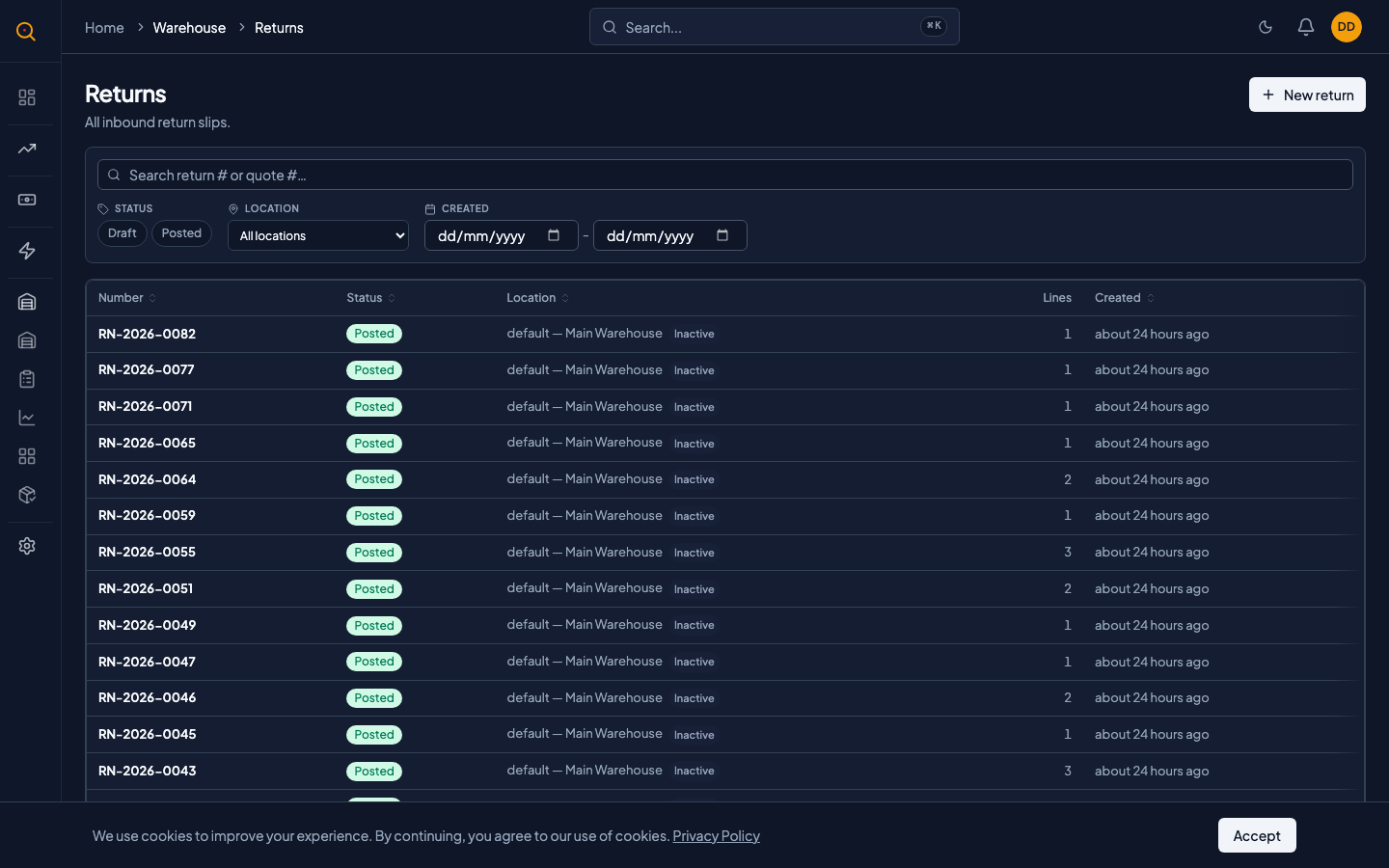
- Open the draft return note from your returns list.
- To change the location, reason, or the items being returned, make your edits directly on the page and click Save.
- If you need to add or remove line items entirely, use the edit controls on each item row.
- To delete the draft entirely (for example, if you created it by mistake), use the Delete action. This only works while the return note is still in draft. Once posted, a return note cannot be deleted.
- If you need to reverse a posted return, you'll need to create a stock adjustment instead (see the Inventory section).
Common scenarios
Processing a client return from start to finish
- Open the original delivery note to confirm what was sent to the client.
- Create a return note linked to that delivery for the damaged product.
- Enter the quantity being returned and set the location to a quarantine area.
- Add a reason note like "Box crushed during transit — inspect before restocking."
- Click Post to move the items out of deliverable stock and into quarantine.
- Review your inventory ledger to confirm it shows exactly what happened, when, and why.
Handling returns across multiple warehouse locations
- A delivery went out from the satellite location but the client returns items to the main center.
- You create a return note and select the main distribution center as the return location.
- The returned stock goes into the main center's inventory instead of the original satellite location.
- The items are immediately available at the main center for future orders without a stock transfer.