Quotes
What are Quotes?
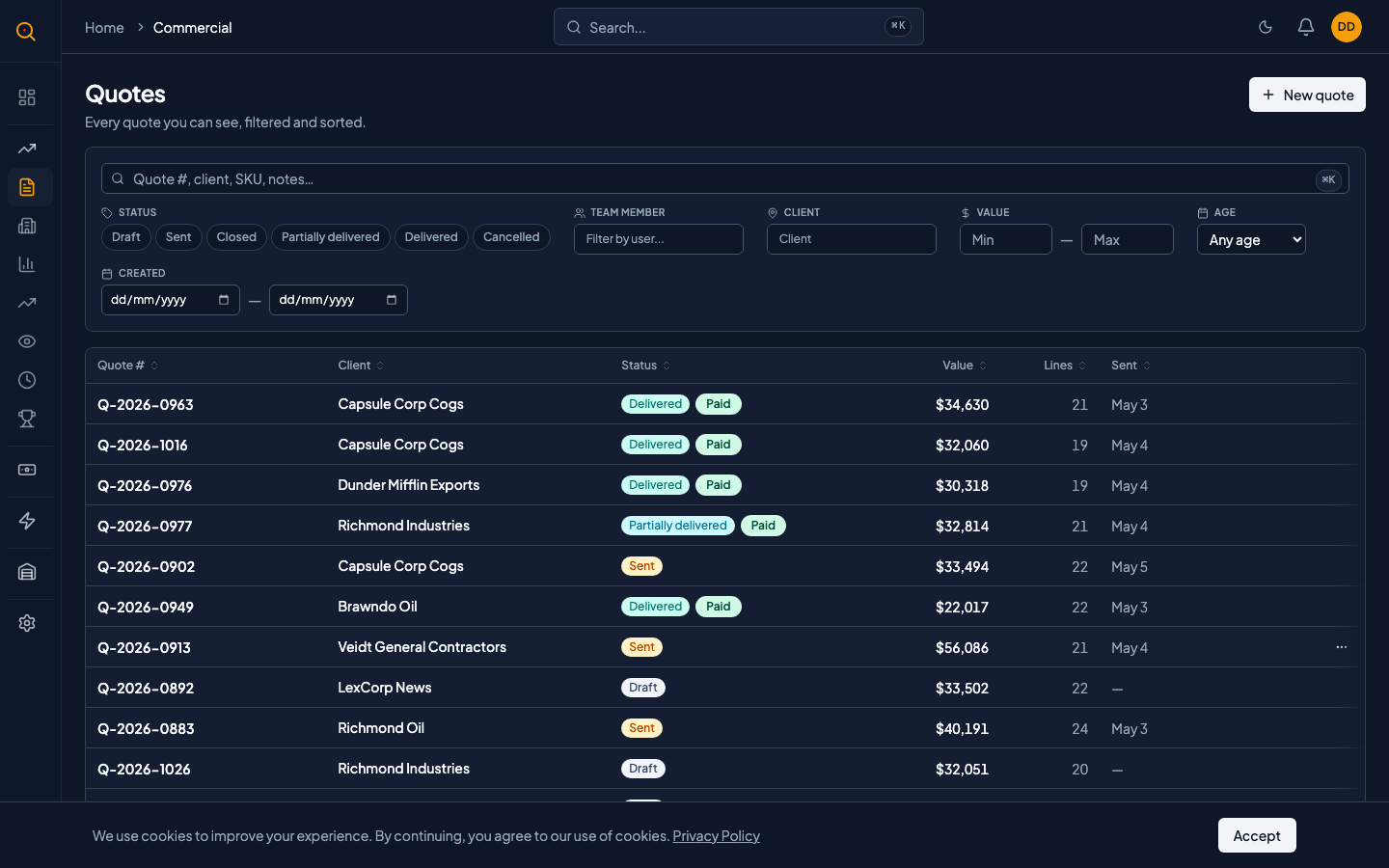
Create professional quotes with your product catalog, send them to clients, and close deals. Stock is reserved automatically on acceptance.
Quotes are the heart of Quotery. You create a quote from your product catalog, send it to a client, and close it when they accept, which reserves stock and starts fulfillment. Every quote gets a unique gapless Q-YYYY-NNNN number for a complete audit trail from draft to delivery.
What you can do
- Create professional quotes with product catalog search, manual line items, and automatic catalog pricing.
- Organize line items into named sections and drag to reorder them for a clean proposal.
- Set header-level and per-line discounts with 6-decimal precision and Preview Discount for exact target totals.
- Track every quote through its full lifecycle from draft to delivered or cancelled.
- Share quotes with your team for view-only or edit access and transfer ownership when needed.
- Reopen closed or cancelled quotes to bring them back to draft or sent when deals change.
- Duplicate any quote with one click for repeat orders from the same client.
- Use keyboard shortcuts like Cmd+D to duplicate lines and Cmd+K to search the catalog.
- Select multiple lines at once to move or delete them in bulk using the floating action bar.
- Export quotes to branded PDF or CSV with your company logo for client review and signing.
- See payment status chips at a glance on the quote list and detail views.
- Use AI Follow-up to draft personalized emails for unanswered quotes that you review and send.
How to...
Sales reps and managers can create, send, close, and reopen quotes. Each task takes under 2 minutes.
🔑 Sales reps and managers⏱ Under 2 minutes per task
Create and send a quote
- Navigate to Quotes from the sidebar and click New Quote. Choose Blank to start fresh, or AI Import to build from a supplier document.
- Pick a client from the dropdown. The delivery address fills in automatically from their default. Create a new address inline if needed.
- Add line items: press Cmd+K to open the product picker, search by name or SKU, and select. Or type a manual description for non-catalog items.
- Adjust quantities, unit prices, and discounts as needed. Group lines into sections by clicking Add Section and dragging lines into it.
- Review the totals. If you need to hit an exact target, use the Preview Discount feature: type your target total and Quotery solves for the uniform discount.
- Click Send to transition from draft to sent.
- Use the Share button to email a portal link to your client so they can view, accept, or request changes.
Close a quote after the client accepts
- Open the sent quote.
- Click Close. Quotery reserves the stock for every tracked product on the quote. This is an over-reservation contract: the quote always closes. Stock shortages are reported, not blocked.
- If any products are out of stock, you will see a yellow banner listing exactly which products are short, how much you need, and how much is available. The quote still closes. Delivery enforces availability later.
- A draft Delivery Note is automatically created covering every tracked line item, so your warehouse can start picking immediately.
- If your account has the finance approval gate turned on, closing happens in two steps. First the quote moves to ready for billing. Your finance team confirms payment, and only then does stock get reserved and the delivery note appear.
Cancel a quote
- Open the quote and click Cancel.
- If the quote was still in draft or sent, it cancels immediately with no side effects.
- If the quote was already closed, cancelling releases the reserved stock back to available. Those units are freed up for other quotes.
- If deliveries have already shipped against this quote, you cannot cancel. Post a Return Note instead to bring the goods back.
Reopen a closed or cancelled quote
- Open the quote you want to reopen.
- If the quote was cancelled, select Reopen and pick draft or sent as the target status. There is no confirmation step. The quote is back in play immediately.
- If the quote was closed, select Reopen. A confirmation dialog appears because reopening a closed quote deletes any draft delivery notes and releases stock reservations. Confirm to proceed.
- Pick whether to reopen as draft (still editable) or sent (already shared with the client).
- If deliveries have already shipped against this quote, the reopen option is disabled. The tooltip explains why. You cannot undo a delivery.
Share a quote with your team or transfer ownership
- Open the quote and click the Share button in the top bar.
- Choose Team Share. Search for a colleague by name and pick whether they get view-only or edit access.
- Click Share. They will see the quote in their list and can open it from there.
- To transfer ownership instead, click Transfer Ownership. Pick the new owner, optionally add a reason, and confirm.
- The new owner takes over the quote immediately. The previous owner keeps view access. Both actions are logged in the audit trail.
Common scenarios
A client wants to negotiate pricing
- Keep the quote in draft while you adjust quantities, discounts, or add notes.
- Use the Preview Discount feature to target a specific total and let Quotery calculate the uniform per-line discount.
- Review the calculated discount with 6-decimal precision so the math never drifts.
- Send the updated quote to your client through the portal for review.
Follow up on a sent quote that hasn't been answered
- Open the sent quote and use the AI Follow-up feature.
- Review the AI-generated email draft that references the quote details in your client's language.
- Edit the draft as needed and send it to your client.
- Check the engagement timeline to see if the client has viewed the portal or downloaded the PDF.
- If the client has viewed multiple times without responding, follow up by phone.
A closed deal changes — the client wants to add items
- Reopen the closed quote back to draft to release stock reservations and delete draft delivery notes.
- Add the new items and adjust quantities as requested.
- Send the updated quote through the same portal link.
- When the client accepts, confirm that stock is reserved fresh and a new delivery note is created.