AI Quote Import
What is AI Quote Import?
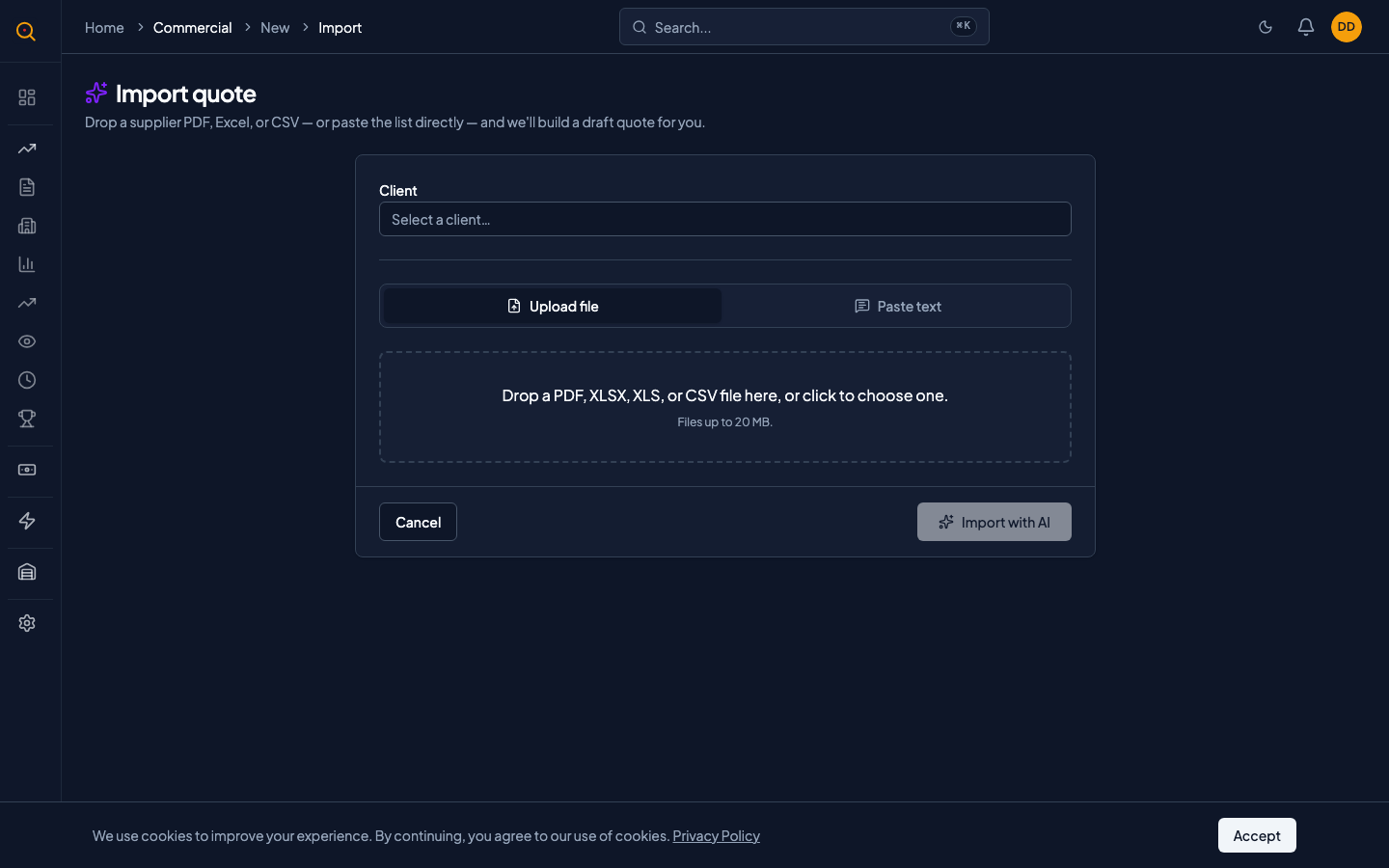
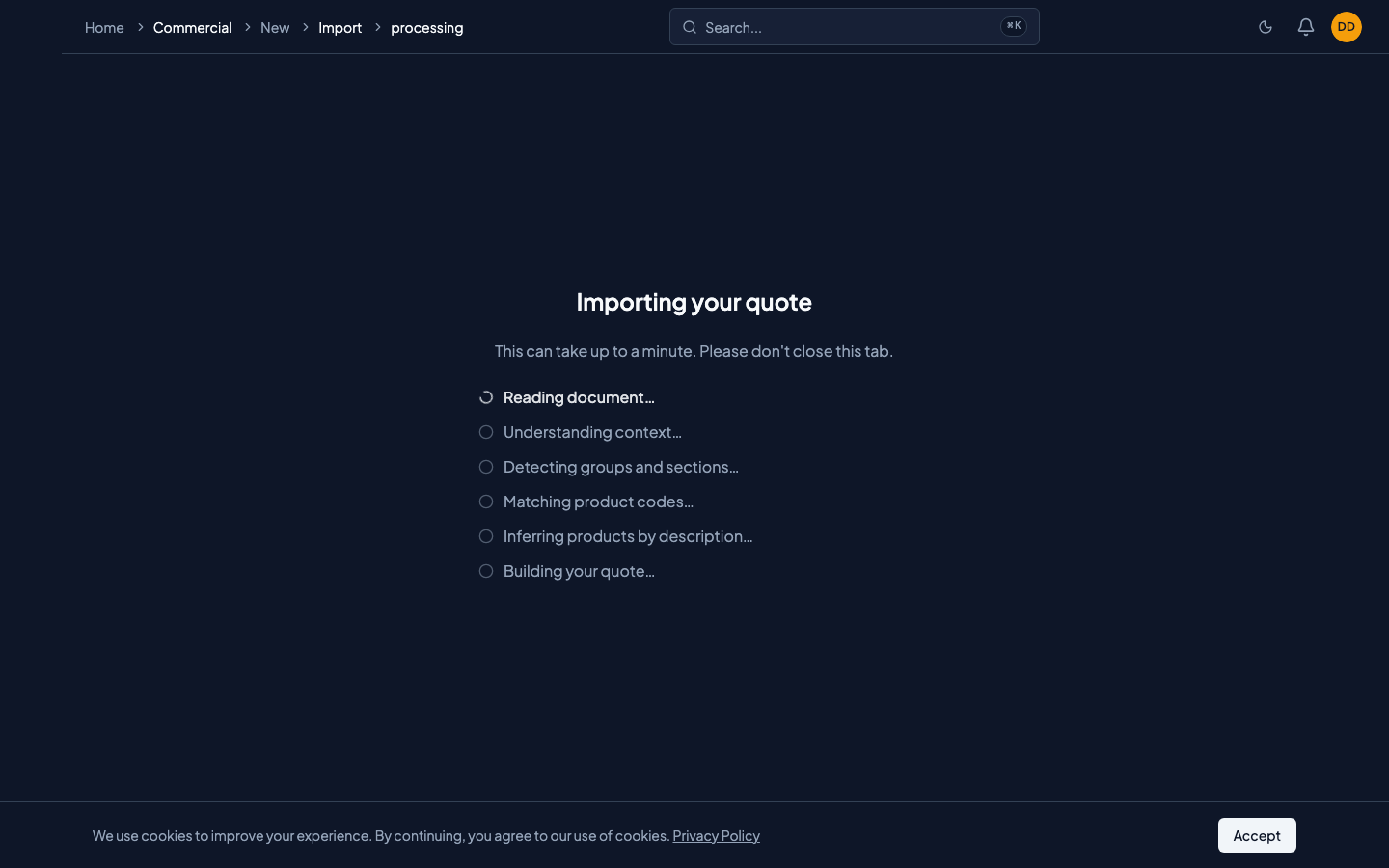
AI Quote Import lets you drop a supplier's PDF, spreadsheet, or pasted text into Quotery and get a fully structured draft quote in seconds. The AI extracts every line item, matches them to your product catalog, and flags the ones it is unsure about for your review.
It reads the supplier's document, extracts line items, matches them to your catalog where possible, and flags uncertain matches for review. No manual typing is required. Just drop, review, and send.
What you can do
- Import from PDFs, Excel files, CSV files, or plain text pasted from an email.
- Get instant product matching by product code first, then by AI for remaining items.
- Review each line's match status: green for exact matches, blue for AI-picked, yellow for not found.
- Confirm or change AI matches with one click to snap the price to your catalog price.
- See a closing summary banner showing how many lines matched and how many need review.
How to...
Sales reps and managers can import supplier documents and create draft quotes from them. These walkthroughs cover the process and each takes under two minutes.
🔑 Sales reps and managers⏱ Under 2 minutes per task
Import a supplier PDF or spreadsheet
- From the Quotes page, click New Import.
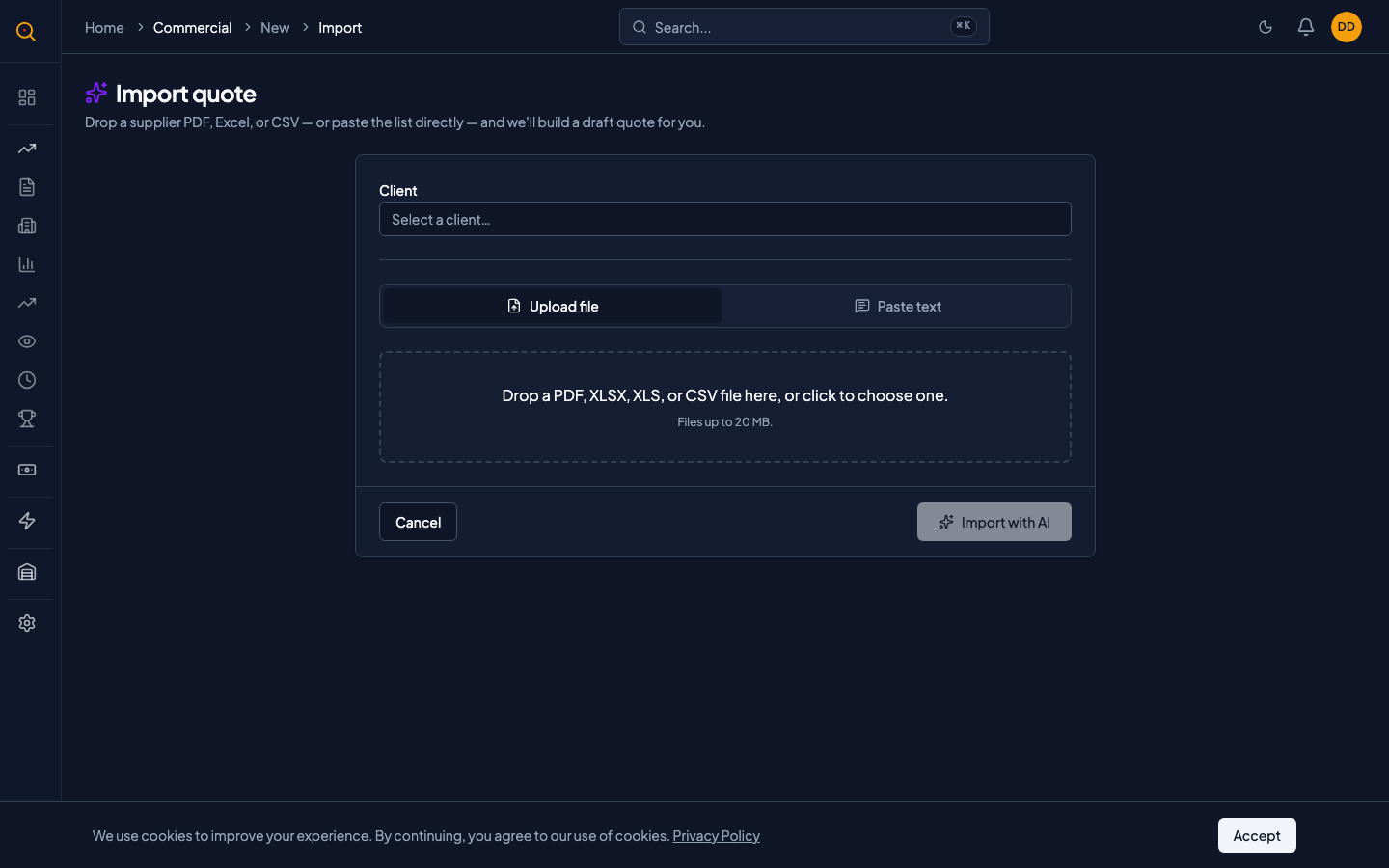
- Drag and drop your supplier's file onto the drop zone or paste the text directly.
- Select the client this quote is for. This field is required.
- Click Import. The AI processes the document, which may take 30 to 60 seconds for large files.
- Review each line's match badge on the new draft quote and confirm or correct as needed.
- Make any adjustments to quantities and prices, then send to your client as usual.
Confirm or change an AI match
- On the imported draft quote, look at each line's colored badge.
- For blue AI-picked lines, click the checkmark icon to confirm. The price updates to your catalog price.
- For yellow not-found lines, click the badge to search your catalog and pick the right product.
- Once confirmed, the badge disappears and the line behaves like any hand-entered line.
Common scenarios
A supplier emails you a PDF quote — turn it around same day
- Download the supplier's PDF and drop it into Quotery's AI Import.
- Select your client and click Import. The AI extracts every line and matches what it can.
- Review the unmatched lines, usually just a few, and confirm the AI matches.
- Send the clean quote to your client. Minutes instead of hours.
A line in the supplier's document does not exist in your catalog yet
- The AI flags the unrecognized line as not found and leaves the product field empty.
- Create a temporary product on the spot via the product creation modal and link it.
- Alternatively, type a manual description override and handle catalog creation later.
- The quote remains a valid draft either way. Send it once all lines have approved products.