Products
What are Products?
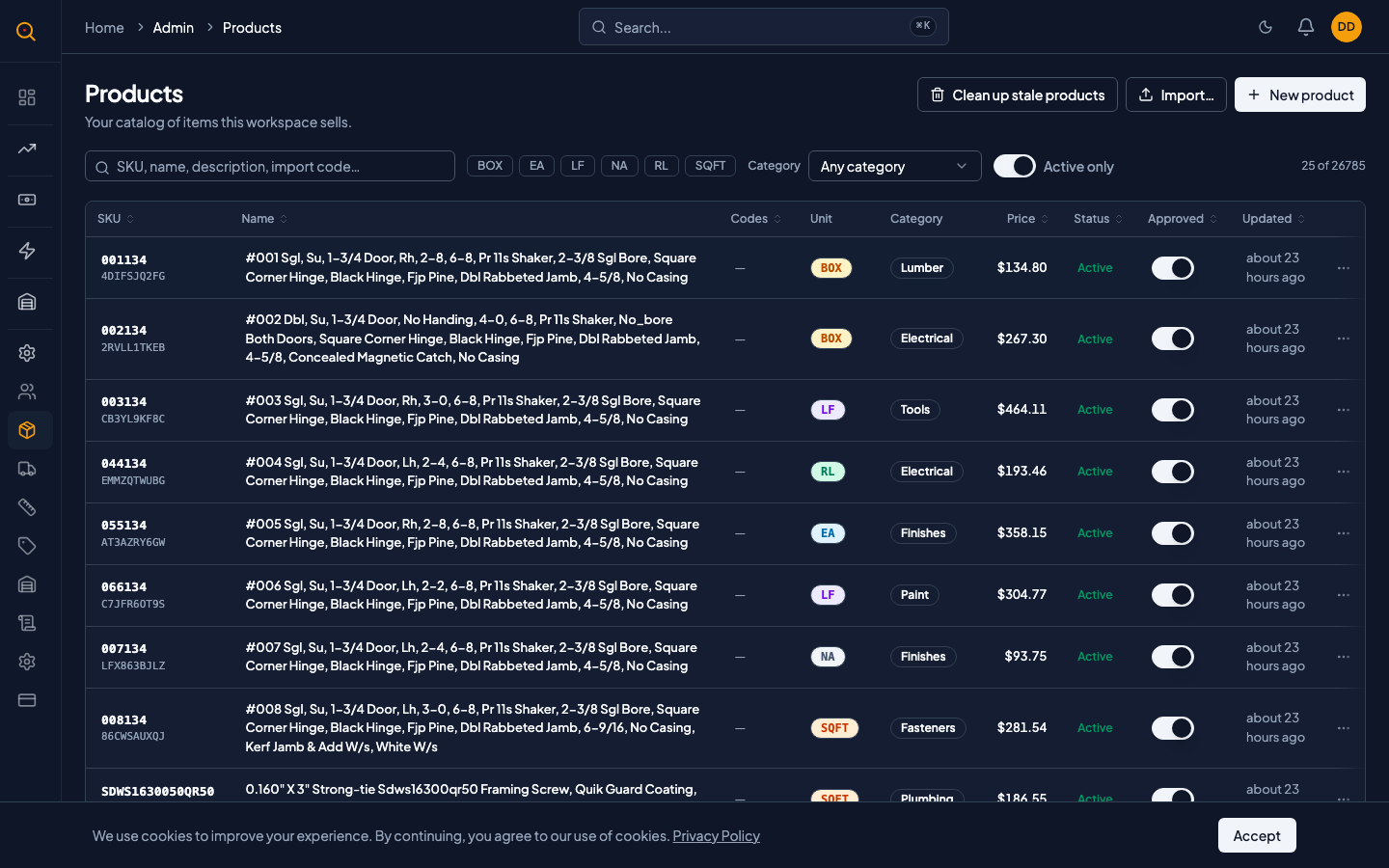
Manage your product catalog so your sales team always knows what is available and at what price. Products pre-fill on quotes and stock levels update automatically.
Products are the items you sell, the catalog your sales team picks from when building a quote. Each product has a name, SKU, price, unit of measure, and optional category. You control which products are active, track inventory, and need manager approval before appearing on quotes.
What you can do
- Build a searchable catalog with names, SKUs, descriptions, prices, and photos.
- Organize products into categories to keep your catalog tidy and easy to search.
- Define units of measure like BOX, EA, LF, or SQFT so every line item is clear.
- Set catalog prices that pre-fill on new quotes with the option to override per quote.
- Mark products as stock-tracked for automatic inventory management or turn tracking off for services.
- Require manager approval for products created by sales reps before they appear on client-facing quotes.
- Upload product photos so your team and clients can visually identify catalog items.
- Import products in bulk from CSV or Excel using the template with validation and clear error reporting.
How to...
Admins and managers can create, edit, approve, import, and archive products. Each task takes under 2 minutes.
🔑 Admins and managers⏱ Under 2 minutes per task
Add a new product to the catalog
- Navigate to Products from the sidebar to open the product catalog.
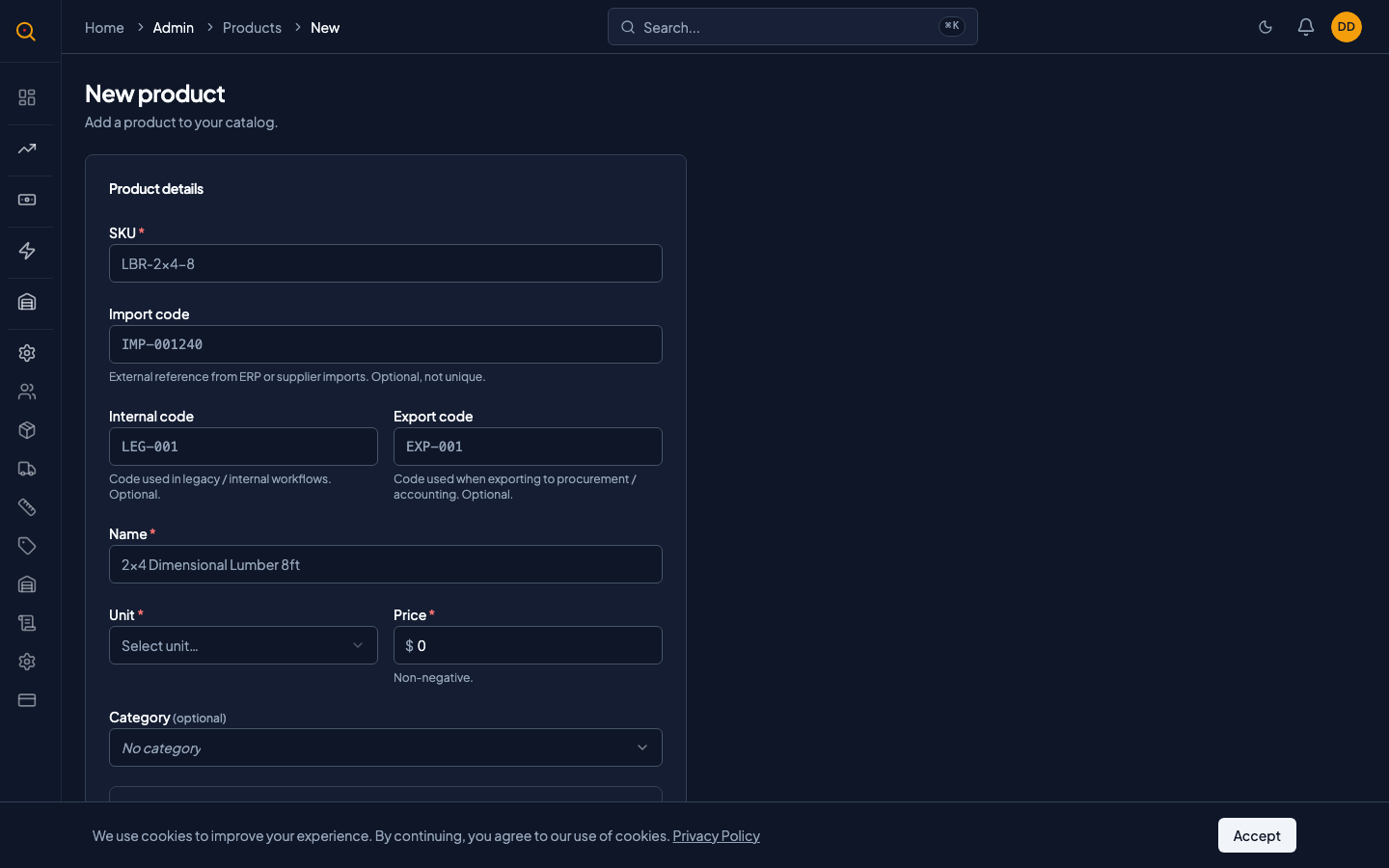
- Click the "New Product" button in the top-right corner.
- Enter the product name. This is what your team and clients will see on quotes.
- Enter a SKU. A short, unique code that identifies this product in your system. Every product in your catalog must have a different SKU.
- Pick a unit of measure from the dropdown. Options like EA for each, BOX for box, or LF for linear foot.
- Optionally select a category, add a description, enter a catalog price, and upload a photo.
- Decide whether this product should track inventory. Leave it on if it's a physical item you keep in stock. Turn it off for services or made-to-order items.
- Click "Save." If you're an admin or manager, the product is ready to use on quotes immediately. If you're a sales rep, the product is created but needs manager approval before it can appear on quotes sent to clients.
Approve a product created by a sales rep
- Open the Products list. Unapproved products are flagged with a status indicator.
- Click on the product that needs approval to open its detail page.
- Review the product details. Check that the name, SKU, price, and unit are correct.
- Flip the "Approved" toggle to on and save. The product is now available for use on all quotes, including ones being sent to clients and PDF exports.
Import products in bulk from a CSV or Excel file
- From the Products page, click the Import button to open the import surface.
- Click Download Template to get a pre-formatted file with all the right columns: name, SKU, unit, category, price, description, and stock tracking.
- Fill in your products in the template. Each row is one product. The SKU must be unique across your entire catalog.
- Upload your completed file by dragging it onto the drop zone or clicking to browse.
- The system validates every row. If there are errors, such as duplicate SKUs or missing required fields, you will see them clearly flagged. Fix the issues in your file and re-upload.
- When validation passes, the products are created. A summary shows you how many were created, how many were updated (if you included existing SKUs), and whether there were any errors.
- If you had errors, click Download Errors to get a file listing only the problem rows with explanations. Fix them and upload again.
Common scenarios
A sales rep discovers a product is missing from the catalog mid-quote
- Open the temporary product modal inside the quote editor without leaving your workflow.
- Enter the product name, SKU, unit, and price, then save to add it as a line item.
- Leave the quote in draft until a manager reviews and approves the new product.
- Have the manager open the unapproved product in the catalog, check the details, and flip the approval toggle.
- Return to the quote and send it to the client now that the product is approved.
Updating catalog prices without breaking old quotes
- You navigate to Products and update the prices for the affected items.
- The new price propagates to all draft and sent quotes automatically.
- Previously accepted, closed, or delivered quotes keep their original agreed prices.
- Your active deals stay current without breaking the terms of completed orders.