Locations
What are Locations?
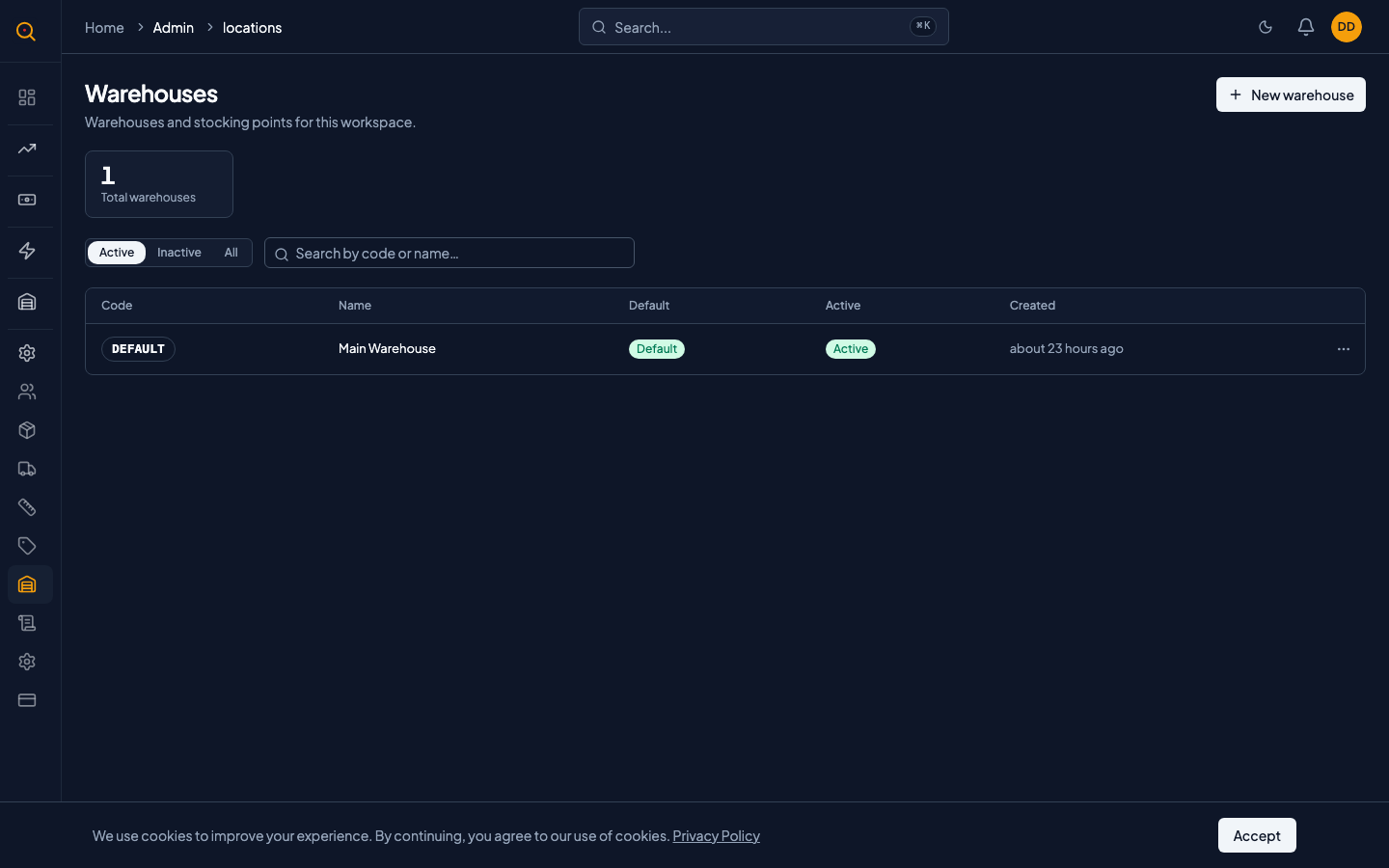
Locations represent the physical places where you keep your inventory, from your main warehouse to satellite stockrooms. Assign locations to every stock movement so you always know where products are sitting.
Every product you track sits at a location, and every delivery goes out from one. Quotery automatically creates a default location called Main Warehouse when your account is set up. Add as many additional locations as your operation needs.
What you can do
- Create multiple locations for each warehouse, branch, or stocking point you operate.
- Assign unique short codes like WH1 or EAST that appear on pick lists and documents.
- Designate one location as the default that pre-selects on new documents.
- Deactivate unused locations to remove them from new-document pickers without losing history.
- Protect your default location from deactivation to keep Quotery working correctly.
- View stock levels by location on every product detail page.
How to...
Admins and managers can create, edit, and deactivate locations. These walkthroughs cover adding a new location, changing the default, and deactivating unused locations. Each takes under a minute.
🔑 Admins and managers⏱ Under 1 minute per task
Add a new location
- Navigate to Locations from the sidebar to open your locations list.
- Click the "New Location" button in the top-right corner.
- Enter a name for the location. Pick something your team will recognize, like "East Wing Storage" or "Job Site Trailer A."
- Enter a short code. It appears on documents and pick lists, so keep it brief and clear. For example: "EAST" or "TRLR-A."
- If you want this to become your new default location, check the "Default" box. Only one location can be the default. If you check it, the current default gets swapped out.
- Click "Save." Your new location is now available to receive stock and appear on fulfillment documents.
Change which location is the default
- Open the location you want to promote to default.
- Click "Edit" to switch to edit mode.
- Check the "Default" box and click "Save." The previous default location is automatically unmarked. There's always exactly one default.
- All new documents like stock receipts, delivery notes, and quotes will now pre-select this location.
Deactivate a location
- Open the location you want to retire from the list.
- If this location is the default, you'll need to promote a different location to default first. Quotery won't let you deactivate the default.
- Use the "Deactivate" action. The location disappears from pickers on new documents, but all existing stock and historical documents still reference it correctly.
- To reactivate later, find the location by switching the list filter to show inactive locations, open it, and click "Activate."
Common scenarios
Expanding from one warehouse to two
- Navigate to Locations and click New Location.
- Name the location and assign a short code your team will recognize.
- Save. The new location now appears on all document pickers.
- Select the new location on incoming stock receipts and outgoing deliveries.
- View inventory reports split across both locations.
Retiring a temporary job-site location
- Open the location page for the completed project site.
- Click Deactivate to remove it from document pickers.
- Verify the location no longer appears on new delivery notes.
- Confirm historical stock movements still reference the correct location.
- Reactivate the location later if the project resumes by opening it and clicking Activate.