Inventory & Stock
What is Inventory & Stock?
The Inventory module shows real-time stock levels for every product at every location, down to the unit. Every stock change writes a permanent ledger entry so you always know what happened and when.
See what you have on hand, what is reserved for closed quotes, and what is available to sell. The formula is simple: available equals on hand minus reserved. The stock movement ledger records seven kinds of movements so you can trace every change.
What you can do
- See real-time stock levels per product, per warehouse, all on one screen.
- Track on hand, reserved, and available quantities for every product at a glance.
- Track consigned stock in a dedicated view, separate from your owned inventory.
- Adjust stock manually with a required reason note that writes an entry in the movement ledger.
- Follow the full audit trail with who did it, when, and why for every stock change.
- Export stock reports as PDFs for warehouse staff, including aisle numbers for pickers.
- Allow negative on-hand stock if your tenant settings permit backorder deliveries.
How to...
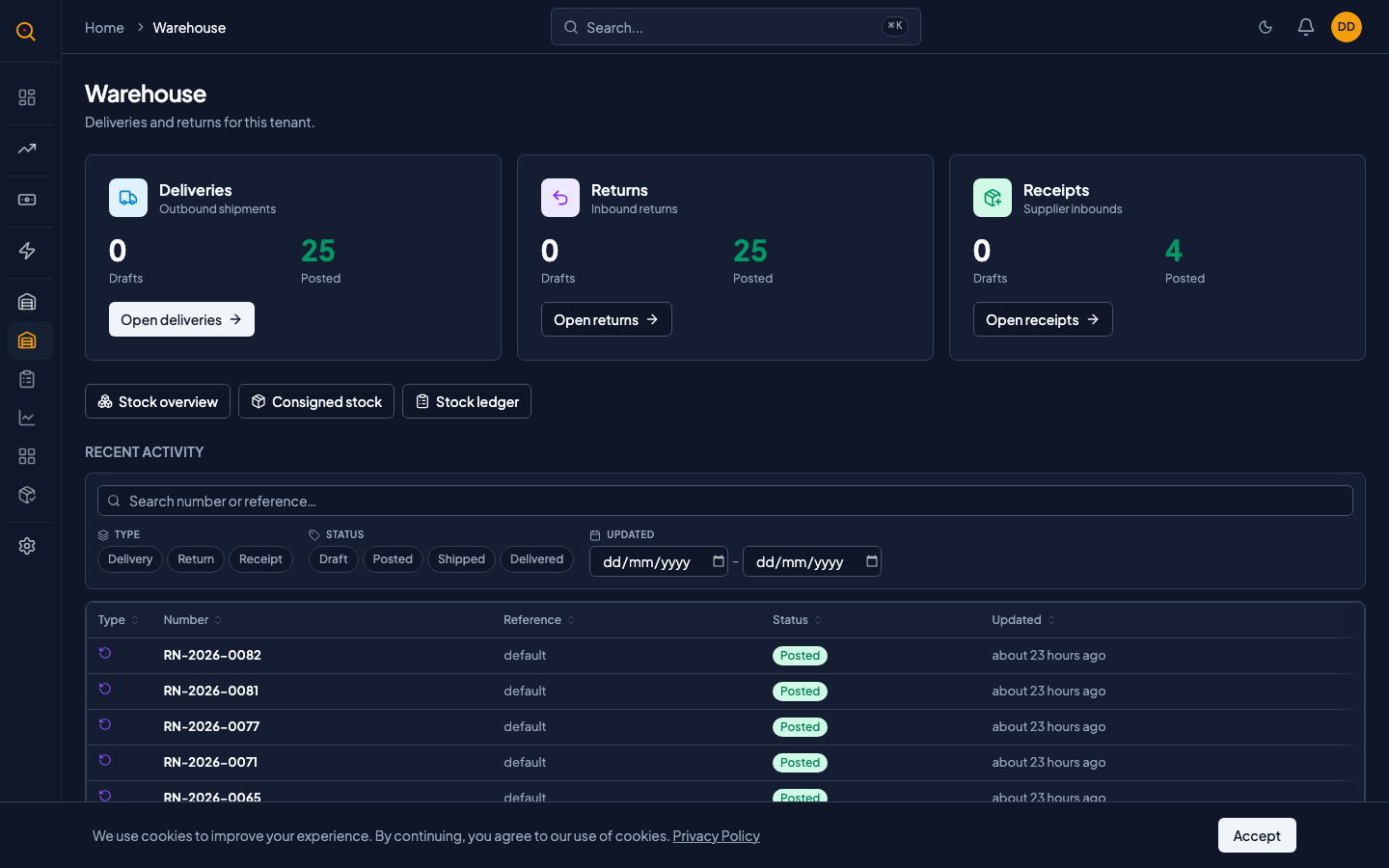
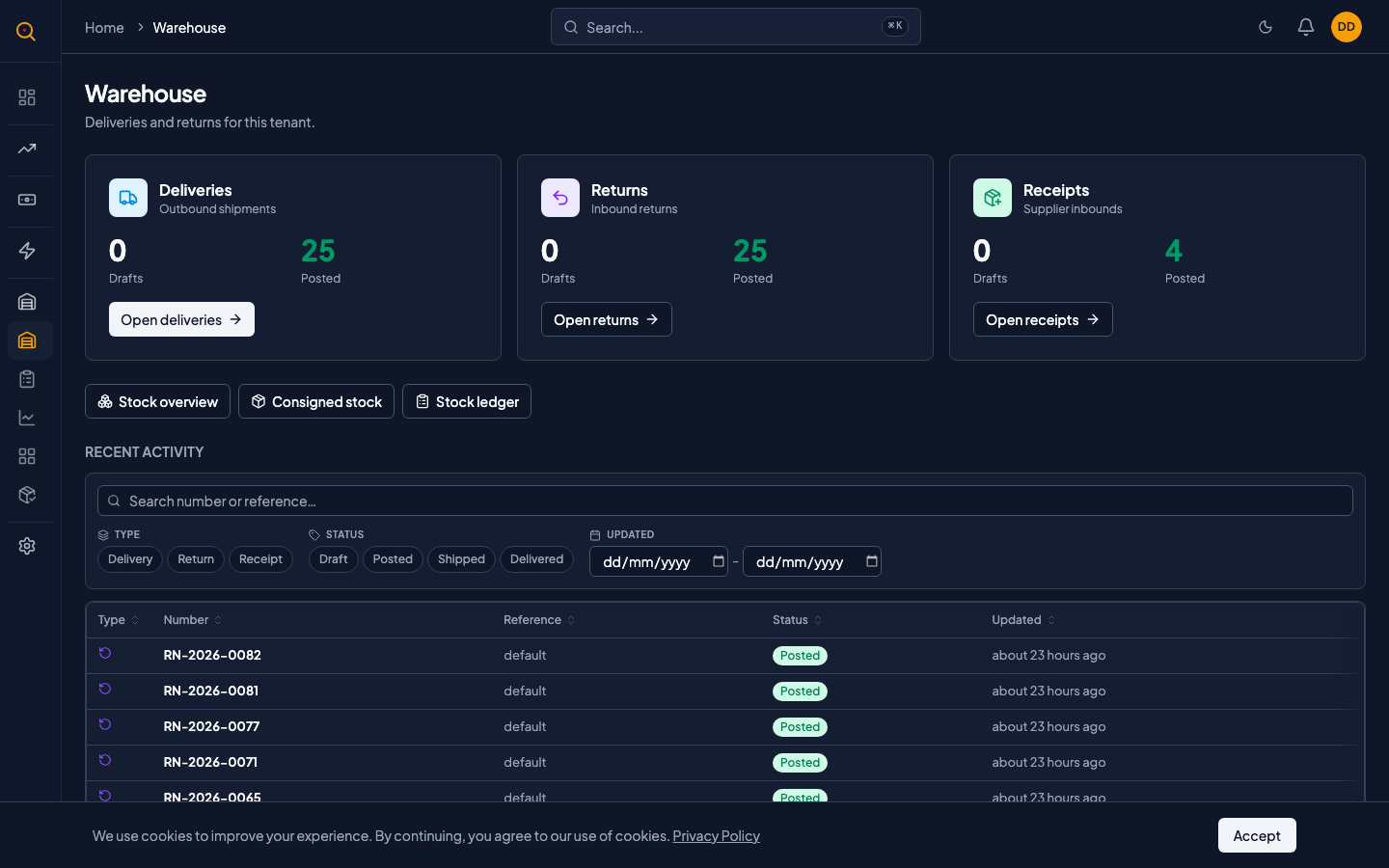
Warehouse staff and managers can view stock levels, make manual adjustments, and set aisle locations. These walkthroughs cover viewing inventory across warehouses, adjusting stock, and updating aisle numbers. Each takes under 2 minutes.
🔑 Warehouse staff and managers⏱ Under 2 minutes per task
View stock levels across your warehouses
- Navigate to Inventory from the sidebar.
- Use the filters at the top to narrow by product, location, or search by product name or SKU.
- Each row shows the product, location, on hand, reserved, and available columns. Available is calculated as on hand minus reserved.
- Click any row to see the full detail view with recent movements and the complete ledger for that stock item.
Make a manual stock adjustment
- Open the stock item you want to adjust.
- Click the Adjust button.
- Enter the delta: how many units to add or subtract from on hand, reserved, or both.
- Write a note explaining why. This is required and stays in the audit trail forever.
- Click Save. The adjustment is applied immediately and an adjustment entry is recorded in the stock movement ledger.
Set or update an aisle location
- Locate the stock item in the list.
- Click into the detail view.
- Edit the aisle field. This is free-form text like "A-12" or "Corridor 3."
- It appears on delivery note PDFs so warehouse pickers know exactly where to go.
Common scenarios
A supplier delivers goods to your warehouse
- Create a Stock Receipt when goods arrive at your warehouse.
- Post the receipt to add quantities to your on-hand stock automatically.
- Verify the receipt entry appears in the stock movement ledger.
- For consigned stock, check that the items appear in your consigned inventory view.
Stock goes negative — should you worry?
- Ship a delivery before the matching supplier receipt is posted — this is fine.
- Check the negative on-hand number in your inventory view.
- Use the negative count as a signal to chase the supplier.
- Create and post the stock receipt once the goods arrive.
- Confirm on-hand stock returns to positive in your inventory.