Performance & Gamification
What is Performance & Gamification?
The Performance page turns your team's activity into friendly competition with points, badges, and a live leaderboard. Set personal goals and track your progress in real time from a compact dashboard widget.
Every quote sent, every deal closed, and every quick client reply earns points that drive a live leaderboard and unlock 14 badges across four categories: milestone, speed, consistency, and revenue. You can set personal goals like a weekly quote target or revenue goal and track progress automatically. A dashboard widget shows the top 3 leaderboard, your latest badge, and your top goal.
What you can do
- Earn points automatically for sending quotes, closing deals, quick replies, and daily activity.
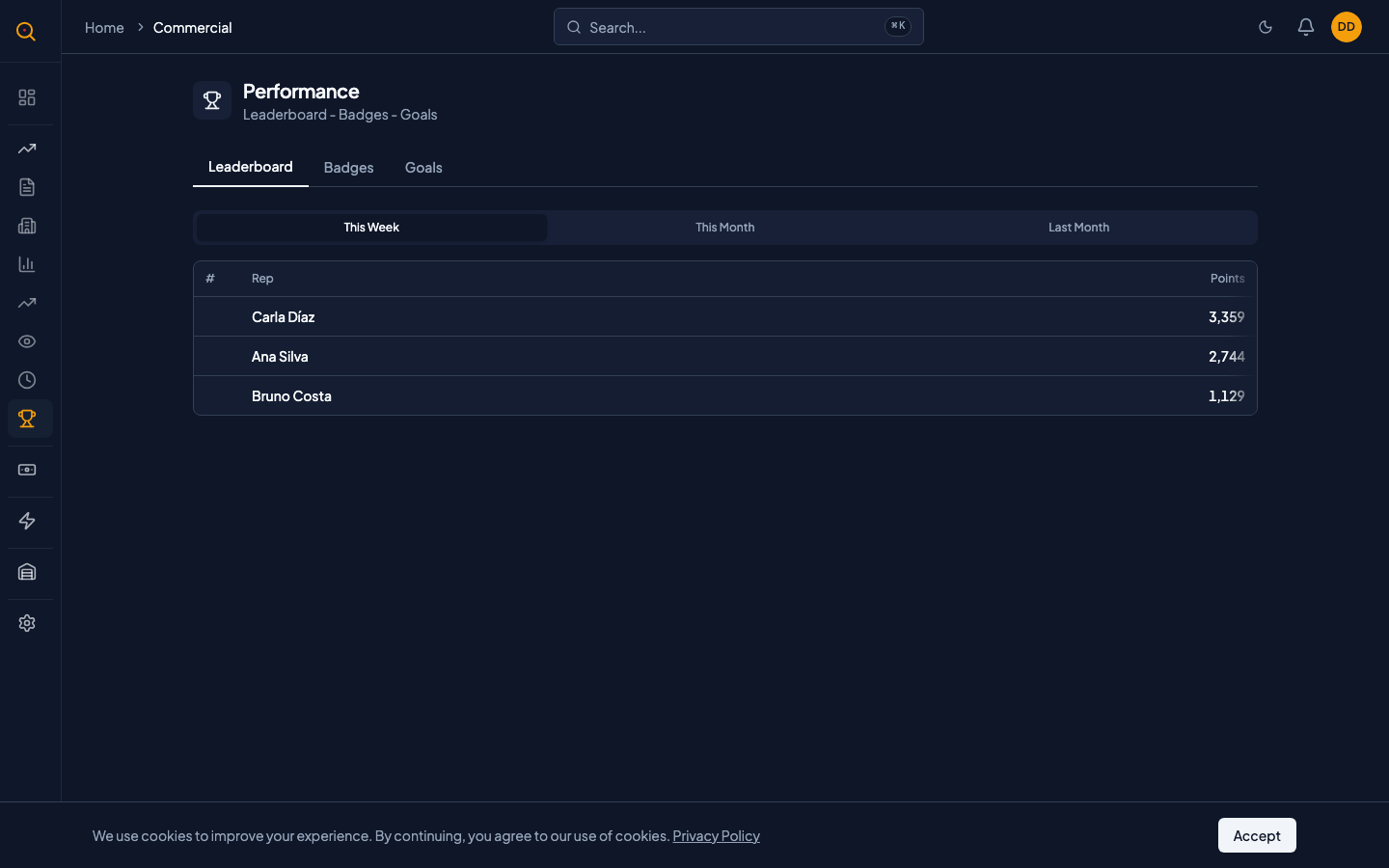
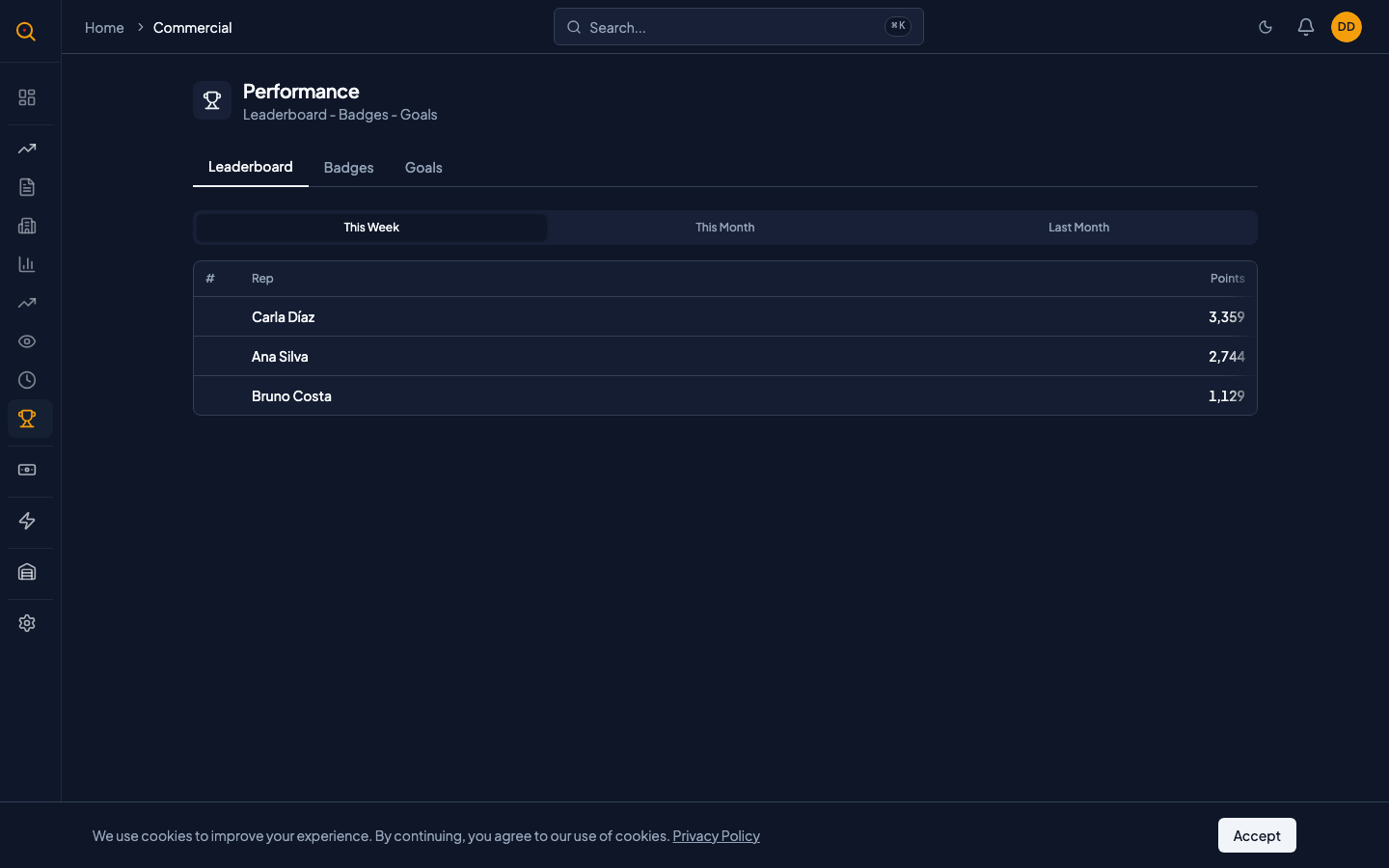
- Compete on a weekly and monthly leaderboard with your own row always highlighted.
- Unlock 14 badges across milestone, speed, consistency, and revenue categories as you hit thresholds.
- See earned badges in full color with earn dates and locked badges with progress bars.
- Set personal goals for quotes per week, revenue targets, response time, or active days.
- Get three default goals auto-created on your first visit that you can customize or replace anytime.
- See a dashboard widget with the top 3 leaderboard, your latest badge, and your top goal.
How to...
Gamification works automatically for all roles. Points and badges are awarded in the background as you work. These walkthroughs each take under a minute.
🔑 All roles⏱ Under 1 minute per task
View the leaderboard and your rank
- Navigate to Performance from the sidebar.
- The Leaderboard tab shows the current week's rankings by default. Switch periods using the selector.
- Your own row is highlighted so you can spot yourself instantly.
- The top 3 show gold, silver, and bronze medal icons.
Set a personal goal
- Switch to the Goals tab on the Performance page.
- If you have no goals yet, three defaults are auto-created: quotes per week, response time, and active days.
- Click New Goal to set a custom target, pick the type, and save. Progress updates automatically.
- Toggle a goal off to pause it without deleting your progress. Toggle it back on to resume tracking.
Check your badges
- Switch to the Badges tab.
- Earned badges show in full color with earn dates. Locked badges show in gray with progress bars.
- Hover or tap any badge to see its description, category, and unlock requirements.
- Badges are checked automatically every time you earn points. They appear as soon as you qualify.
Common scenarios
A new sales rep joins your team
- The new rep starts at zero points with an empty badge cabinet.
- As they send their first quotes, they unlock First Sale, a milestone badge.
- After a streak of daily activity, Perfect Week and Streak Master appear as consistency badges.
- Speed Demon and Fast Hands unlock as their response times improve.
- The leaderboard gives them visibility into how they compare against teammates.
You hit your monthly revenue goal
- When your monthly revenue goal reaches 100 percent, you get an in-app notification.
- Your goal card shows a completed state with a checkmark.
- You set a higher target for next month or switch to a different goal type.
- If you also cross a badge threshold at the same time, you unlock that badge simultaneously.