Finance Stage
What is the Finance Stage?
The finance stage is an optional approval checkpoint that pauses accepted quotes for payment verification. Once finance confirms payment, the quote continues automatically through fulfillment with stock reserved.
Turn the finance gate on from Company Settings to require payment approval before quotes move to fulfillment. Accepted quotes pause at a ready-for-billing review step where your finance team confirms payment was received. Once marked as paid, the quote continues automatically: stock reserves, a delivery note creates, and your warehouse team can start picking.
What you can do
- Turn the finance gate on or off for your entire account from Company Settings.
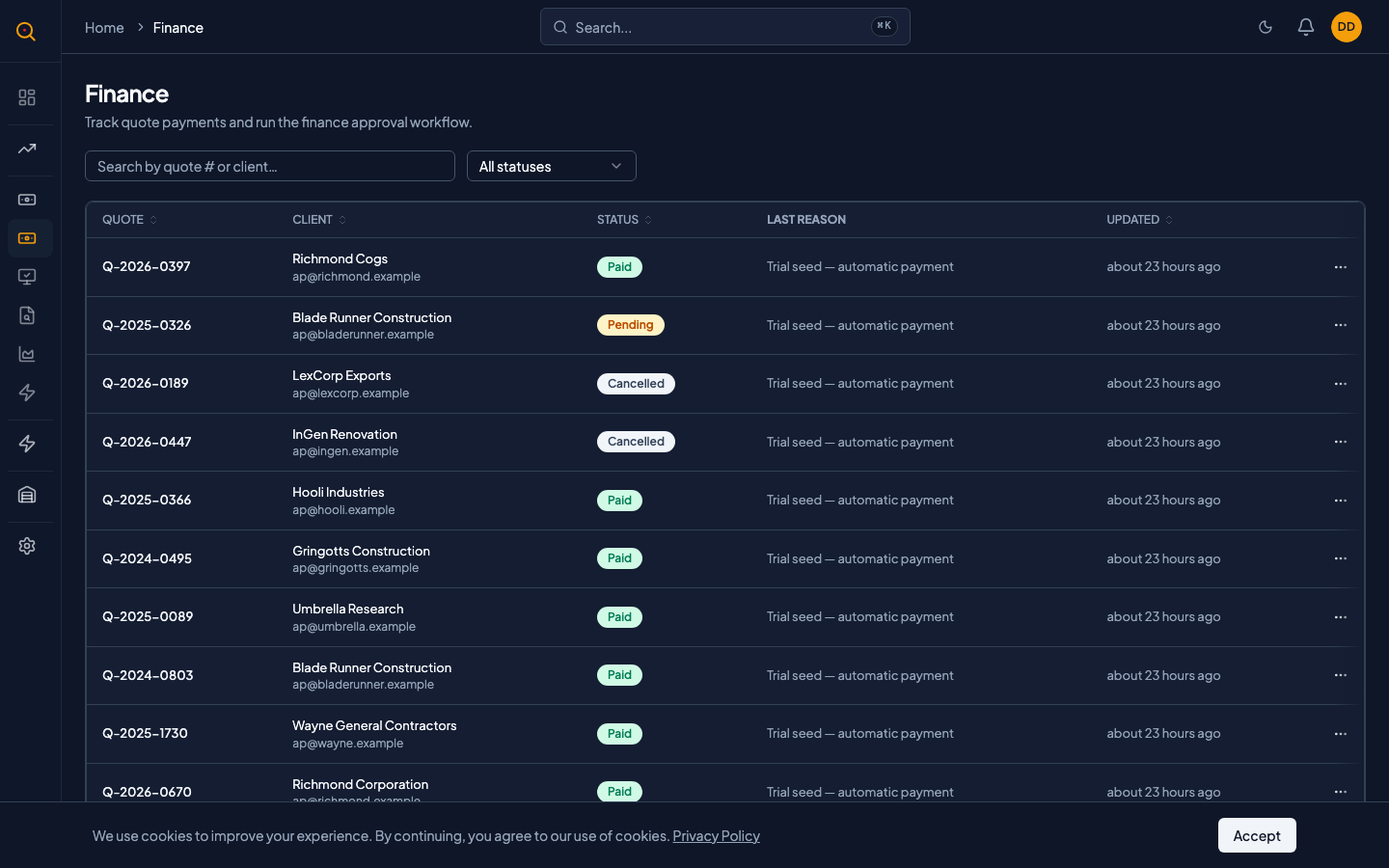
- Track every payment with a dedicated status of pending, paid, failed, or cancelled.
- Require a reason note when marking any payment as failed or cancelled.
- Send clients a payment status notification from the finance dashboard when you are ready.
- Revert a paid payment back to pending to release stock, provided no deliveries have shipped.
- Keep your finance team informed with automatic notifications on every payment status change.
- See all payments on a dedicated finance dashboard with filters by status, salesperson, or client.
- Let clients see their payment status in the customer portal via a banner you control.
- Access finance reports across four tiers from standard revenue overview to premium forecasts.
- Re-arm the finance gate automatically when a cancelled quote is reopened and accepted again.
How to...
Finance team members and managers can enable the finance gate, process payments, and notify clients. These walkthroughs cover enabling the approval gate, marking payments as paid, notifying clients, and running finance reports. Each takes under 2 minutes.
Enable the finance approval gate
- Navigate to Company Settings and open your tenant settings.
- Locate the Require Finance Approval toggle in the quote workflow settings.
- Turn it on and save. From now on, whenever a quote is accepted through the customer portal, the quote will pause at ready-for-billing instead of going straight to closed.
- Turn this off at any time. Existing quotes already in the finance stage will stay there until resolved. The toggle only affects new quotes going forward.
Mark a payment as paid
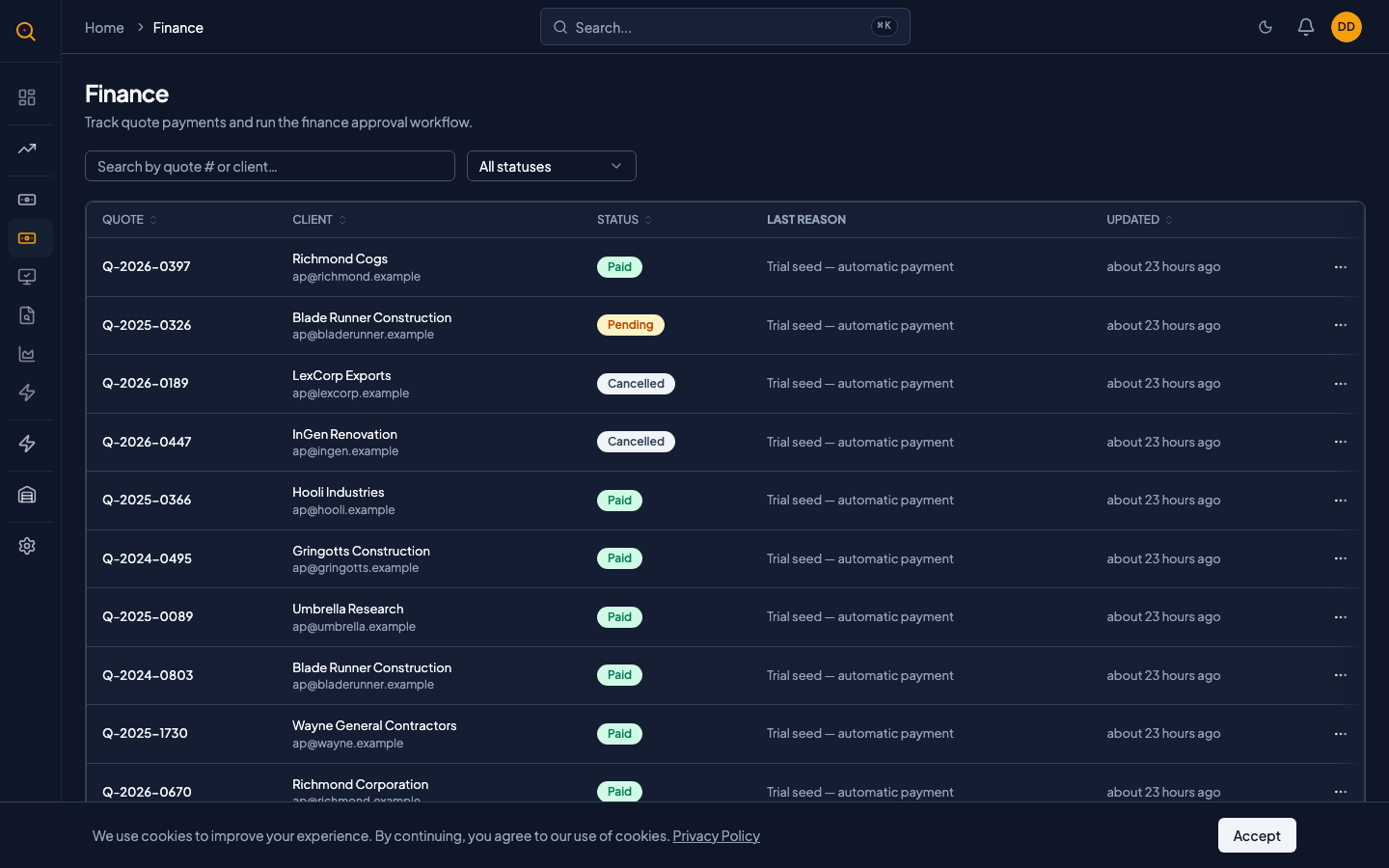
- Navigate to Finance from the sidebar. You will see a list of all pending payments.
- Locate the payment you want to process. Use the search and filters if needed.
- Click the action menu on the payment row and select Mark as Paid.
- Optionally add a reason or reference note about the payment. Something like "Bank transfer confirmed by accounting" or "Check #4521 cleared."
- Click confirm. The quote immediately moves to closed status. Stock is reserved, a delivery note is created, and your warehouse team can start picking.
- The payment status updates to Paid and the sales owner receives a notification. The quote now follows the normal fulfillment workflow.
Notify a client about their payment status
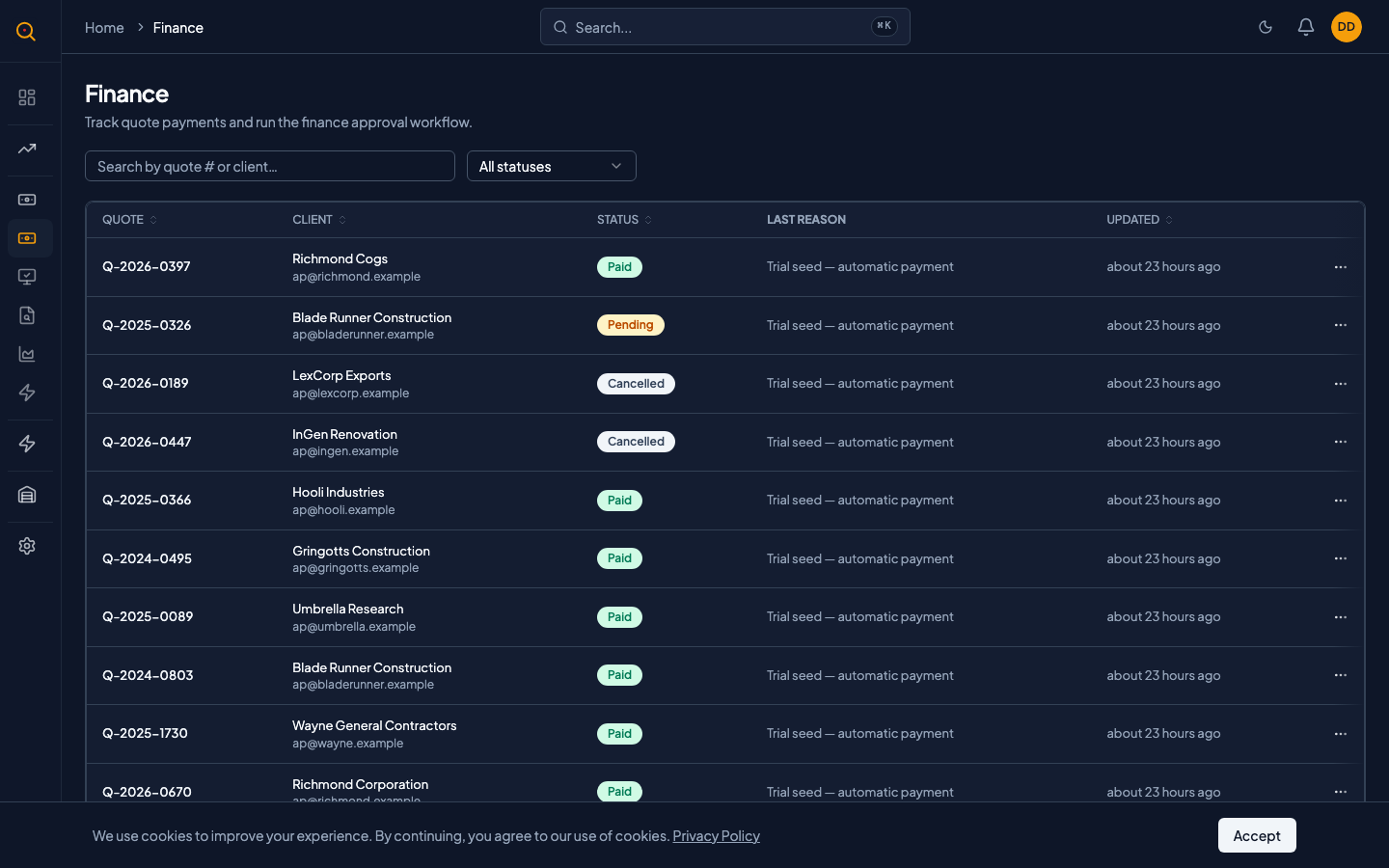
- Open the payment detail from the finance dashboard.
- Click Notify Client. A dialog opens with two options: include a default status message, or write your own custom message.
- The default message explains the current payment status in plain language. You can use it as-is or toggle it off and write something specific.
- If you enable the default message and also add custom text, both will be included in the email.
- Make sure the client has an email address on file. Quotery will warn you if they do not.
- Click Send. The email goes out, and a record of the notification is saved on the payment. Your team can see what was communicated and when. The client will also see a payment status banner in the customer portal reflecting this notification.
Run a finance report
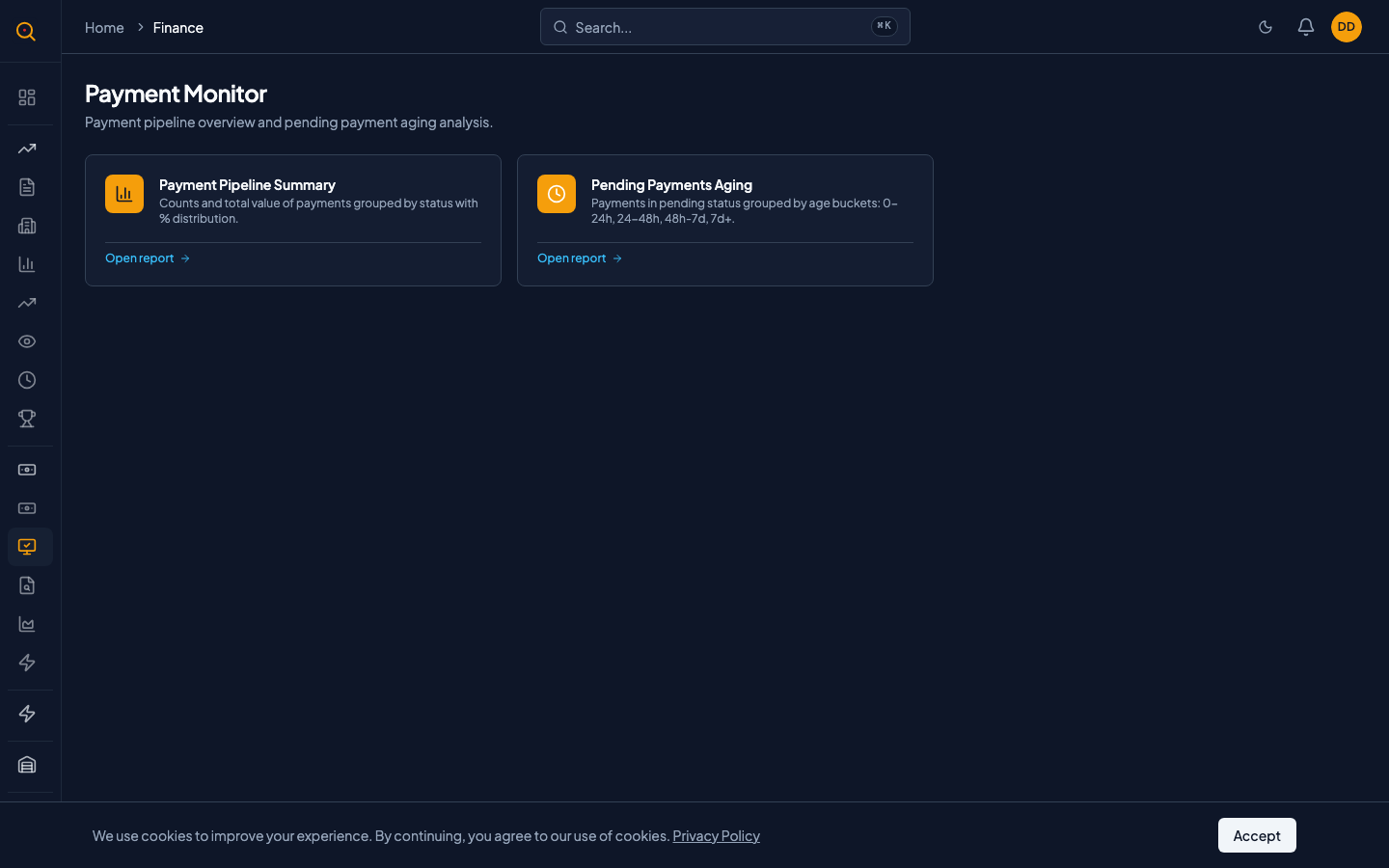
- Navigate to Reports and click Finance Reports to see the available report catalog organized by tier.
- Standard tier reports are available on all plans: Revenue Overview shows how much money came in and when. Invoice Aging shows outstanding payments and how long they have been pending. Payment Status gives you a snapshot of every payment across all statuses. Cash Flow tracks money moving in and out over time.
- If your plan includes Advanced tier, you also see Profitability Analysis (margin per client, per product, per rep), Client Margin (which clients are most profitable), and Payment Trends (how payment behavior changes over time).
- If your plan includes Premium tier, you unlock Revenue Forecast (predictive modeling based on pipeline), Payment Behavior (client-level payment reliability scoring), and Financial Health (combined liquidity and receivables snapshot).
- Custom Finance reports let you define your own metrics and dimensions. Available on Enterprise plans.
- Click any report to open it. Use the date range, client, and rep filters to narrow the data.
- Export to PDF for leadership reviews or CSV to do your own analysis in Excel.
Common scenarios
The standard sales-to-finance handoff
- The salesperson negotiates a quote and the client accepts it through the customer portal.
- The quote pauses at ready-for-billing because the finance gate is enabled.
- The finance team verifies payment and clicks Mark as Paid.
- The quote automatically continues: stock reserves and a delivery note appears.
- The warehouse team begins picking, and the salesperson receives a notification.
Reversing a payment before delivery
- Open the payment on the finance dashboard and select Revert.
- Confirm the revert. Quotery releases stock reservations and deletes the draft delivery note.
- Verify the quote returns to ready-for-billing with payment status set to Pending.
- Follow up with the client about the correct payment.
- If a delivery has already shipped, note that the system blocks the revert and recommends a return note.