Delivery Notes
What are Delivery Notes?
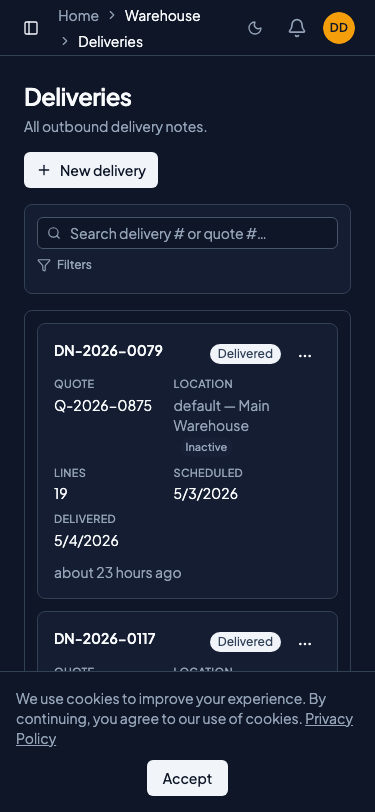
Create and post delivery notes to ship goods against closed quotes and update inventory automatically. Each delivery gets a numbered document with a QR-coded PDF for your warehouse team.
A Delivery Note is the document that ships goods against a closed quote. When you post a delivery, stock is deducted from inventory and a permanent ledger entry is created. Each delivery note gets a unique number and a QR-coded PDF for warehouse pickers with aisle locations.
What you can do
- Create delivery notes from closed quotes with drafts auto-filled from tracked line items.
- Ship from multiple warehouses in a single delivery note with per-line location assignment.
- Ship consigned stock and Quotery notifies the supplier automatically so they can bill you.
- Post shipments to transition from draft to shipped and deduct stock from inventory immediately.
- Mark deliveries as delivered with up to 3 proof-of-delivery photos and optional GPS coordinates.
- Auto-generate a follow-up draft for remaining quantities on partial deliveries with a rollover reference.
- Print QR-coded PDFs with aisle locations so warehouse pickers know exactly where to find each item.
- Use the dispatcher mobile pool for drivers to view and complete deliveries with photos from their phone.
- Bypass stock checks with the backorder setting enabled to ship even when on-hand stock is insufficient.
How to...
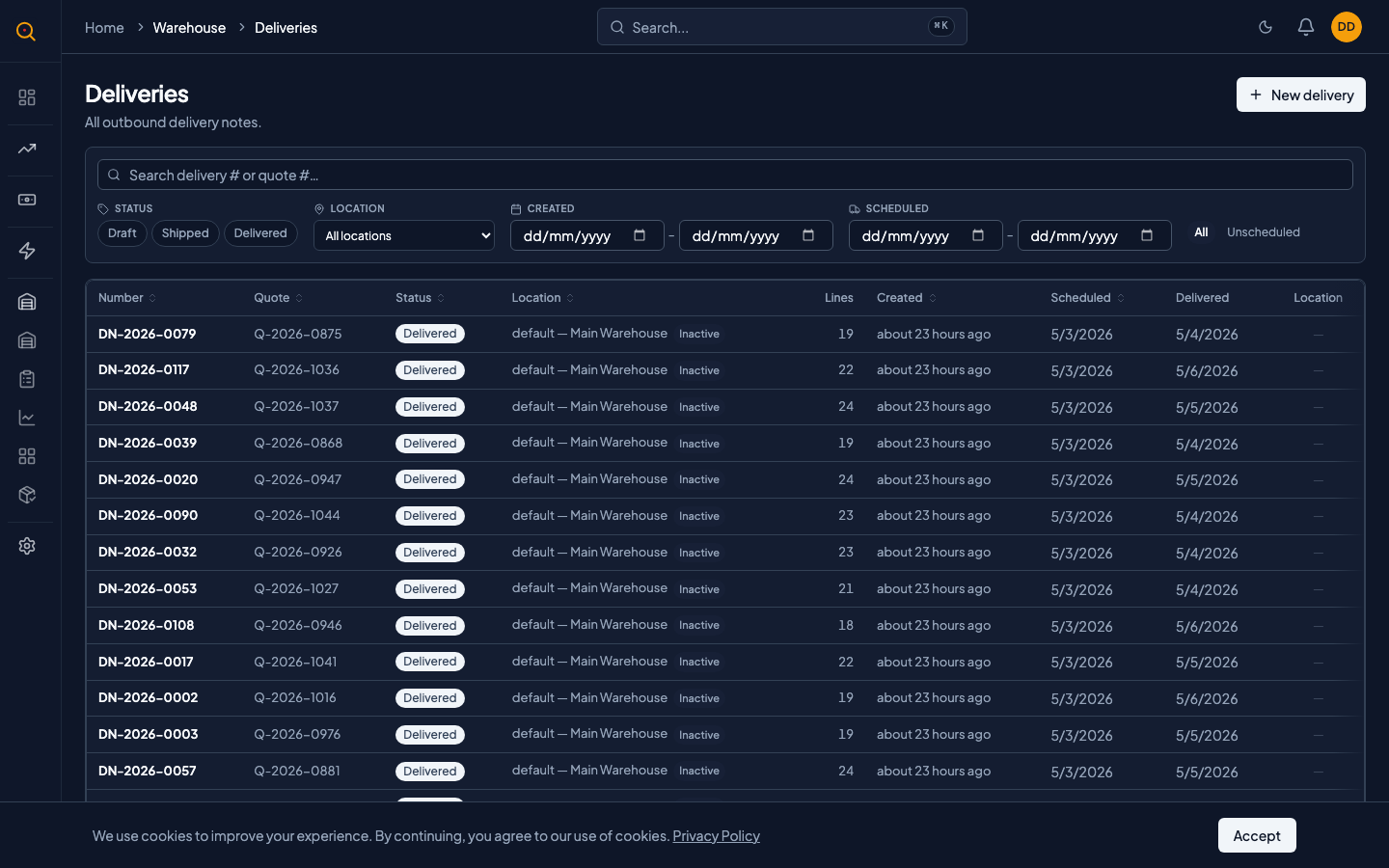
Warehouse staff can create, ship, and mark deliveries as delivered. Each task takes under 2 minutes.
🔑 Warehouse staff⏱ Under 2 minutes per task
Create and ship a delivery
- Navigate to Delivery Notes from the sidebar and click New, or use the draft that was auto-created when the quote closed.
- Review the line items, quantities, and pick locations. Each line shows which warehouse it pulls from. Change a line's location if you need to fulfill from a different warehouse.
- If any items are consigned stock, the supplier name is shown on the line. Quotery will notify the supplier automatically when you ship.
- Set a scheduled date so your warehouse knows when to pick.
- When ready, click Ship. Quotery checks that you have enough stock unless your tenant allows backorders. Stock is deducted from on-hand and the reservation is consumed. A ledger entry is written.
- The delivery note is now in shipped status. A QR-coded PDF is available for printing. Hand it to your warehouse pickers or your courier.
Mark a delivery as delivered
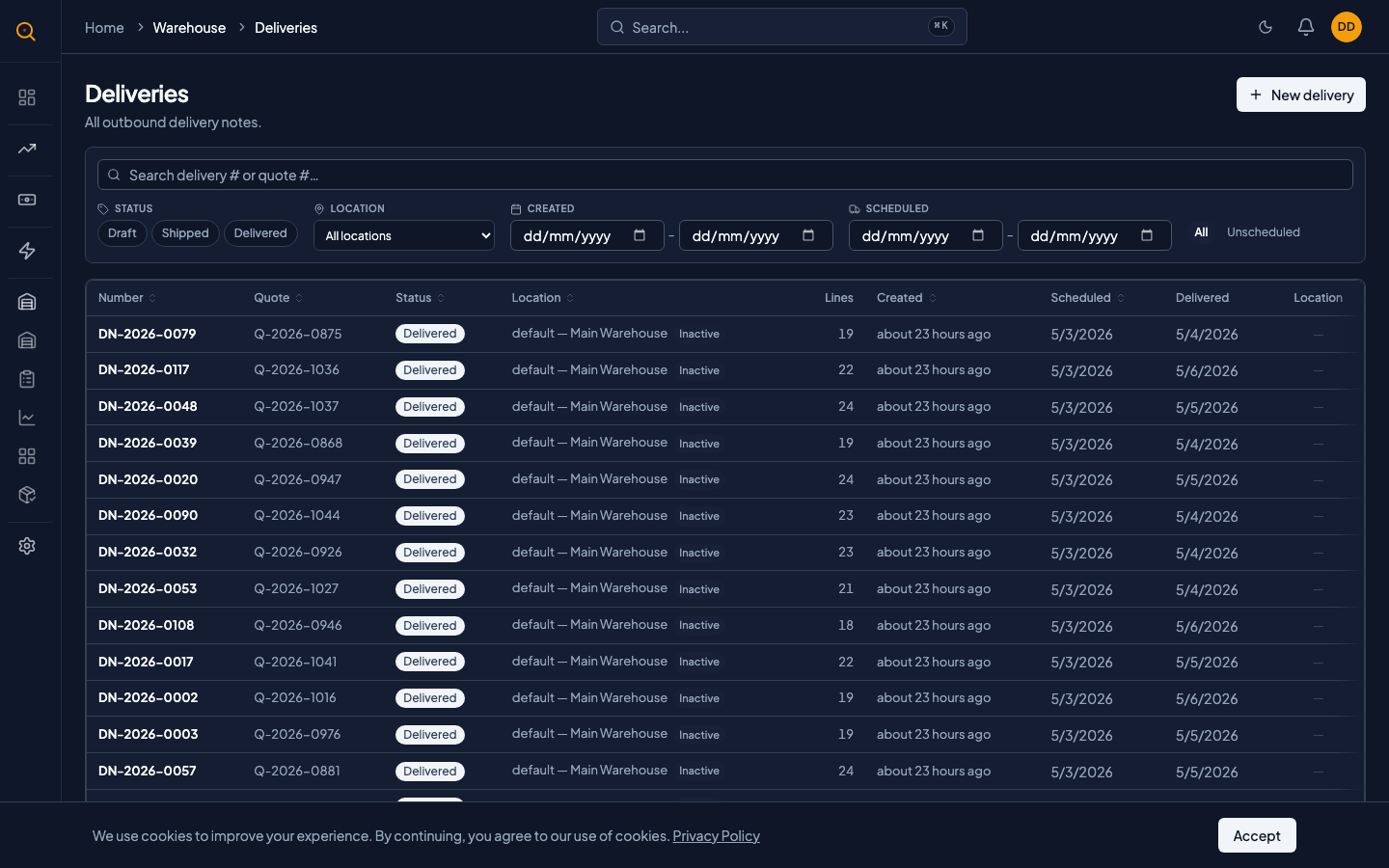
- After the courier confirms the goods reached your client, open the shipped delivery note.
- Click Mark as Delivered. Optionally upload up to 3 proof-of-delivery photos.
- If you are on mobile, the dispatcher interface lets you snap photos directly with your phone camera and optionally attach your GPS coordinates.
- The delivery note moves to delivered status. This is terminal and cannot be undone.
- The parent quote's status updates automatically: partially delivered if some lines remain undelivered, delivered if everything is confirmed.
- If this was a partial delivery, a new draft delivery note is automatically created covering the outstanding quantities. It links back to this delivery via a rollover reference.
Handle a consigned stock delivery
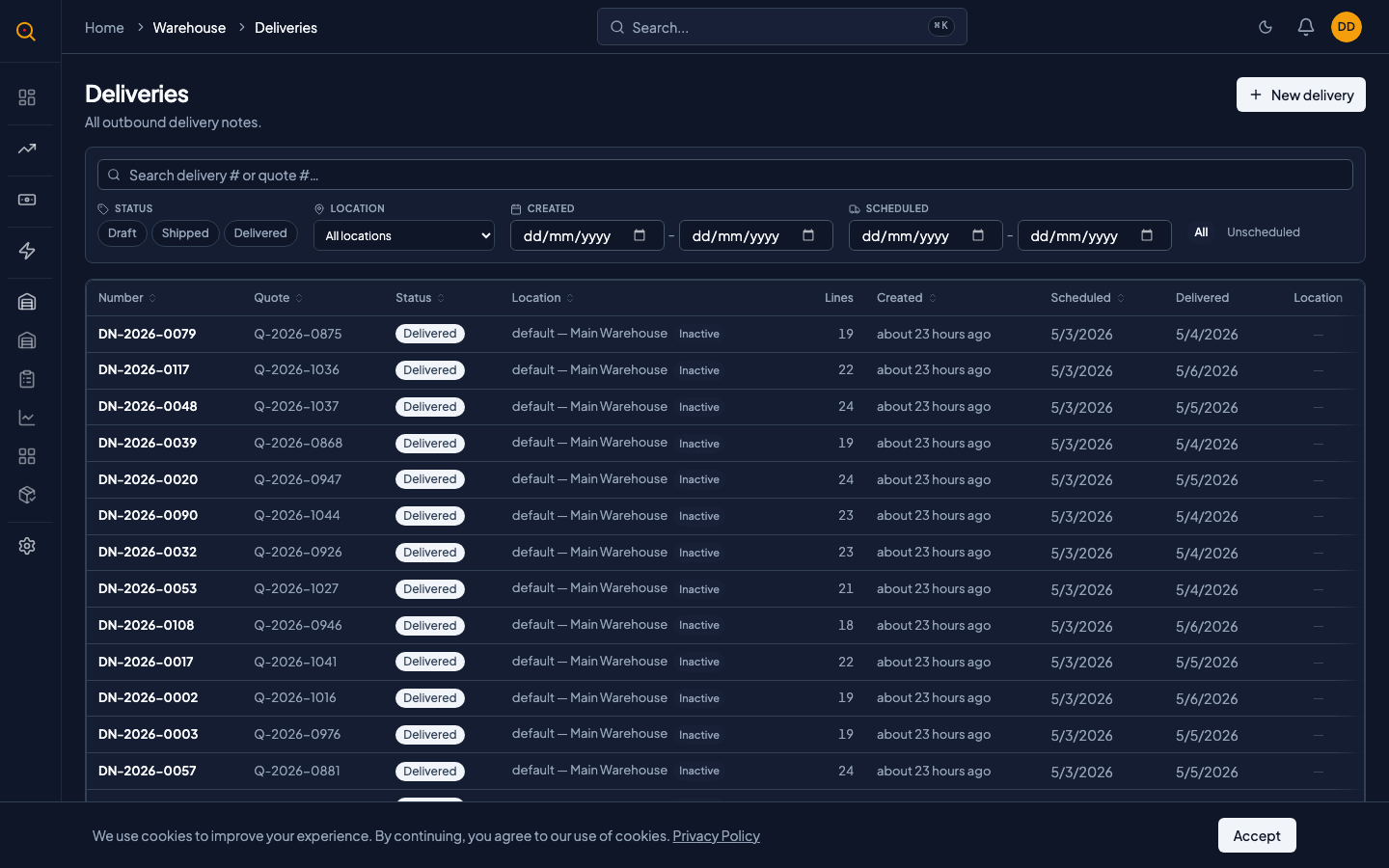
- When you create a delivery note that includes consigned stock items, the supplier name appears on each consigned line.
- Review the quantities. Consigned stock does not affect your owned inventory counts, but it does consume the supplier's stock at your location.
- Ship the delivery as normal. Quotery automatically sends a notification to the supplier telling them which products were shipped and in what quantities.
- Toggle supplier notifications on or off from your tenant settings. Navigate to Company Settings and locate the consignment notification toggle.
- The supplier can then bill you for the consigned goods that were sold. You never pay for consigned stock until after it ships to your client.
Common scenarios
You can only fulfill part of a quote right now
- Edit the draft delivery note to set only the quantities you can ship today.
- Remove or zero out lines you cannot fulfill right now.
- Ship the partial delivery. Stock is deducted for the fulfilled quantities.
- Review the new draft delivery note automatically created for the outstanding balance with a rollover reference.
The courier confirms delivery from the field
- The driver opens the dispatcher mobile interface on their phone at the delivery site.
- They find the delivery in their pool and open it.
- They snap a photo of the signed paperwork or delivered goods.
- They tap Mark as Delivered to record the GPS coordinates and finalize the delivery.
- The system updates the quote status and inventory immediately with no office paperwork to file.