Clients
What are Clients?
Manage your client directory in one searchable place so your team always has accurate client information. Every quote and delivery links to a client for a complete interaction history.
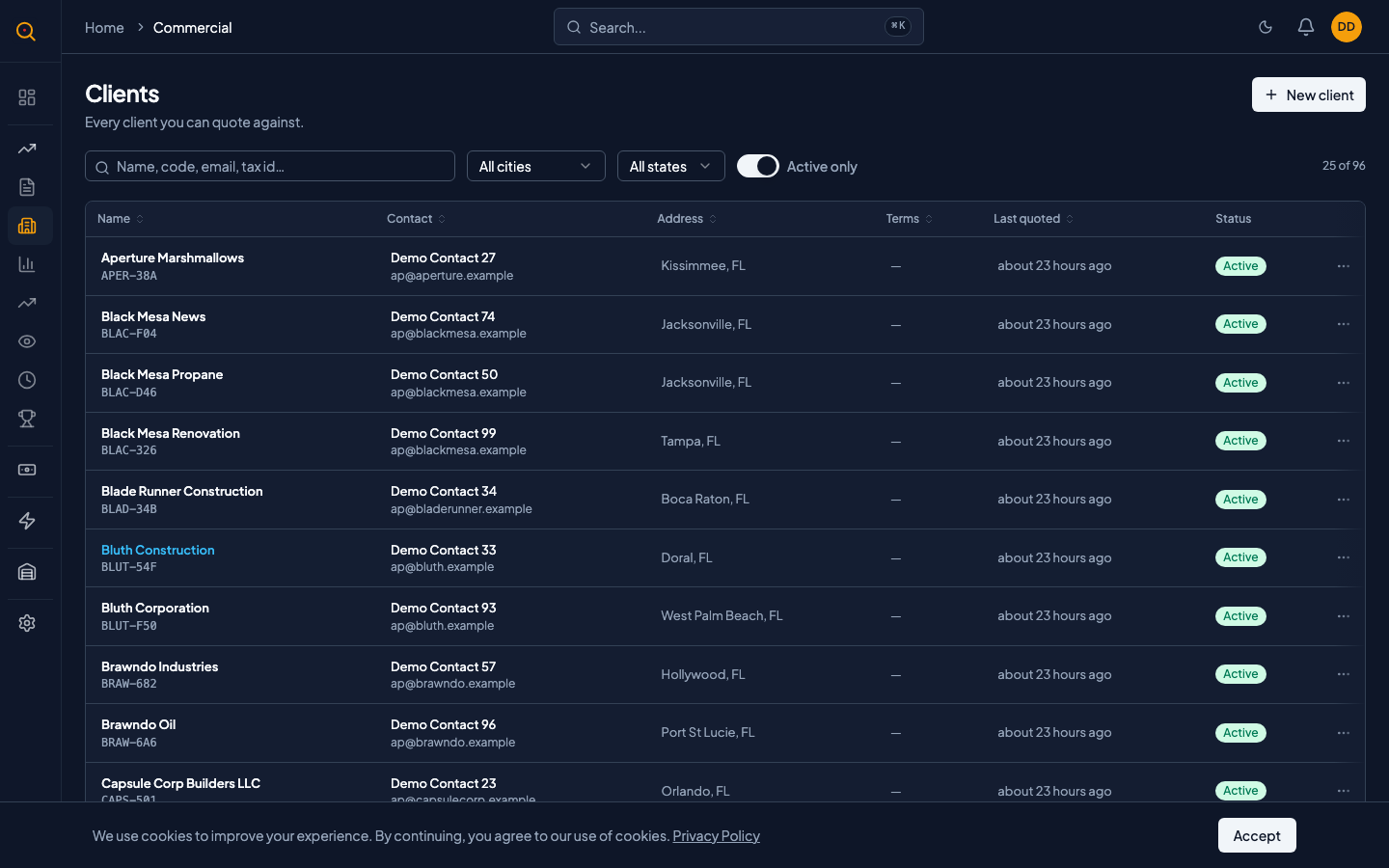
Clients represent the businesses and people you sell to. The Clients section gives you a single, searchable directory of every client your team works with. Every quote and delivery links back to a client so you never duplicate records or lose contact details.
What you can do
- Add new clients with full contact details including name, address, phone, email, tax ID, and payment terms.
- Search your client directory by name or tax ID with instant results as you type.
- Set up multiple delivery addresses per client and mark one as the default for new quotes.
- Archive inactive clients to keep your active directory clean while preserving their full history.
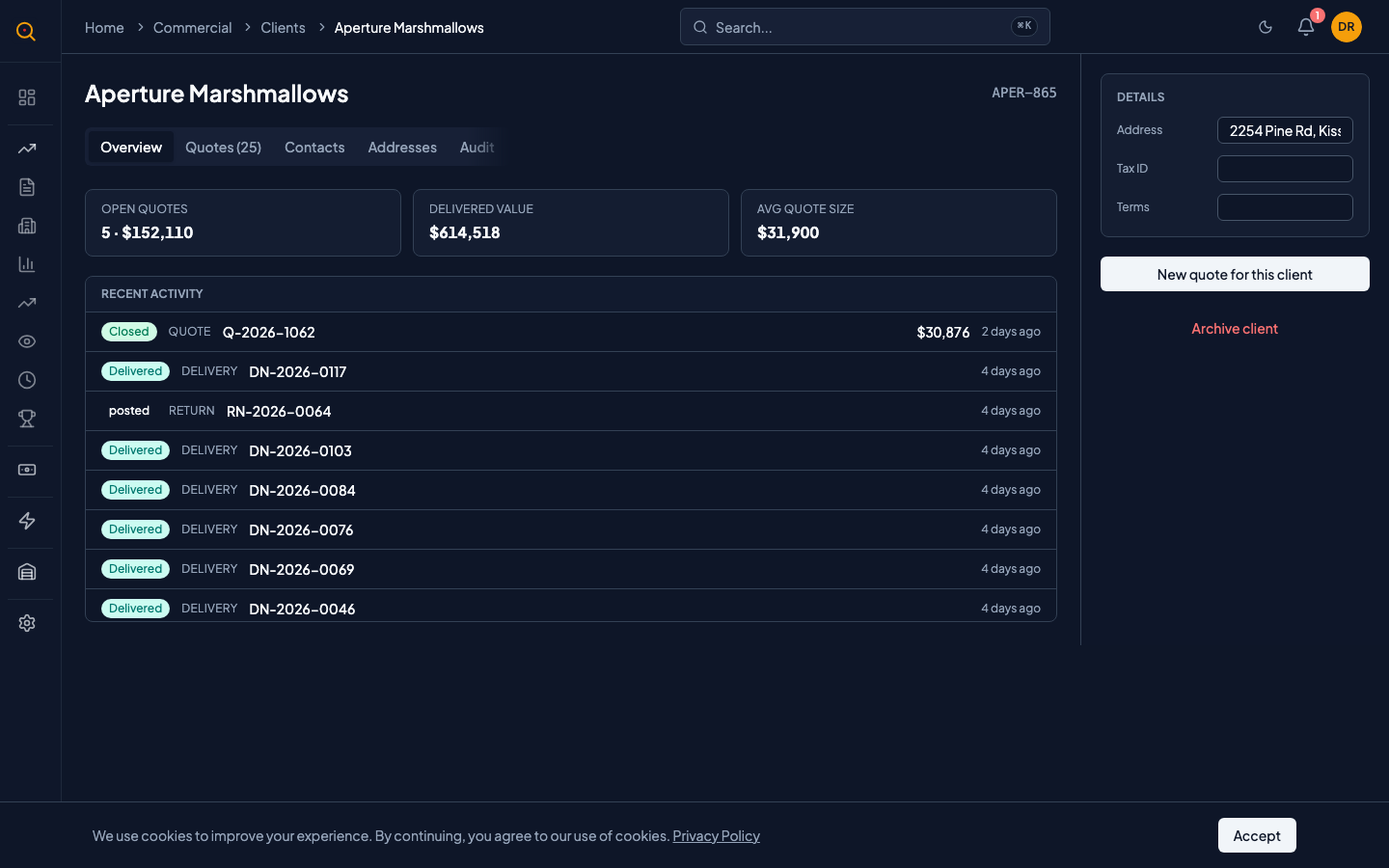
- View every quote, delivery, and return for a client in one activity feed sorted by date.
- Spot duplicate clients before creation with automatic name-similarity checks and warnings.
- Assign a unique client code that appears as a shorthand identifier on quotes and delivery documents.
How to...
Sales reps and managers can add, edit, and archive clients. Each task takes under a minute.
🔑 Sales reps and managers⏱ Under 1 minute per task
🔑 Sales reps and managers⏱ Under 1 minute per task
Add a new client
- Navigate to Clients from the sidebar to open your client directory.
- Click the "New Client" button in the top-right corner of the page.
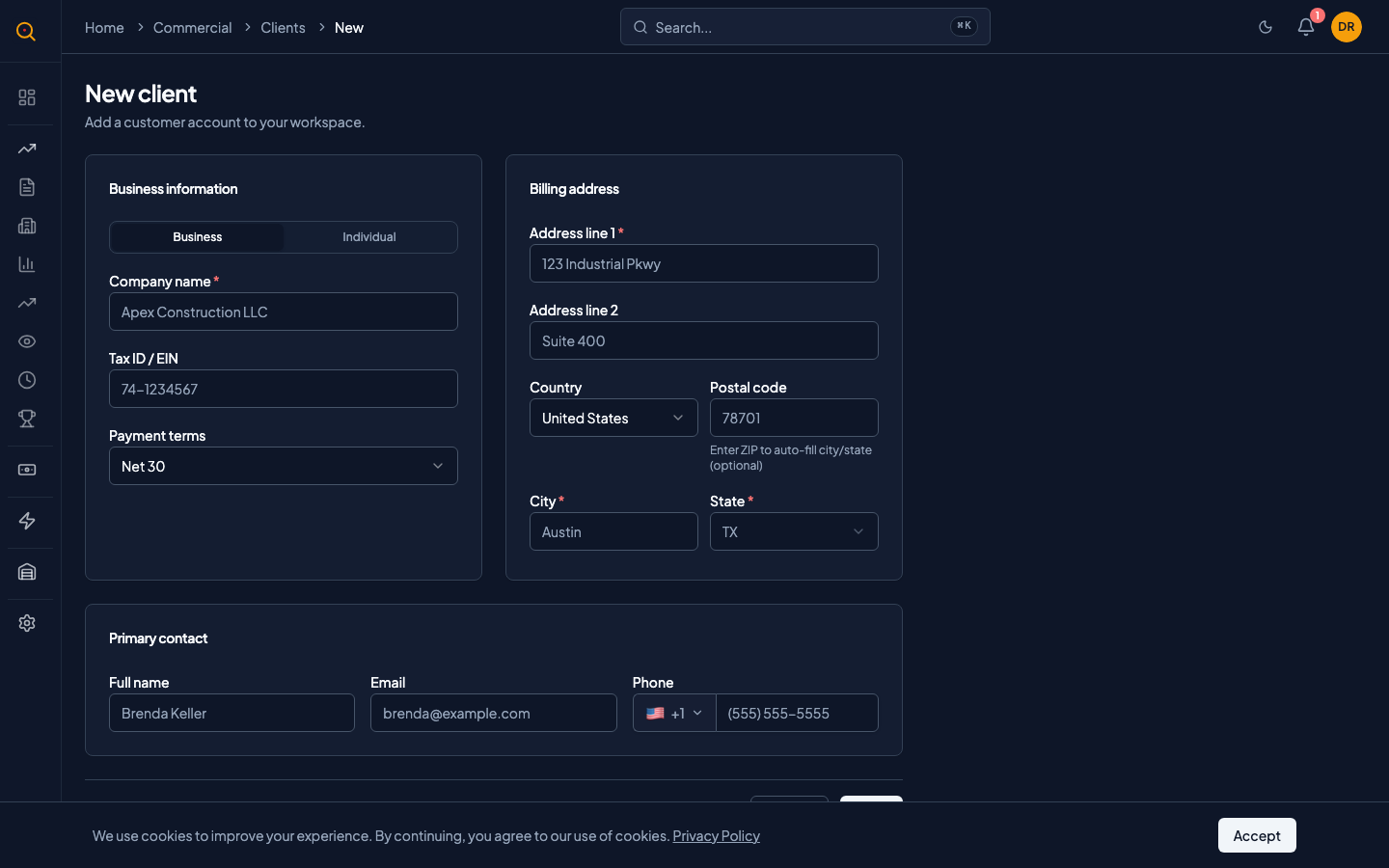
- Fill in the required fields. At minimum: the client's name, address line 1, city, and state.
- Optionally add contact details like phone, email, or a contact person name. Add a tax ID and default payment terms like "Net 30."
- Click "Save." Your new client appears in the directory immediately.
Edit a client's details
- From the client list, click on any client to open their detail page.
- Click the "Edit" button to switch the page into edit mode.
- Change any field you need: name, address, contact info, payment terms, or the client code.
- Click "Save" to apply your changes. All existing quotes and documents linked to this client will reflect the updated information.
Archive a client you no longer work with
- Open the client you want to archive from the client list.
- Click the "Archive" action. It's in the more-options menu or at the top of the detail page.
- The client is now archived and disappears from the default list view. All past quotes and deliveries still reference this client and look exactly as they did before.
- To see archived clients again, toggle the filter to show archived records on the client list page.
- To bring a client back, open the archived client and click "Unarchive."
Common scenarios
Onboarding a new client who has multiple job sites
- Create the client with their main office address as the primary.
- Add each job site using the Delivery Addresses panel on the client detail page.
- Give each address a clear label like "Downtown Tower Project" for easy identification.
- Mark the most active job site as the default so it pre-selects on new quotes.
- When creating a delivery note, select the right address for that shipment.
Checking a client's history before a sales call
- Open the client's detail page in Quotery before your call.
- Review the activity feed to see recent quotes, deliveries, and returns.
- Note which quotes are pending, accepted, or delivered.
- Check for any returns or issues that came up on previous orders.
- Start your call informed about exactly what the client has ordered and received.