Users & Team
What is Users & Team?
The Users & Team section is where you manage everyone who works in your Quotery account. You can invite new teammates, assign roles, and deactivate people who have left while tracking your licensed seat usage.
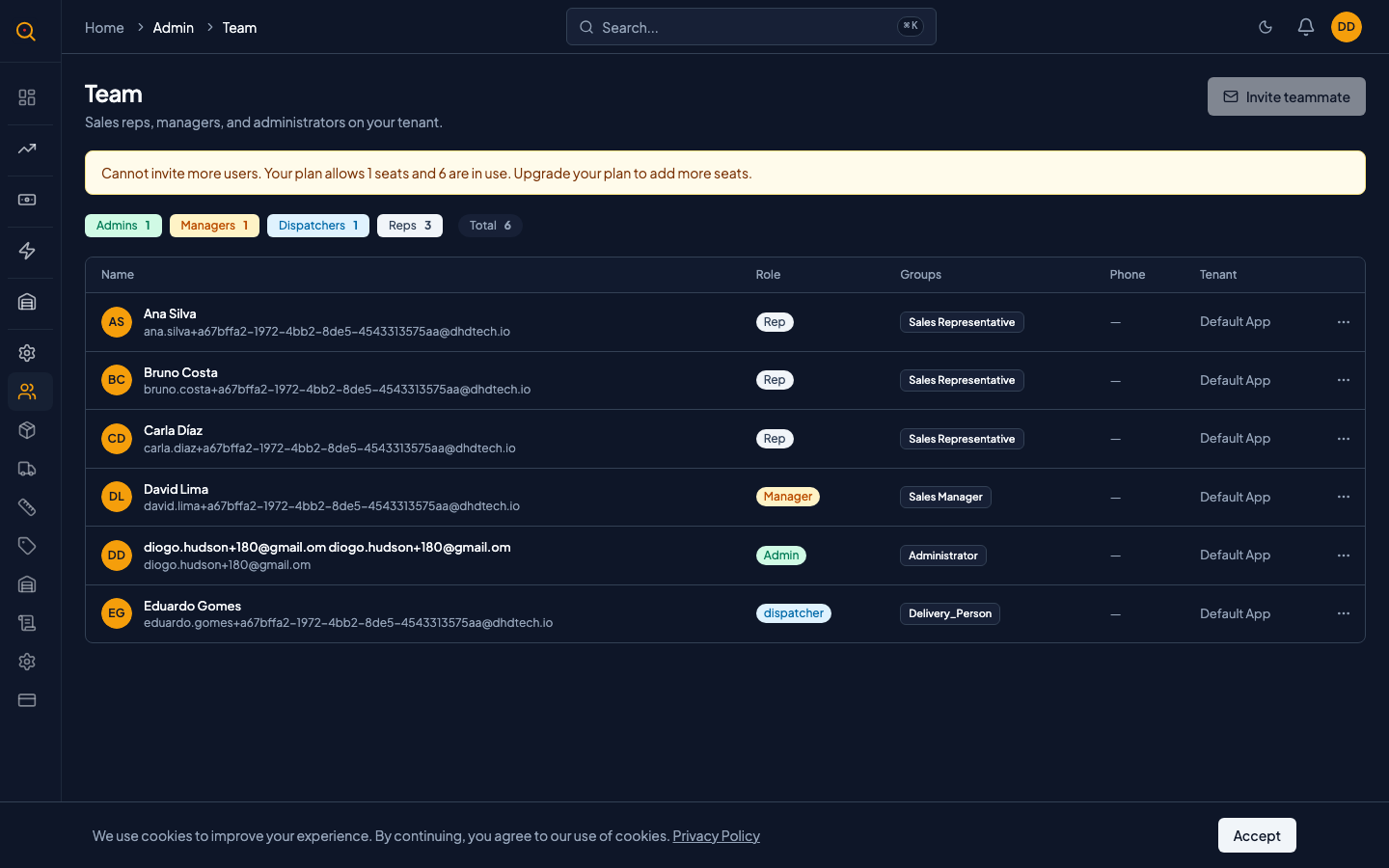
You can see who is on your team, what role each person has, and invite new teammates by email. Every person gets assigned a role like Admin, Manager, or Sales that controls what they can see and do. This page also shows how many of your licensed seats are in use.
What you can do
- View a paginated list of every active and inactive team member in your company.
- Search for a specific person by name, username, or email address.
- Assign and change roles for each team member: Admin, Manager, Sales, Warehouse, or Dispatcher.
- Deactivate a user to free up a licensed seat without deleting their account or history.
- Invite new teammates by email with a pre-assigned role and a one-time setup link.
- Resend or revoke pending invitations before they are accepted.
How to...
Only admins can manage users and change roles. The Team page is under the Admin section of your sidebar. These walkthroughs each take under two minutes.
🔑 Admins only⏱ Under 2 minutes per task
Invite a new teammate
- Navigate to Team from the Admin sidebar.
- Click the Invite teammate button. If it is disabled, you may have reached your seat limit.
- Enter the person's email address and choose their role from the dropdown.
- Click Send invitation. They receive an email with a one-time link valid for 7 days.
- They click the link, set their name and password, and their account is created with the assigned role.
- Track pending invitations on the Team page. They appear with a Pending badge.
Change someone's role
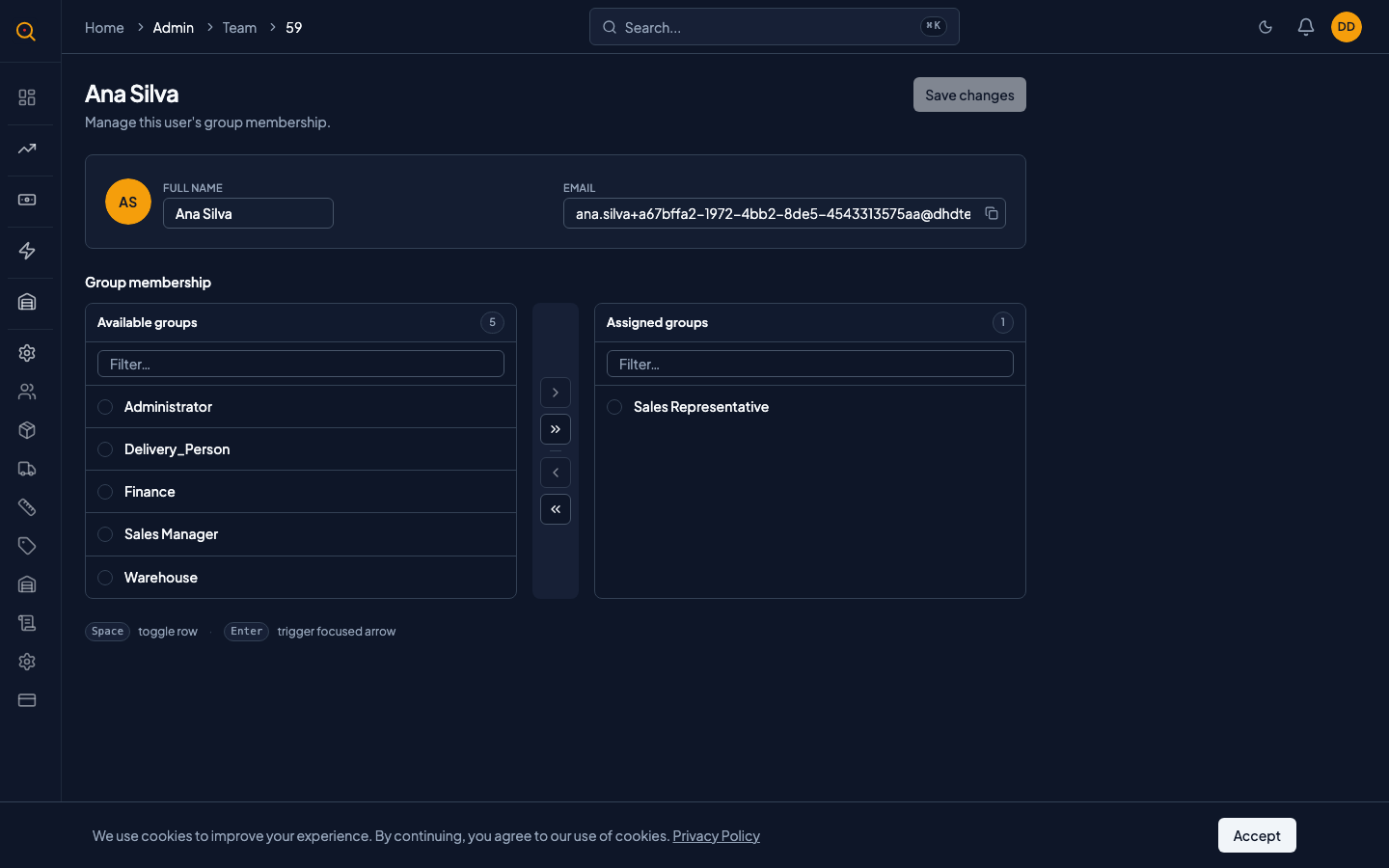
- From the Team list, click on the person whose role you want to change.
- On their detail page, you will see their current role in the Groups section.
- Select a different role or multiple roles to give them a combination of permissions.
- Click Save. Their access changes immediately. You cannot remove your own Admin role by accident.
Free up a seat by deactivating a user
- Locate the person who left your team in the user list.
- Click into their detail page and toggle the Active switch to off.
- Click Save. They can no longer sign in, and their seat is immediately freed.
- Their history stays intact. You can reactivate them later if they return.
Common scenarios
Onboarding a new sales hire
- You navigate to Team and click Invite teammate.
- You enter their work email and choose the Sales role.
- They receive the invite email, click the link, set a password, and log in.
- Because they were invited as Sales, they immediately see Quotes and Clients in their sidebar.
- They can start building quotes right away but cannot edit the product catalog or billing.
Reorganizing roles as your team grows
- You open the Team page and review each person's current role.
- Assign more specific roles: keep two Admins, make four Managers, five Sales, and one Dispatcher.
- Each person now sees only what they need for their job.
- No more accidental edits to the product catalog by a sales rep.