Tenant Settings
What are Tenant Settings?
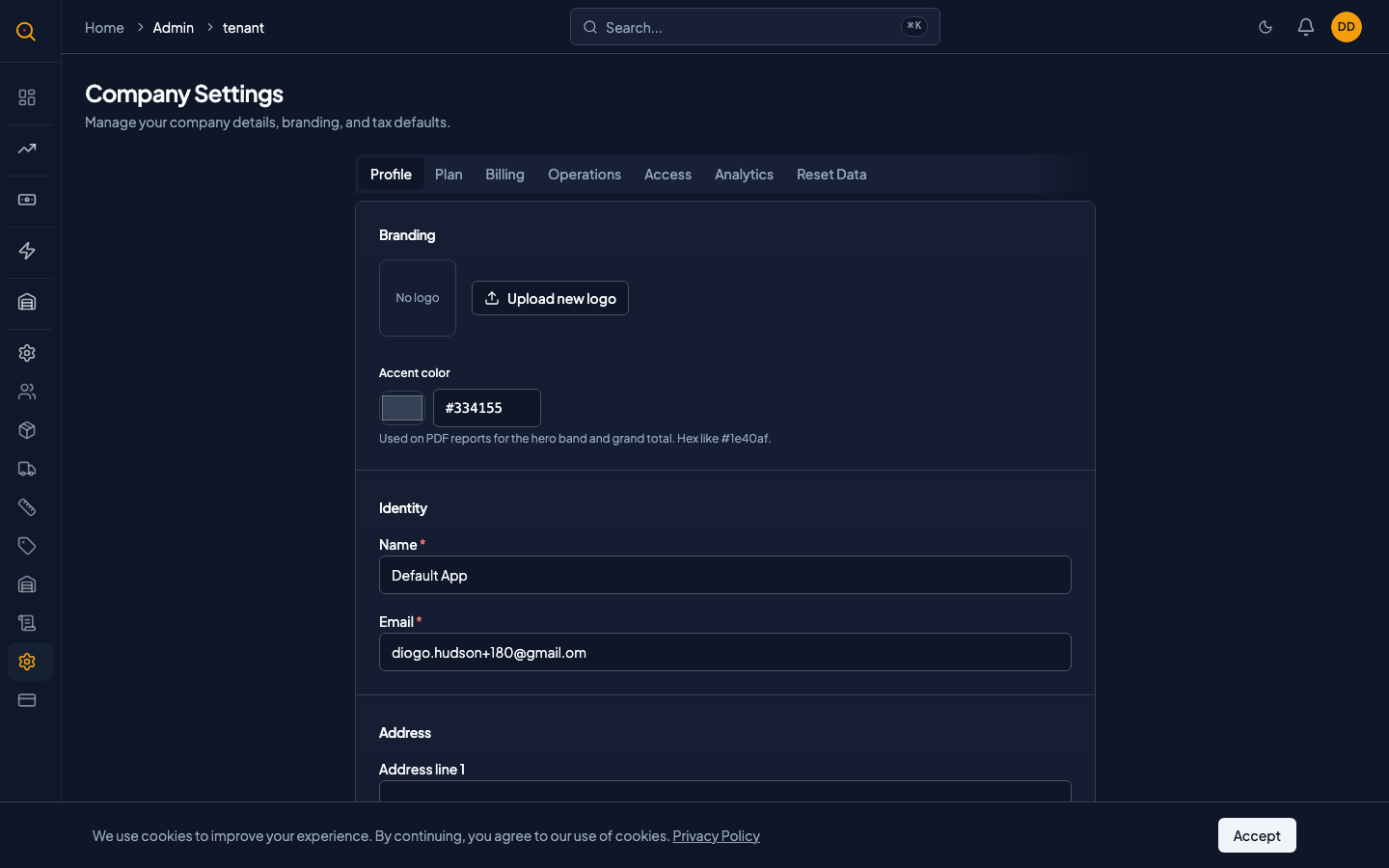
Tenant Settings is your company's identity card inside Quotery where you configure your business name, logo, address, and accent color. It also holds your tax rate, discount limits, feature toggles, and notification preferences that control how Quotery looks and behaves for your entire team.
Everything you configure here prints on your quotes, delivery notes, and return note PDFs. Beyond branding, this page holds operational toggles like backorder deliveries and duplicate item blocking, plus notification email preferences. It is the control panel for your company's Quotery experience.
What you can do
- Set your company name, logo, and accent color that appear on every client-facing PDF.
- Enter your business address so it prints correctly on quotes and delivery documents.
- Configure your default tax percentage and maximum discount percentage for all quotes.
- Manage your licensed seat count to control how many team members can be active at once.
- Toggle backorder deliveries, duplicate item blocking, and finance approval on accepted quotes.
- Turn notification emails on or off for supplier consignments and stock movements.
- Customize the delivery notes text and quote disclaimer text on client-facing documents.
How to...
Only admins can access and modify Tenant Settings. You will find it under Company Settings. These walkthroughs each take under two minutes.
🔑 Admins only⏱ Under 2 minutes per task
Update your company branding
- Open Tenant Settings from Company Settings.
- In the Branding section, type your company name as you want it to appear on PDFs.
- Upload your logo by clicking the logo placeholder and selecting an image file.
- Pick an accent color by entering a six-character hex code like #1A56DB.
- Fill in your business address fields: street, city, state, and postal code.
- Click Save. Your next quote or delivery note PDF will reflect the new branding.
Configure operational toggles
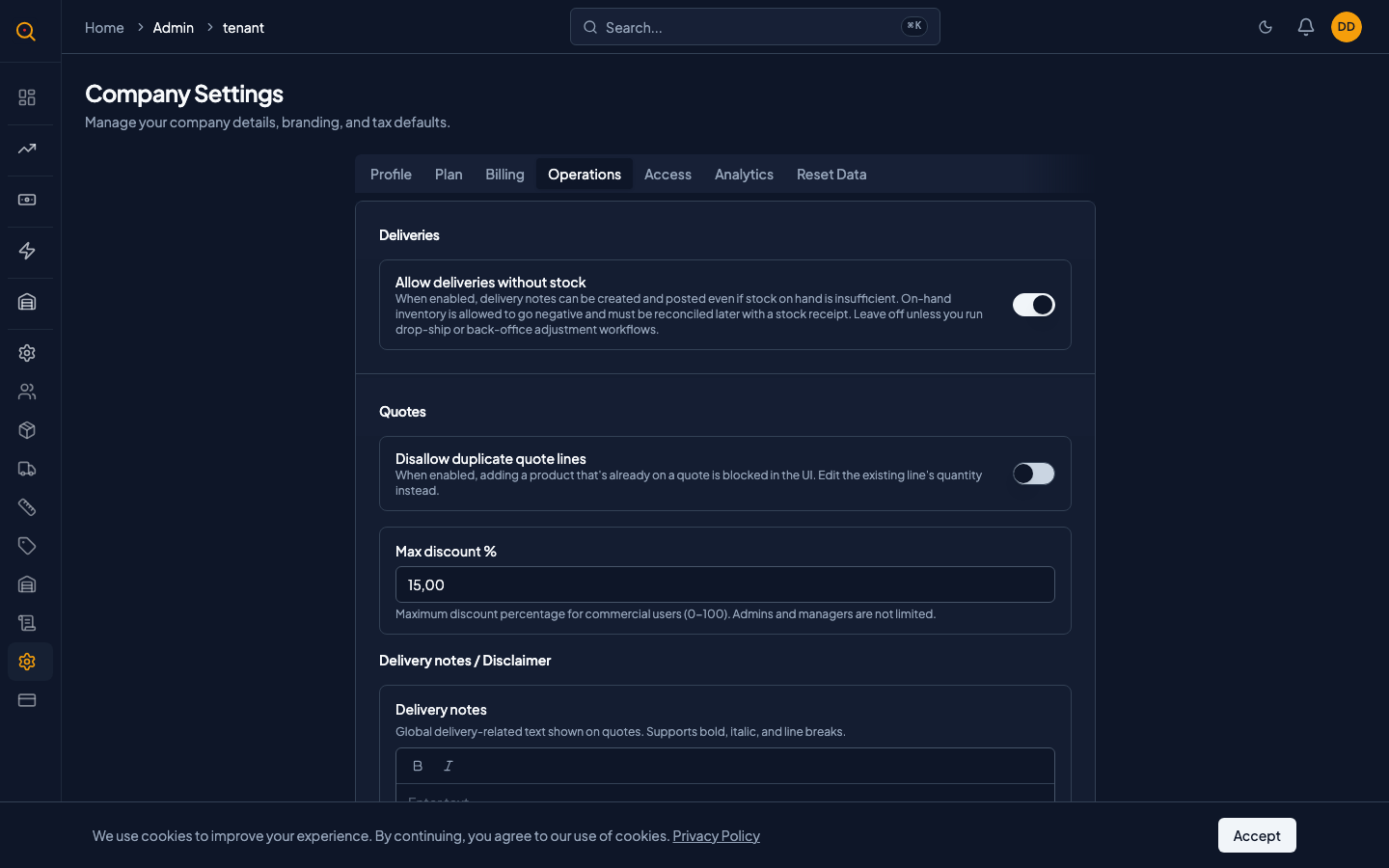
- Scroll to the Operations section of Tenant Settings.
- Enable Allow backorder deliveries to let your warehouse ship even when stock is insufficient.
- Enable Block duplicate items on quotes to prevent accidentally adding the same product twice.
- Enable Require finance approval to insert a finance review step between acceptance and stock reservation.
- Set your Maximum Discount Percentage. The default is 15 percent.
- Click Save. All toggles take effect immediately on new actions.
Turn notification emails on or off
- Scroll to the Notifications section of Tenant Settings.
- Toggle Notify suppliers on consignment to control automatic emails when consigned stock ships.
- Toggle Notify managers on stock movement and Notify admins on stock movement for inventory alerts.
- Note that in-app notifications are never affected by these toggles. They only control outbound emails.
- Click Save to apply your changes.
Common scenarios
Setting up a new company on Quotery
- Navigate to Tenant Settings from the sidebar as your first stop after signing up.
- Upload your logo, enter your business address, and set your accent color to match your brand.
- Configure your tax rate so every quote calculates totals correctly from day one.
- Review the operational toggles. Turn on duplicate item blocking to keep quotes clean.
- Decide whether to activate the finance approval gate for accepted quotes.
Enabling backorder deliveries for a growing warehouse
- Your warehouse team keeps getting blocked because stock counts lag behind physical inventory.
- You enable Allow backorder deliveries in Tenant Settings under the Operations section.
- Now your warehouse can ship immediately even when on-hand stock is slightly negative.
- Negative numbers serve as a checklist for which receipts still need to be posted.
- Once receipts catch up, stock returns to positive. The ledger preserves every step.