Permissions & Groups
What are Permissions & Groups?
Permissions and Groups control who can do what inside your Quotery account through pre-built role groups. Quotery ships with five default groups covering common roles, and you can create custom groups with hand-picked permissions for specialized needs.
Instead of managing individual permissions for every person, you assign each team member to a group like Admin, Manager, or Sales. Each group comes with a pre-built set of permissions. If your team needs something more specific, create custom groups with exactly the permissions you want.
What you can do
- Assign team members to pre-built groups: Admin, Manager, Sales, Warehouse, Dispatcher, and Finance.
- Create custom groups with a hand-picked set of permissions for specialized organizational roles.
- View the full permission catalog to understand every action each group grants.
- Rename or delete custom groups as your team structure evolves.
- Understand at a glance what each group can and cannot do in Quotery.
How to...
Only admins can create, edit, or delete groups. Group management lives under the Admin section of your sidebar. These walkthroughs each take under two minutes.
🔑 Admins only⏱ Under 2 minutes per task
Understand what each default group can do
- Navigate to Permissions & Groups from the Admin sidebar to see the six default groups.
- Admin: full access to everything including user management, settings, and billing.
- Manager: oversees operations. Can manage products, suppliers, and inventory but cannot change billing or users.
- Sales: builds quotes and manages clients. Cannot edit the product catalog or see warehouse stock counts.
- Warehouse: handles stock and fulfillment including deliveries, returns, and receipts.
- Dispatcher: sees and marks assigned deliveries as completed. No access to inventory or pricing.
- Finance: views payment statuses, manages quote payments, and handles billing subscriptions.
Create a custom group for a specialized role
- From the Groups page, click Create group.
- Give your group a descriptive name like Senior Sales Lead or Inventory Auditor.
- Check the permissions you want this group to have from the full permission catalog.
- Click Save. Your new group appears in the list and is immediately available for assignment.
- Return to adjust the permissions later by editing the group anytime.
Assign a custom group to a user
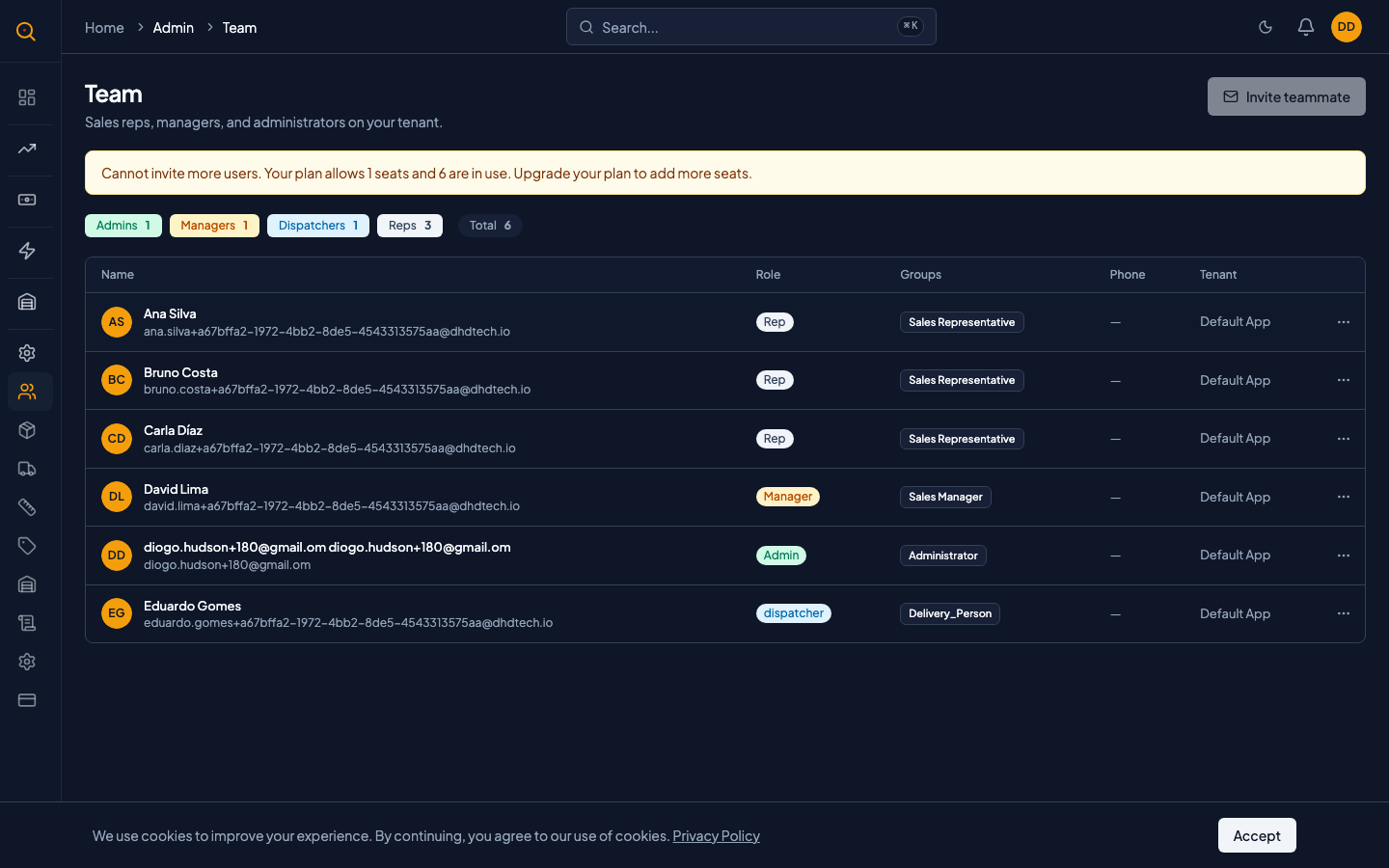
- Navigate to Team and click on the user you want to update.
- In the Groups section, select the groups you want this person to belong to.
- A person can be in multiple groups. Their effective permissions combine everything all groups grant.
- Click Save. The next time they sign in, they will see the surfaces their new permissions unlock.
Common scenarios
Giving a manager finance responsibilities
- Open the user detail page for the manager who also handles payment follow-ups.
- Add them to both the Manager group and the Finance group.
- Note that their combined permissions let them manage inventory and handle payment statuses.
- Confirm they now see both warehouse stock reports and the finance dashboard in their sidebar.
Creating a read-only auditor role
- Create a custom group called Auditor with only view permissions checked in the catalog.
- Select permissions: View clients, View quotes, View reporting dashboard, and View audit events.
- Assign your accountant to this group from their user detail page and save.
- Verify they can log in and review everything they need with zero ability to create, edit, or delete anything.