Engagement
What is Engagement?
The Engagement section helps you understand how clients interact with the quotes you send them by tracking every portal view and PDF download. It also manages follow-up cadences that automatically nudge your sales reps when sent quotes go unanswered.
You will know who is reading, who is ignoring, and which quotes are getting the most attention. Configure automatic reminder schedules that keep your team on top of their pipeline without micromanaging every quote manually. Both features are available on Growth and Enterprise plans.
What you can do
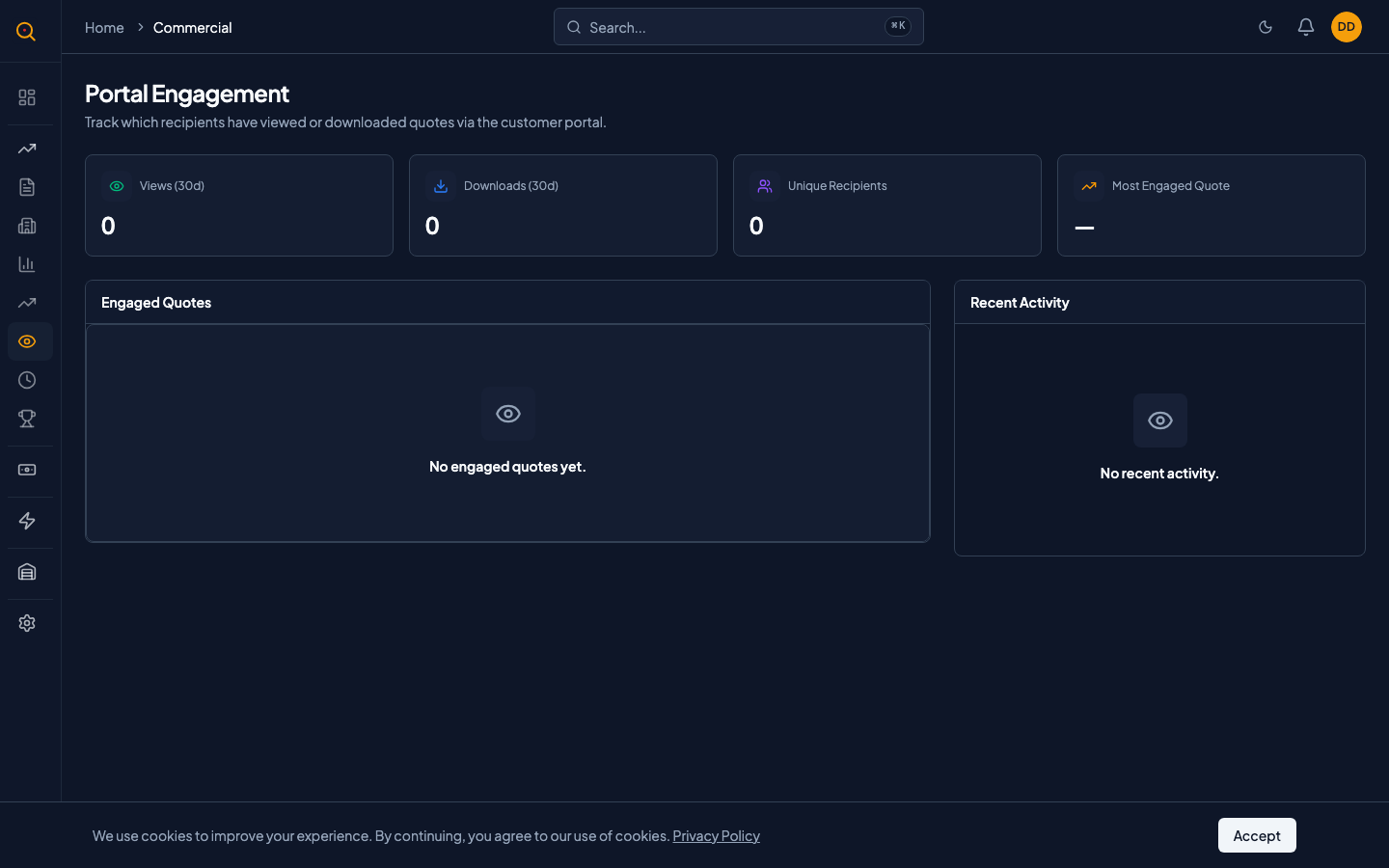
- See a dashboard of portal engagement metrics including total views, downloads, and unique recipients.
- Identify your most-engaged quote at a glance for immediate follow-up prioritization.
- Browse a recent activity timeline showing every portal view and PDF download across all quotes.
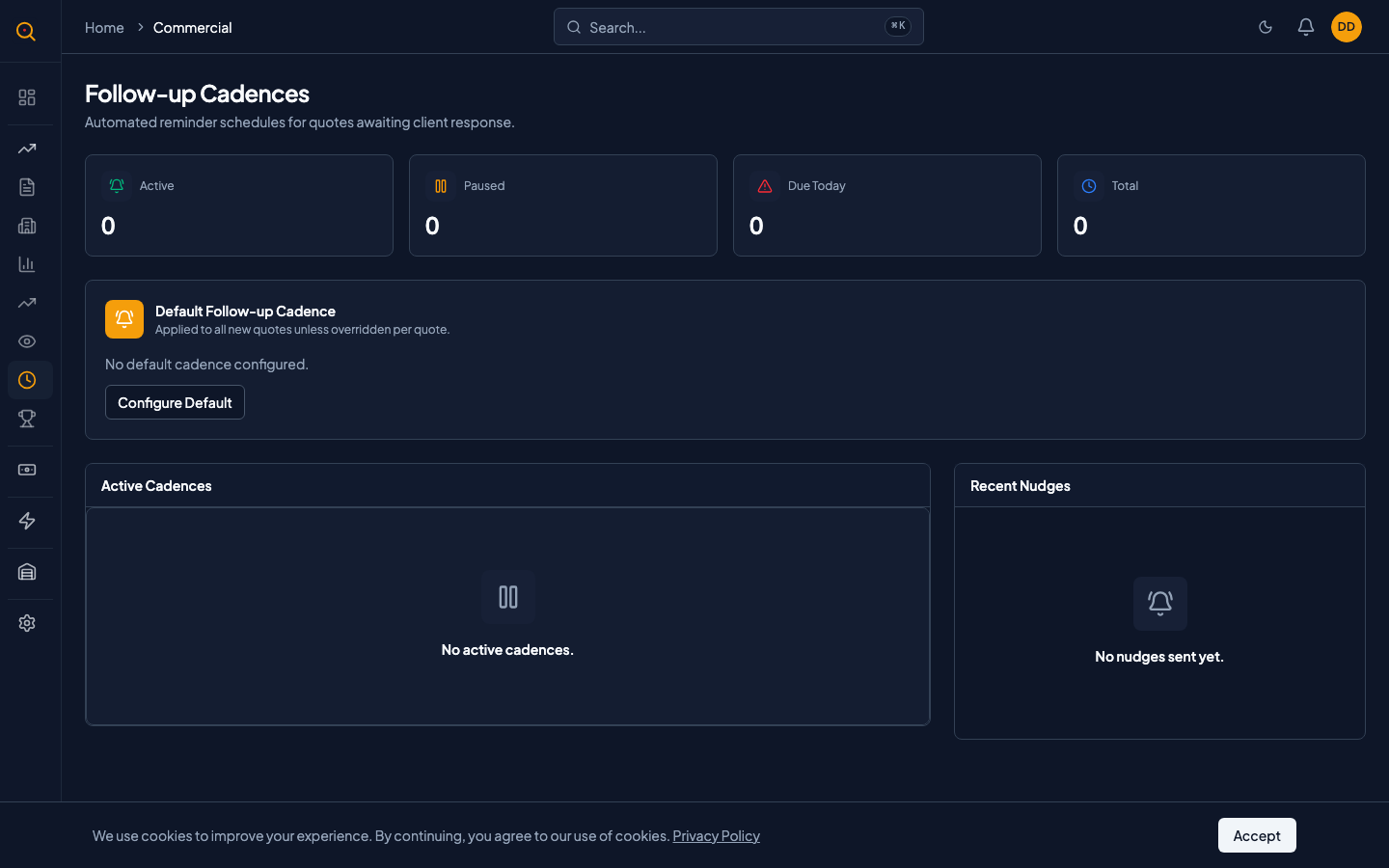
- Configure automatic follow-up cadences that remind sales reps when quotes go unanswered.
- View the status of every active cadence including upcoming reminders and paused schedules.
- Set a default cadence schedule that applies to every new quote or override it per quote.
How to...
Admins and managers can view engagement data and configure cadences. The Engagement page requires a Growth or Enterprise plan. These walkthroughs each take under a minute.
🔑 Admins and managers⏱ Under 1 minute per task
Check how clients are engaging with your quotes
- Navigate to Engagement from the sidebar and click Portal Engagement.
- Review the four metric cards: total views, PDF downloads, unique recipients, and most-viewed quote.
- Scan the per-quote table showing view counts, download counts, and last activity date for each quote.
- Use the recent activity feed to see a timeline of every individual action: who viewed what and when.
- Prioritize follow-ups based on engagement. A quote with five views and a download is a hot lead.
Set up automatic follow-up reminders
- From the Engagement page, click Follow-up Cadences.
- Locate the Default Cadence card and enter day intervals like 3, 7, 14 for reminder timing.
- Click Save. Every new quote you send will now follow this reminder schedule automatically.
- Set a custom cadence on a specific quote by editing its cadence settings to override the default.
Review and manage active cadences
- On the Cadences page, check the summary bar for active, paused, and due-today counts.
- The Active Cadences table lists every quote with a running cadence including client name and next reminder.
- Pause a cadence when a client is in active negotiation and automatic reminders would be disruptive.
- Check the activity log at the bottom to see the history of every reminder sent.
Common scenarios
Following up on a hot lead
- Check the portal engagement dashboard and notice a quote viewed 8 times with 2 PDF downloads.
- Confirm via the activity feed that the recipient viewed it again this morning — a clear buying signal.
- Call the client directly rather than waiting for the cadence reminder to fire.
- Use the engagement data to know exactly when to strike.
Letting cadences handle routine follow-ups
- You configure a default cadence of 3, 7, 14 days for all new quotes.
- When a quote sits unanswered for 3 days, the sales rep gets an in-app notification and email.
- If still no response after 7 days, another nudge fires. After 14 days, a final reminder.
- The cadence automatically pauses when the client accepts or the quote is closed.
- Your reps stay on top of their pipeline without a spreadsheet.