Billing & Plans
What is Billing & Plans?
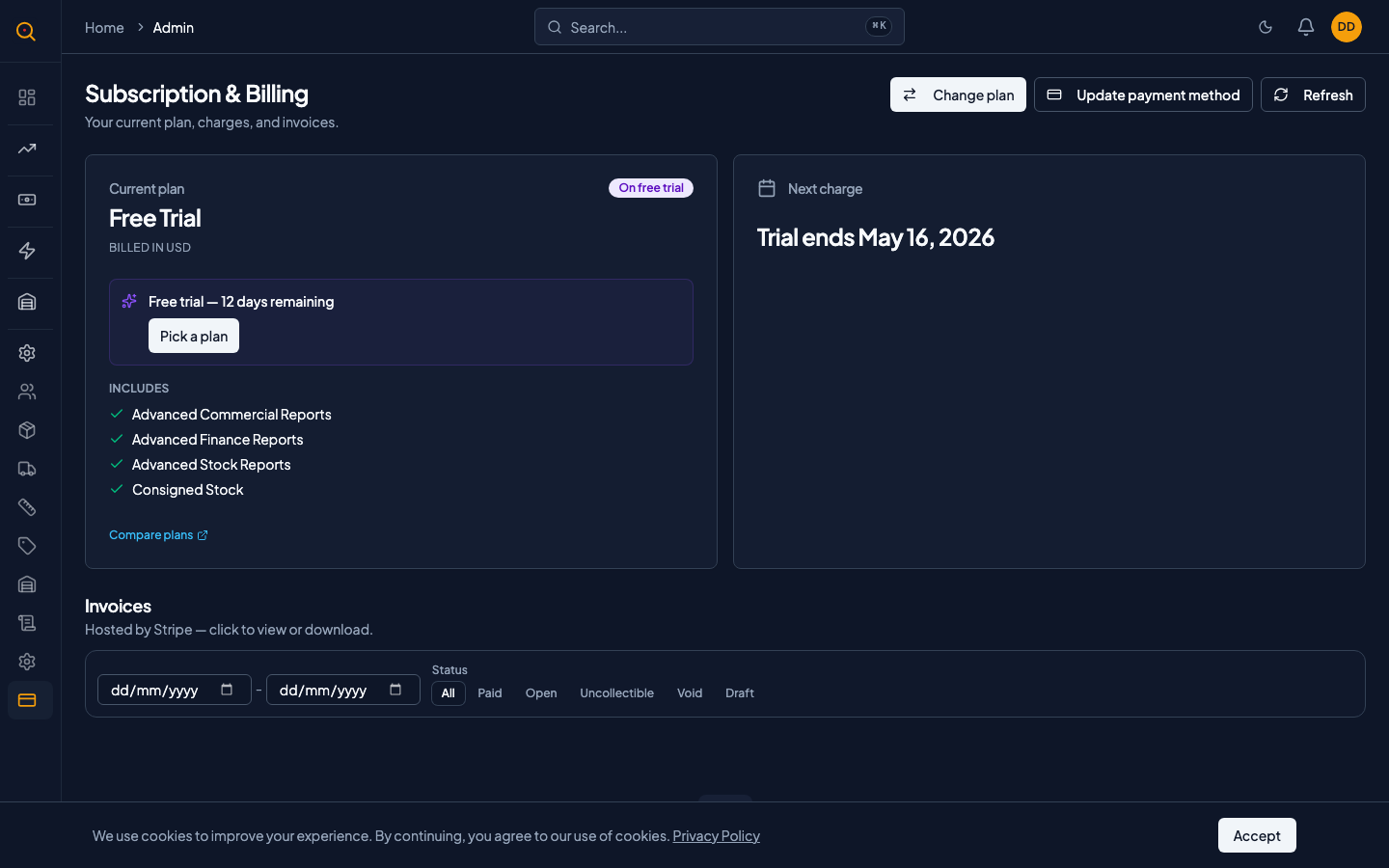
The Billing page is where you manage your Quotery subscription, including your current plan, upcoming charges, invoice history, and plan changes. Everything is self-serve through Stripe's secure payment infrastructure with no sales calls required.
You can view your current plan's capabilities, check when your next payment is due, and browse your complete invoice history with downloadable PDFs. Change your plan, billing interval, or seat count directly from this page. Upgrades take effect immediately while downgrades schedule for your next renewal.
What you can do
- View your current plan, its capabilities, and your subscription status at a glance.
- See when your next charge is and how much it will be.
- Browse your complete invoice history with downloadable PDFs for every charge.
- Change your plan, billing interval, or seat count with immediate upgrades and scheduled downgrades.
- Cancel a scheduled downgrade if you change your mind before it takes effect.
- Update your payment method through Stripe's secure Elements interface without exposing card details.
- Understand what each plan unlocks with the full feature list for Growth and Enterprise.
What each plan includes
Quotery offers two paid plans plus a free trial. Here is what each plan unlocks.
Growth
- Advanced stock reports and consigned stock tracking
- Portal engagement analytics (see who is viewing your quotes)
- Follow-up cadences (automatic reminder schedules)
- Ask AI conversational assistant
- CSV product import
- Payment monitoring dashboard and payment records
Enterprise
- Everything in Growth
- Unlimited team members
- Advanced commercial reports (14 analytical reports, discount sensitivity, churn prediction, and more)
- Insights Studio (custom dashboards with drag-and-drop widgets)
- Finance intelligence reports (revenue forecast, payment behavior, financial health)
- Public API access (REST API and webhooks for integrating with external systems)
- Dedicated support
How to...
Only admins and finance users can access the Billing page and make subscription changes. Other roles cannot access it. These walkthroughs each take under two minutes.
View your plan and upcoming charges
- Navigate to Company Settings from the sidebar, then click the Billing tab.
- At the top, you will see a card showing your current plan name and its main capabilities.
- The Next Charge card shows the amount due on your next renewal date and your billing schedule.
- Scroll down to see your invoice history with invoice numbers, dates, amounts, and PDF download links.
Change your plan or add seats
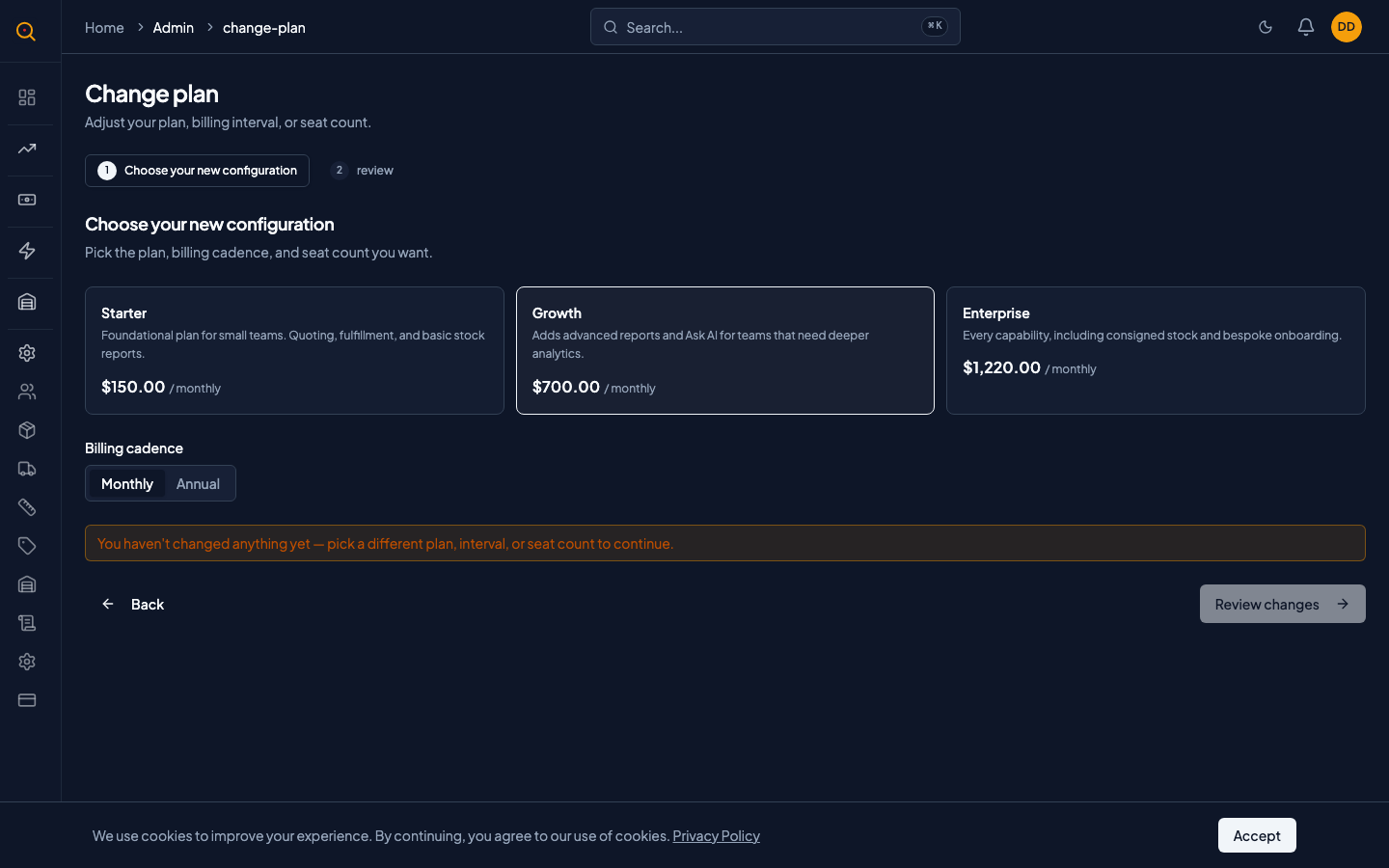
- On the Billing page, click Change plan to open the two-step wizard.
- Step 1: Choose your new configuration by picking a plan, billing interval, and seat count.
- Step 2: Review the change. Upgrades show a prorated amount to pay today and take effect immediately.
- Downgrades show the date the change takes effect at your next renewal. No charge today.
Download past invoices
- Scroll to the Invoices section on the Billing page.
- Each row shows an invoice number, date, amount, and status: paid, open, or past due.
- Click the PDF icon to open the invoice in a new tab for download or printing.
- Use the pagination controls at the bottom to navigate through older invoices.
Common scenarios
Converting from a free trial to a paid plan
- You see the trial countdown on your Billing page and click Pick a plan.
- The wizard opens pre-filled with the plan you selected during signup.
- You review the price, confirm your billing interval, and click Pay now.
- Stripe handles the payment and your subscription status changes to Active within seconds.
- All your trial data is preserved. Nothing is lost during the conversion.
Scaling up for a busy season, then scaling back
- You open the change plan wizard, select Enterprise, set the seat count to 12, and keep annual billing.
- The review step shows the prorated amount for the remaining days in your billing cycle.
- Pay and immediately access all 12 seats and Enterprise features.
- After the busy season, schedule a downgrade back to Growth to take effect at your next renewal.