Audit Logs
What are Audit Logs?
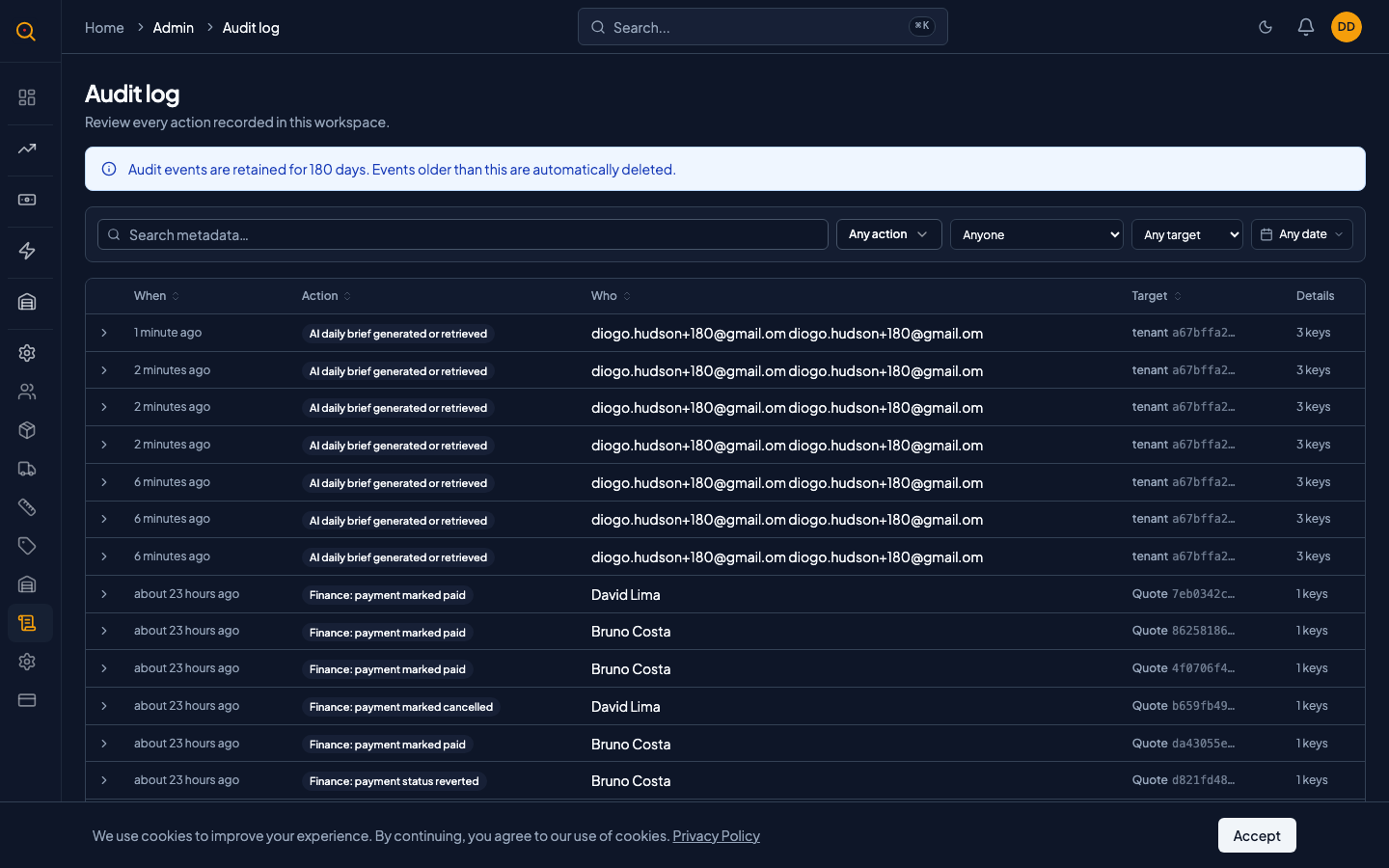
Audit Logs give you a complete, uneditable record of every important action taken in your Quotery account. You can see who did what, when they did it, and the before-and-after details for compliance, troubleshooting, and investigations.
Every time someone changes a quote status, transfers ownership, adjusts inventory, or processes a payment, it is logged with full metadata. This is your safety net for answering the question what happened here. The log is append-only so no one can edit or delete entries.
What you can do
- Browse a searchable timeline of every significant action taken in your company.
- See who performed each action, what they changed, and exactly when it happened.
- Filter by action type including quote changes, payment events, and inventory adjustments.
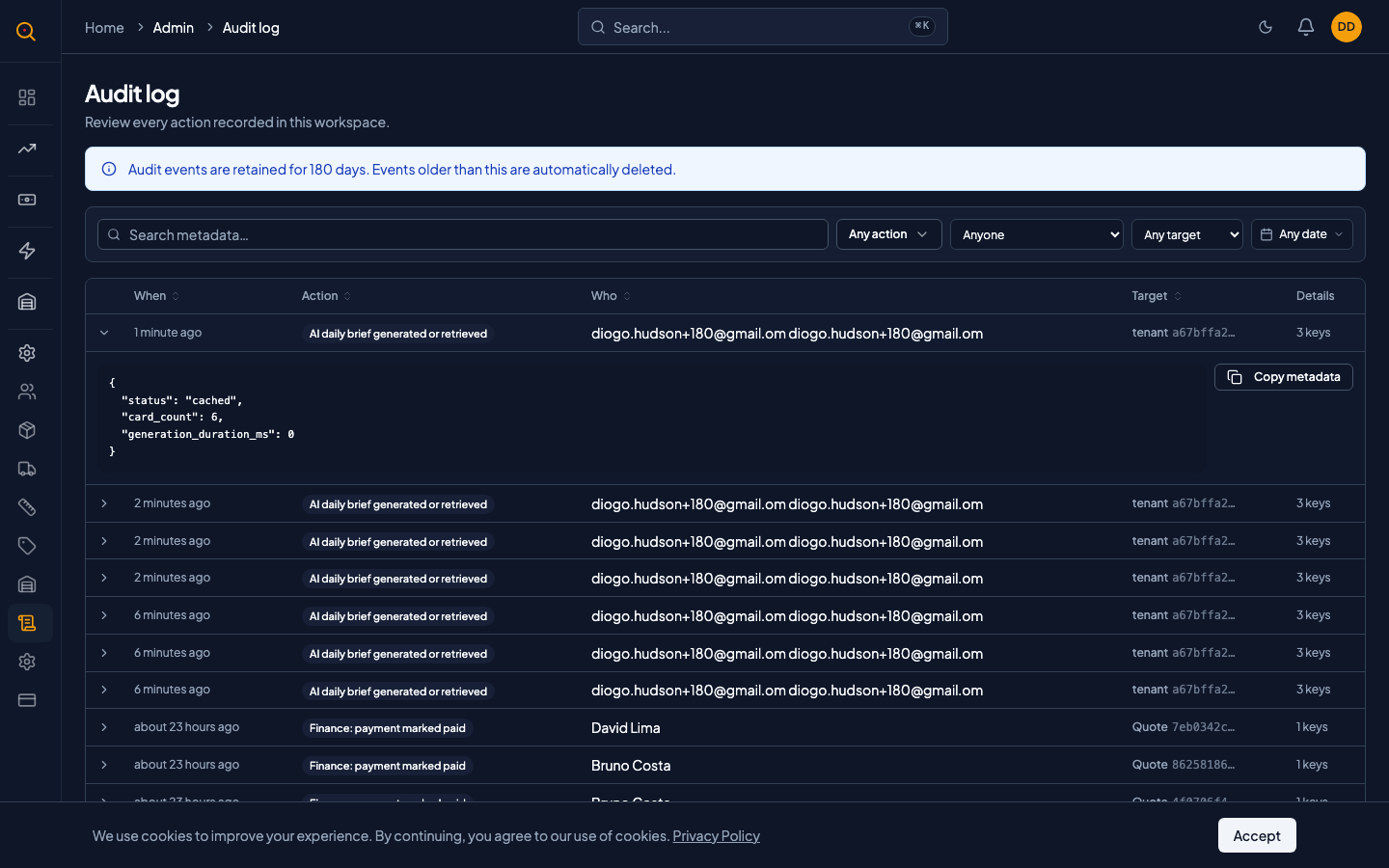
- View detailed metadata for each event with before-and-after values.
- Trace the full history of a quote from draft through delivery to payment.
- Use audit data for compliance reporting or to investigate unexpected account changes.
How to...
Admins and managers can view audit logs. They are under the Admin section of your sidebar. These walkthroughs each take under a minute.
🔑 Admins and managers⏱ Under 1 minute per task
Trace the history of a specific quote
- Navigate to Audit Logs from the Admin sidebar.
- Find events tagged with the quote number you are investigating.
- Click an event to expand its details including who performed the action, the timestamp, and metadata.
- Read the events in chronological order to reconstruct exactly what happened to that quote.
- Use this timeline when a client disputes what was agreed to see the exact history of every change.
Investigate who changed a client or product
- From the Audit Logs page, find events related to the client or product in question.
- Client changes and product edits appear as events with the entity name in the metadata.
- Each event shows the user who made the change and the timestamp.
- The audit log is append-only. What you see is what actually happened.
Review payment and billing history
- Audit Logs capture every billing event: subscription activations, plan changes, and payment outcomes.
- Look for events like billing.subscription.created and billing.payment.succeeded to trace your timeline.
- Each payment event includes the invoice amount and Stripe reference ID.
- Use this to reconcile your Quotery billing with your accounting records.
Common scenarios
Answering who cancelled this quote
- A quote that was close to closing suddenly shows as cancelled.
- Navigate to Audit Logs from the sidebar and find the quote number in the event timeline.
- The timeline shows the quote was sent, viewed by the client, then cancelled by a specific rep.
- The audit entry includes the note client went with competitor. Case closed in thirty seconds.
Preparing for a financial audit
- Navigate to Audit Logs from the sidebar and filter by billing events for the last quarter.
- Review every subscription activation, payment success, plan change, and failed payment.
- Note each event's timestamp and the relevant dollar amounts.
- Use the append-only audit log as a reliable compliance record for your accountant.