Analytics Settings
What are Analytics Settings?
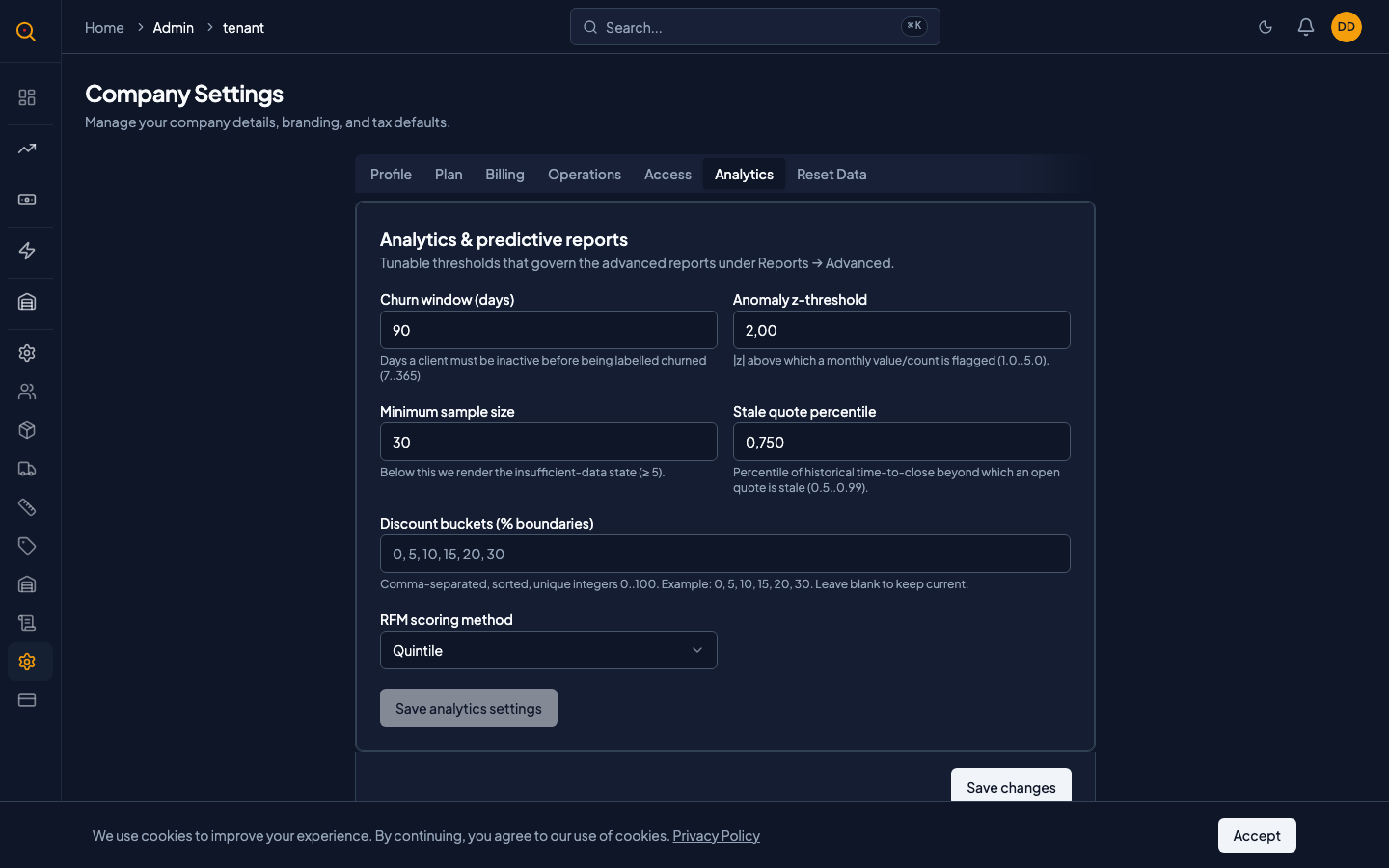
Analytics Settings lets you fine-tune how Quotery's advanced reports and predictive features work for your business. Every setting starts with a sensible default, but tuning these knobs over time makes the reports match your business reality more closely.
These settings control churn detection sensitivity, anomaly detection thresholds, minimum data sample sizes, and inventory optimization parameters. You do not need to touch these on day one. Adjust them as you get to know your numbers and want reports that reflect your actual sales patterns.
What you can do
- Set your churn detection window to control how many days without activity flag a client at risk.
- Adjust anomaly detection sensitivity for spotting unusual changes in client buying patterns.
- Define the minimum data sample size before reports show computed results instead of insufficient data.
- Set the stale quote threshold for how long an open quote must sit before it is flagged.
- Configure discount sensitivity buckets that define how discount levels are grouped for analysis.
- Tune inventory optimization parameters including service level targets, order costs, and lead times.
How to...
Only admins can access and modify Analytics Settings. They are inside Company Settings under the Analytics section. These walkthroughs each take under two minutes.
🔑 Admins only⏱ Under 2 minutes per task
Adjust how churn risk is calculated
- Navigate to Company Settings from the sidebar and scroll to the Analytics section.
- Locate the Churn window field. The default is 90 days without a quote before a client is flagged at risk.
- Lower the window to 45 or 60 days if your sales cycle is short to catch at-risk clients sooner.
- Raise it to 180 days if your cycle is longer to avoid false alarms on enterprise clients.
- Click Save. The Churn Risk report will use your new window the next time you run it.
Configure inventory optimization for your warehouse
- In the Analytics Settings section, find the inventory optimization fields.
- Set your Target service level. The default is 0.95 for 95 percent confidence against stock-outs.
- Enter your Order cost: the fixed cost of placing one purchase order with a supplier.
- Set Holding cost and Carrying cost percentages. The default for both is 25 percent.
- Enter your Default lead time in days for suppliers without their own lead time configured.
- Click Save. Warehouse stock reports will use these values in their calculations.
Customize discount sensitivity analysis
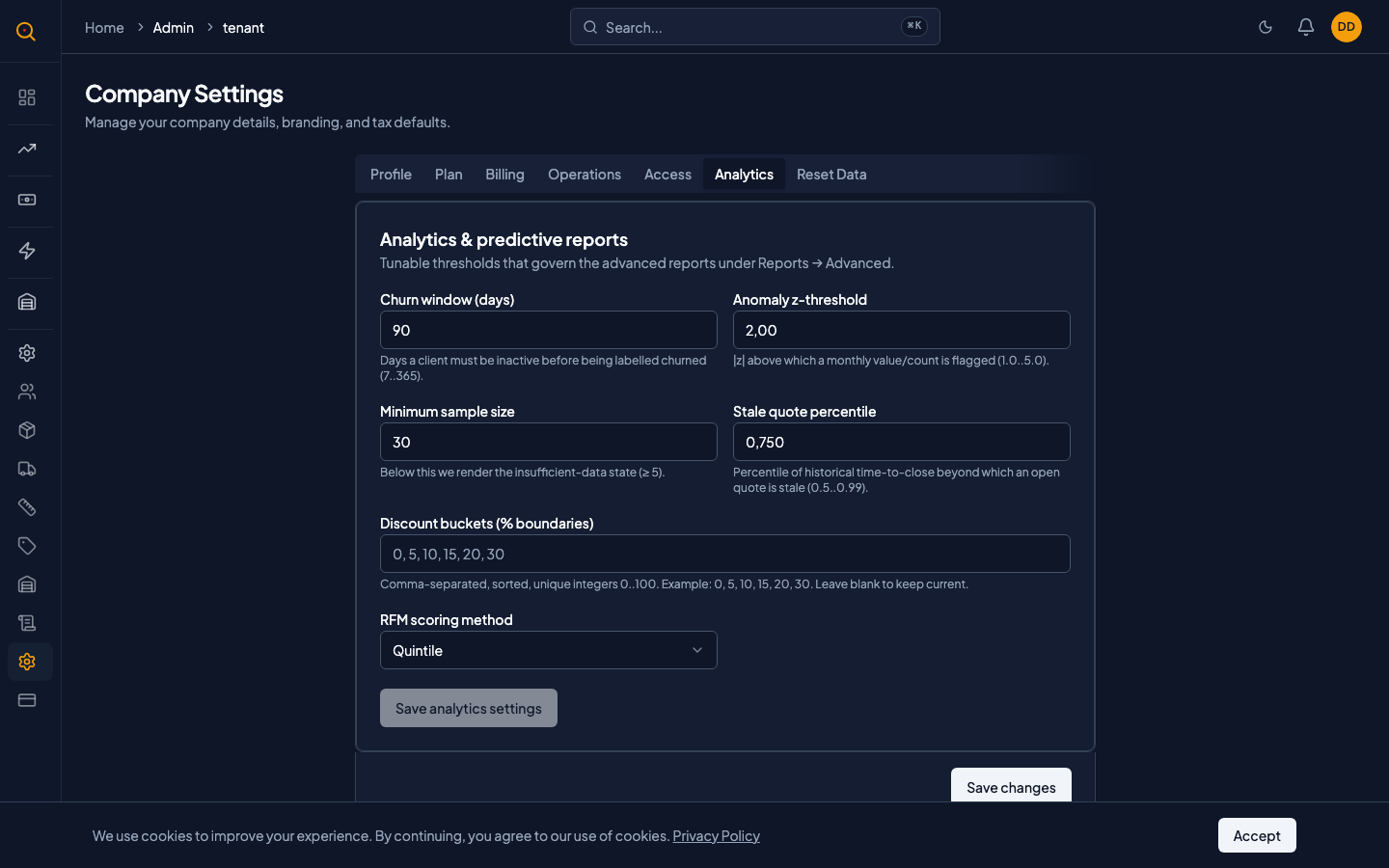
- Locate the Discount buckets field in Analytics Settings.
- The default buckets are 0, 5, 10, 15, 20, 30, showing close rates for each discount range.
- To add finer detail, adjust the bucket values to match where most of your discounts fall.
- Click Save. The Discount Sensitivity report will use your custom buckets.
Common scenarios
Calibrating churn detection for a seasonal business
- Your clients order heavily in spring and fall but go quiet in summer and winter.
- With the default 90-day churn window, half your clients get flagged as at risk every summer.
- Raise the churn window to 180 days so the report only flags clients who skipped two full seasons.
- This produces a much stronger signal. Lower it again when you want a tighter view.
Reducing false anomaly alerts
- The Client Anomalies report keeps flagging a large enterprise client whose orders swing quarterly.
- The default anomaly threshold of 2.00 standard deviations is too sensitive for this pattern.
- Raise the threshold to 3.00 so only truly extreme swings get flagged.
- The enterprise client drops off the anomaly list, leaving only genuinely unusual patterns.