Getting Started with Quotery
What is Quotery?
Quotery is a business management platform that helps you quote, sell, and deliver products. Your sales, warehouse, and client teams all work from the same real-time data.
Quotery is a business management platform that helps you quote, sell, and deliver products. It gives your sales team a fast quoting tool, your warehouse team a real-time inventory view, and your clients a self-serve portal. Everyone works from the same data with no spreadsheets to reconcile or emails lost in inboxes.
About this manual
This Product Manual walks you through every part of Quotery, one module at a time. You don't need to read it cover to cover. Jump to the section that matches what you're trying to do right now.
Each module follows the same structure. First we explain what that part of Quotery does and why it matters to your business. Then we list the key things you can do with it. After that you'll find step-by-step guides for common tasks: creating, editing, and managing records. Finally, we walk through real-world scenarios so you can see how everything fits together.
This manual is written for everyone on your team, regardless of technical background. Sales reps, warehouse staff, managers, and admins will each find sections relevant to their day-to-day work. We keep it plain and practical. No jargon, no assumptions about what you already know.
What problems Quotery solves
- Quoting takes too long when your reps build quotes in spreadsheets that fight them every step of the way.
- Inventory is a guessing game when you do not know what is in stock or whether you can fulfill the quote you just sent.
- Clients cannot see their quotes or track deliveries, so they call or email asking for status updates.
- Teams work in silos where sales, warehouse, and accounting do not share the same real-time information.
- Growth exposes the cracks when manual processes that worked for 50 quotes a month fall apart at 500.
A tour of the sidebar
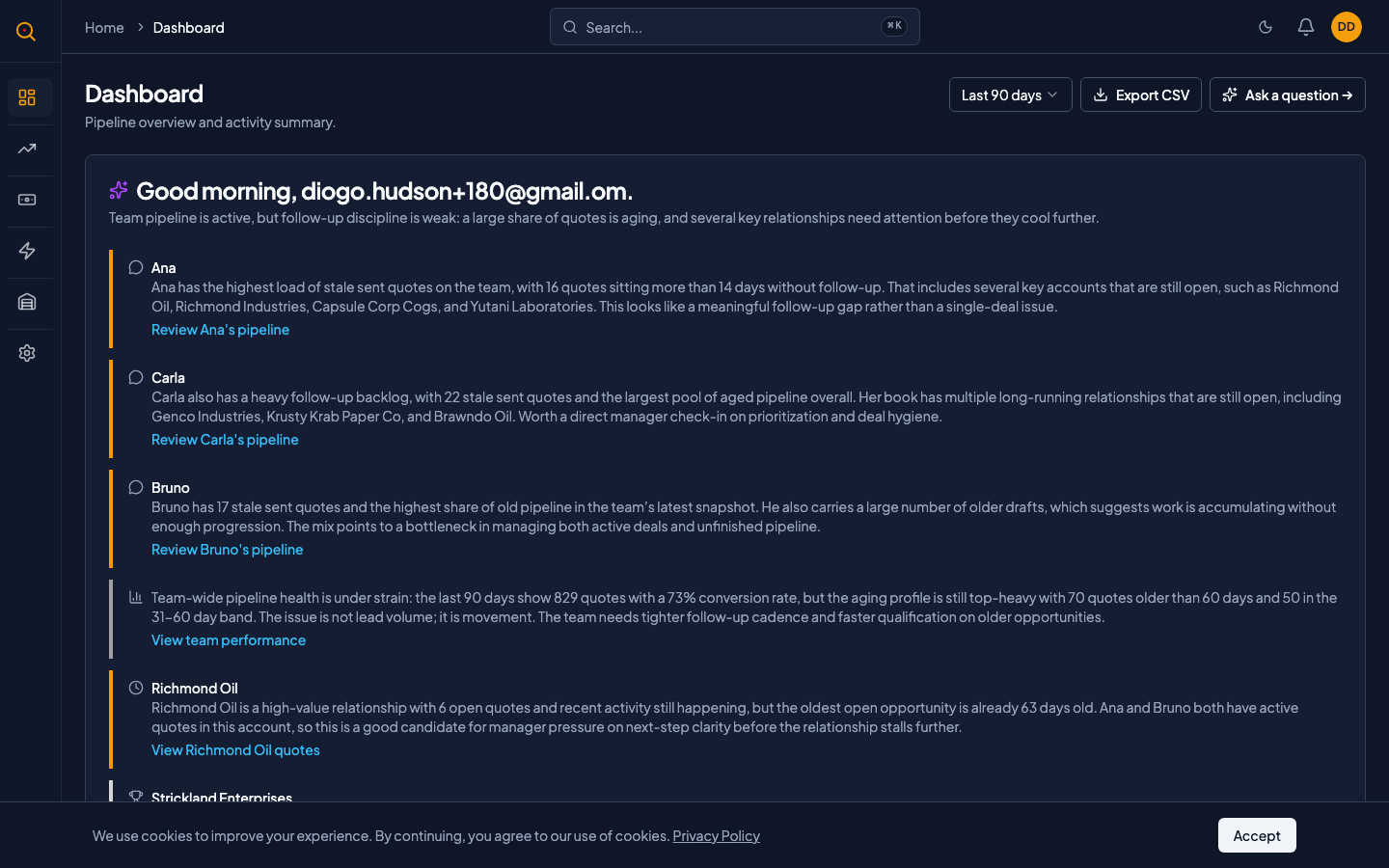
Everything in Quotery lives in the sidebar on the left side of your screen. Once you understand what each section is for, navigating Quotery becomes second nature.
- Dashboard: your home base for recent activity, pending quotes, and key metrics at a glance.
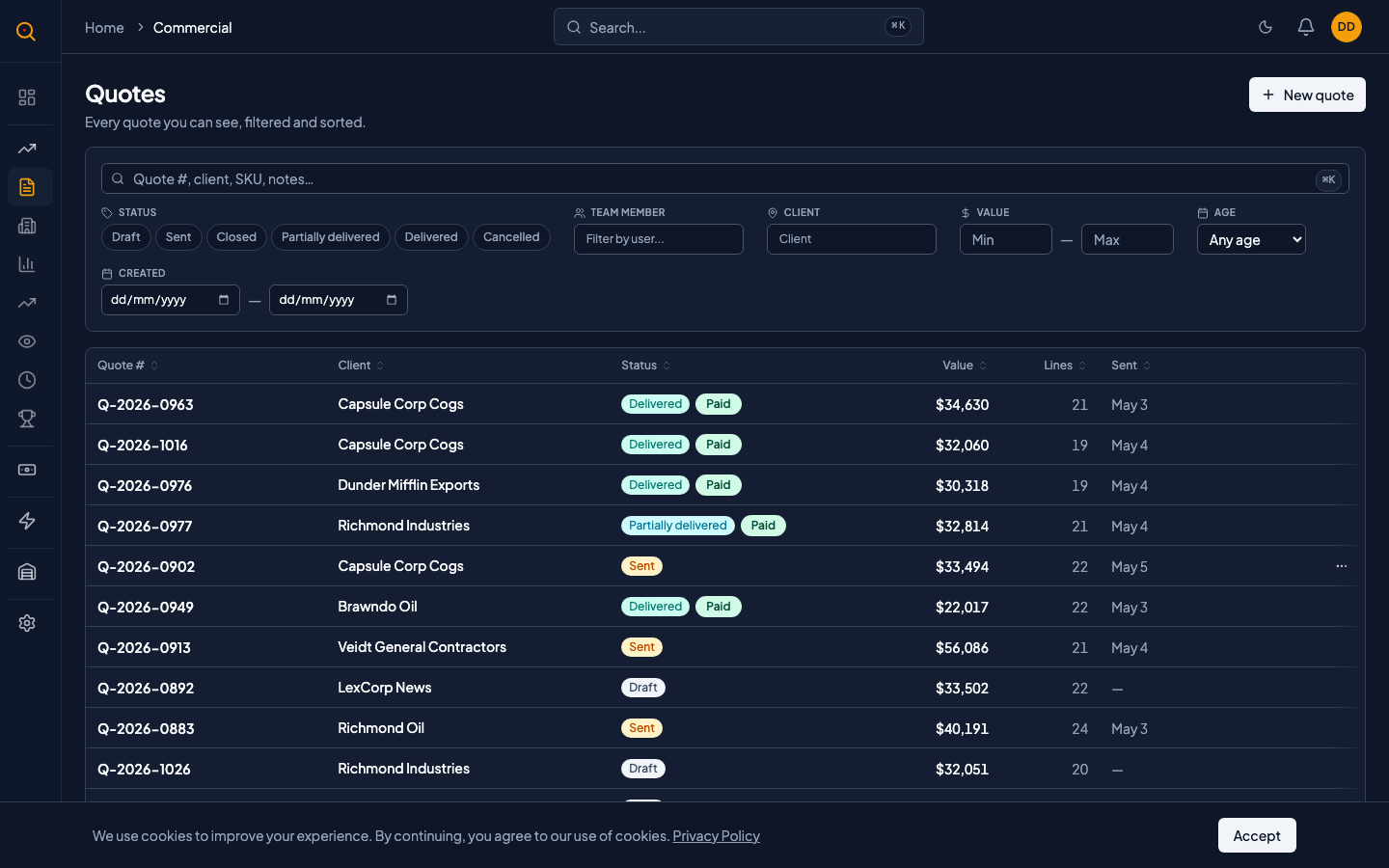
- Quotes: where your sales team builds, sends, and manages quotes.
- Clients: your client directory with delivery addresses and contact details for every company you sell to.
- Products: your catalog of products, pricing, units of measure, and categories.
- Inventory: real-time stock levels across your locations with quantity adjustments and movement tracking.
- Suppliers: your vendor directory of companies you buy from, with contact info and reference numbers.
- Locations: your warehouses and stocking points where you hold inventory.
- Fulfillment: delivery notes, return notes, and stock receipts that move products to and from clients.
- Customer Portal: a secure, self-serve page your clients use to view, accept, or decline quotes and track their deliveries.
- Admin: tenant settings, users, permissions, billing, and configuration for account management.
Who does what?
Quotery uses a role-based permission system so each person on your team sees exactly what they need, and nothing they shouldn't. You don't need to build a permission matrix from scratch. The default roles handle the most common setups out of the box.
- Admin: full access to create and manage everything, configure tenant settings, invite users, and assign roles.
- Manager: oversees products, suppliers, inventory, and fulfillment with read-only access to clients.
- Commercial (Sales): builds quotes and manages clients with the ability to create temporary products that need manager approval.
- Warehouse: manages stock and fulfillment including receiving inventory, marking deliveries, and handling returns.
- Dispatcher: sees delivery notes and routes but has no access to inventory, suppliers, or pricing.
Common workflows at a glance
How a quote becomes a delivery
- Sales rep creates a quote from the catalog, adds line items, and sends it to the client.
- Client reviews and accepts the quote in the customer portal.
- Warehouse picks the stock and creates a delivery note from the accepted quote.
- Delivery goes out and is marked as delivered. Inventory levels update automatically.
- Client tracks the entire process from the customer portal.
How inventory stays accurate
- Warehouse team creates a stock receipt against the supplier when new stock arrives. Inventory goes up.
- Delivery note is marked as delivered. Inventory goes down automatically.
- Client returns items via a return note. Inventory goes back up.
- Every movement is recorded in the stock ledger with who did it and when.